New IPhone 14 Pro Max

My new phone under settings shows it is connected to my home Wi-Fi but still shows LTE in the top right corner. I try to bring up certain apps like Yahoo mail and phone says No internet connection. Friends have been able to sign on to my home internet with no problems.

I had my Internet provider come to check service and found no issues. My Apple tablet has had no issues connecting.

So what the heck is wrong with this new phone, even the Verizon store employees can’t figure it out🤬.

iPhone 14 Pro Max, iOS 16

Posted on Aug 6, 2023 11:06 AM

Reply
Question marked as Top-ranking reply

Posted on Aug 7, 2023 12:06 PM

Hello Lj1975,


It sounds like you have issues connecting your new iPhone to your home Wi-Fi network. In this case, we'd follow these related steps for a solution: If your iPhone or iPad won't connect to a Wi-Fi network


If your iPhone or iPad won't connect to a Wi-Fi network

Get help connecting to Wi-Fi on your iPhone or iPad.

1. Make sure that your router is on and that you're within range

If you're too far from your Wi-Fi router, you can't get a signal, so make sure that you're within range.
 
2. Make sure that Wi-Fi is on and that you can see your network

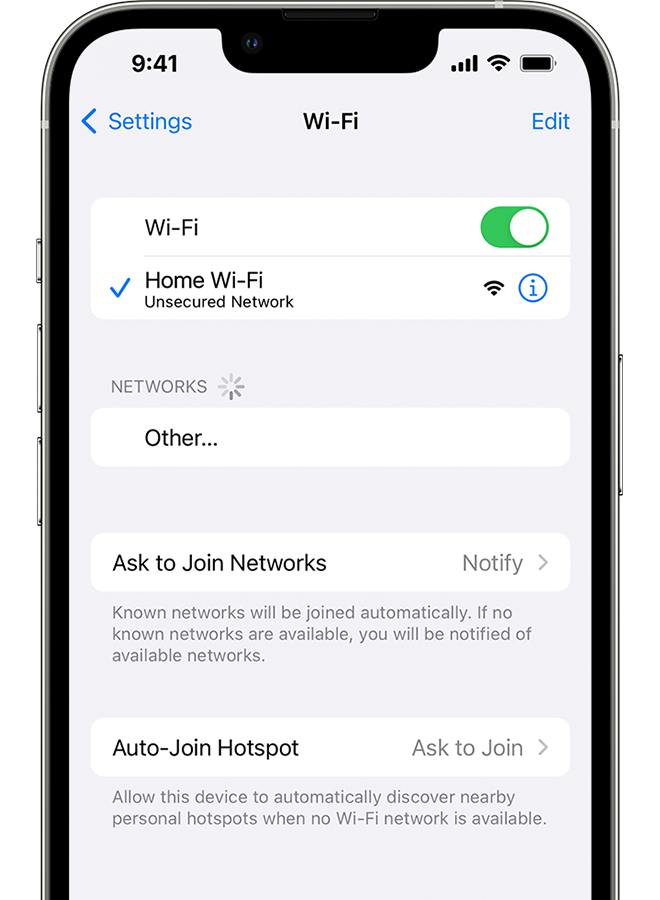
Go to Settings > Wi-Fi and make sure that Wi-Fi is on. Tap the name of your Wi-Fi network to join. A blue checkmark beside a network name means that you're connected.

If you see Auto Join disabled under Settings > Wi-Fi > [Your Network], tap the More Info button and then tap Auto-Join.

An iPhone showing the Wi-Fi screen. There's a blue a checkmark next to the Wi-Fi network's name.

3. If asked, enter your Wi-Fi password

If asked, enter the password for your Wi-Fi network. Get help if you don't know your password.
Even if you enter the correct password, you might see an "unable to join the network" message or an "incorrect password" message. Restart all of your devices, then try to enter your password again.
 
4. Check for issues with your Wi-Fi network

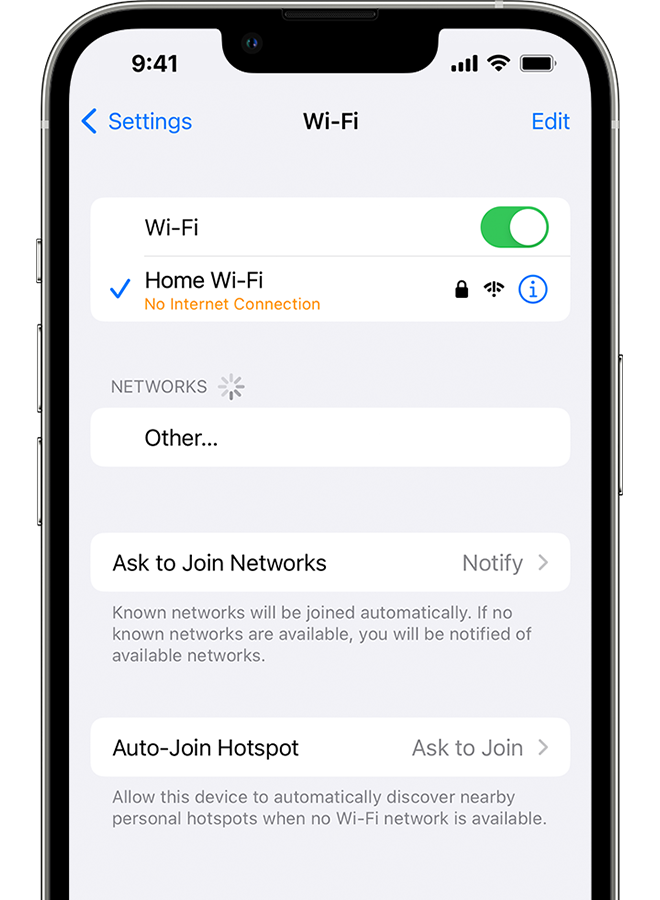
If iOS or iPadOS detects an issue with your Wi-Fi connection, you might see a Wi-Fi recommendation under the name of the Wi-Fi network that you're connected to. For example, you might see the alert "No Internet Connection." To get more information, tap the Wi-Fi network.
 
An iPhone showing the Wi-Fi screen. There's an alert message under the Wi-Fi network's name.

5. Check your cables and connections

If you still can't connect to your network or get online, make sure that your router is connected to the modem and turned on.
 
6. Restart

Restart your iOS or iPadOS device.

Restart your router and cable or DSL modem by unplugging the device and then plugging it back in.

After you restart each device, see if you fixed the issue.
 
7. Reset your network settings

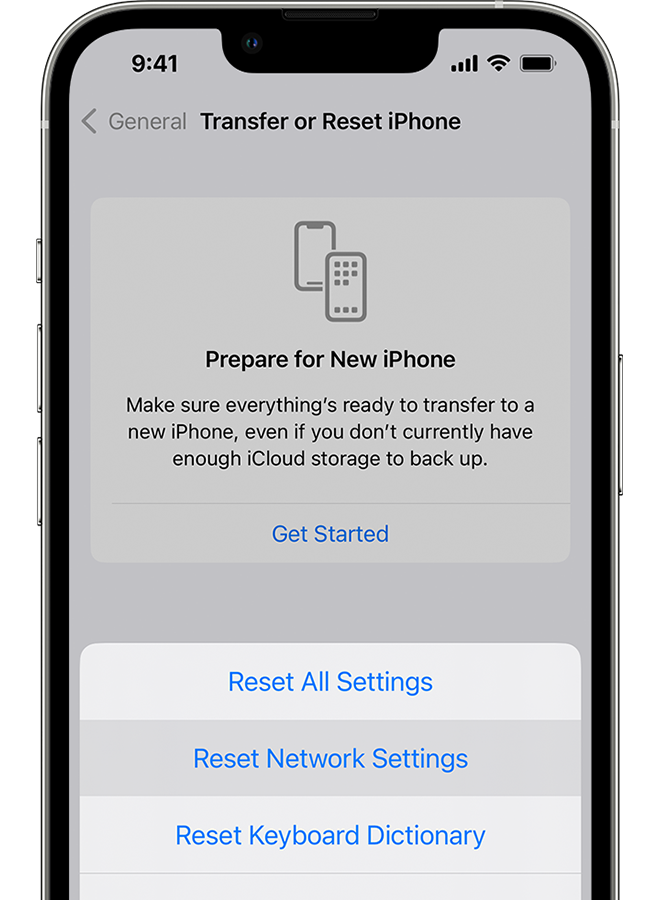
If you're using iOS or iPadOS 15 or later, tap Settings > General > Transfer or Reset [Device] > Reset > Reset Network Settings.

If you're using iOS or iPadOS 14 or earlier, tap Settings > General > Reset > Reset Network Settings.

This also resets Wi-Fi networks and passwords, cellular settings, and VPN and APN settings that you've used before.

An iPhone showing the Transfer or Reset iPhone screen.

Get more help

* If you're connected to a Wi-Fi network but you can’t get online, try to use your Wi-Fi network on other devices. If you can't get online using your other devices, there might be a service outage. Call your cable company or internet provider for help.

* Try connecting to a Wi-Fi network in a different location. If your device can connect, you need to get help with your Wi-Fi network. If your device can't connect to any Wi-Fi networks, contact Apple.

* Update your Wi-Fi router with the latest firmware and make sure that the router supports your Apple product. For more information, contact the router's manufacturer.


If needed, see the following network configuration for Apple devices: Recommended settings for Wi-Fi routers and access points


Should the issue persists, does this only occur with this specific Wi-Fi network? Are you able to isolate the issue further by testing another Wi-Fi network with your iPhone?


Take care.

1 reply
Question marked as Top-ranking reply

Aug 7, 2023 12:06 PM in response to Lj1975

Hello Lj1975,


It sounds like you have issues connecting your new iPhone to your home Wi-Fi network. In this case, we'd follow these related steps for a solution: If your iPhone or iPad won't connect to a Wi-Fi network


If your iPhone or iPad won't connect to a Wi-Fi network

Get help connecting to Wi-Fi on your iPhone or iPad.

1. Make sure that your router is on and that you're within range

If you're too far from your Wi-Fi router, you can't get a signal, so make sure that you're within range.
 
2. Make sure that Wi-Fi is on and that you can see your network

Go to Settings > Wi-Fi and make sure that Wi-Fi is on. Tap the name of your Wi-Fi network to join. A blue checkmark beside a network name means that you're connected.

If you see Auto Join disabled under Settings > Wi-Fi > [Your Network], tap the More Info button and then tap Auto-Join.

An iPhone showing the Wi-Fi screen. There's a blue a checkmark next to the Wi-Fi network's name.

3. If asked, enter your Wi-Fi password

If asked, enter the password for your Wi-Fi network. Get help if you don't know your password.
Even if you enter the correct password, you might see an "unable to join the network" message or an "incorrect password" message. Restart all of your devices, then try to enter your password again.
 
4. Check for issues with your Wi-Fi network

If iOS or iPadOS detects an issue with your Wi-Fi connection, you might see a Wi-Fi recommendation under the name of the Wi-Fi network that you're connected to. For example, you might see the alert "No Internet Connection." To get more information, tap the Wi-Fi network.
 
An iPhone showing the Wi-Fi screen. There's an alert message under the Wi-Fi network's name.

5. Check your cables and connections

If you still can't connect to your network or get online, make sure that your router is connected to the modem and turned on.
 
6. Restart

Restart your iOS or iPadOS device.

Restart your router and cable or DSL modem by unplugging the device and then plugging it back in.

After you restart each device, see if you fixed the issue.
 
7. Reset your network settings

If you're using iOS or iPadOS 15 or later, tap Settings > General > Transfer or Reset [Device] > Reset > Reset Network Settings.

If you're using iOS or iPadOS 14 or earlier, tap Settings > General > Reset > Reset Network Settings.

This also resets Wi-Fi networks and passwords, cellular settings, and VPN and APN settings that you've used before.

An iPhone showing the Transfer or Reset iPhone screen.

Get more help

* If you're connected to a Wi-Fi network but you can’t get online, try to use your Wi-Fi network on other devices. If you can't get online using your other devices, there might be a service outage. Call your cable company or internet provider for help.

* Try connecting to a Wi-Fi network in a different location. If your device can connect, you need to get help with your Wi-Fi network. If your device can't connect to any Wi-Fi networks, contact Apple.

* Update your Wi-Fi router with the latest firmware and make sure that the router supports your Apple product. For more information, contact the router's manufacturer.


If needed, see the following network configuration for Apple devices: Recommended settings for Wi-Fi routers and access points


Should the issue persists, does this only occur with this specific Wi-Fi network? Are you able to isolate the issue further by testing another Wi-Fi network with your iPhone?


Take care.

This thread has been closed by the system or the community team. You may vote for any posts you find helpful, or search the Community for additional answers.

New IPhone 14 Pro Max

Welcome to Apple Support Community
A forum where Apple customers help each other with their products. Get started with your Apple Account.