Unable to change macOS user’s login picture

Hi,


I'm running Venture v13.4.1 on a new MacBook.

I am unable to change my user’s login picture. When I click on the existing user picture, nothing happens. A know that a pop-up is supposed to appear, but it doesn't work.


Any ideas?


Thank you.

Regards,


Michele

Posted on Aug 7, 2023 3:16 AM

Reply
Question marked as Top-ranking reply

Posted on Aug 7, 2023 4:47 AM

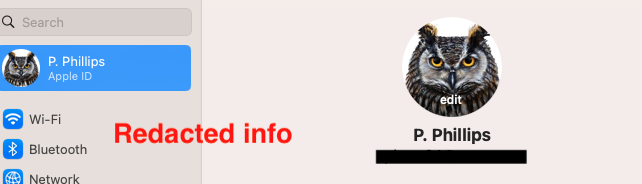
Open System Settings. Click on your Apple ID at the top left of the settings panel. Then hover the cursor over the larger icon on the right until you see the word edit. Then click.

Similar questions

23 replies

Aug 7, 2023 4:53 AM in response to micheleol

Interesting and a couple of things


1 - Restart in Safe Mode. This will perform a Disk Repair, clear cache files and only load Apple Software, extensions and fonts. The boot up will be slow and can take some time - Normal.


2 - Safe Mode will also eliminate Third Party Software, extensions and drivers from loading. It will only load the Minimum amount of Core Apple Processes to allow the the computer to function at a reduced Level of Performance 


3 - Does the issue present in this mode ?


4 - " I'm running Venture v13.4.1 on a new MacBook. " About the security content of macOS Ventura 13.5 - Apple Support (CA)


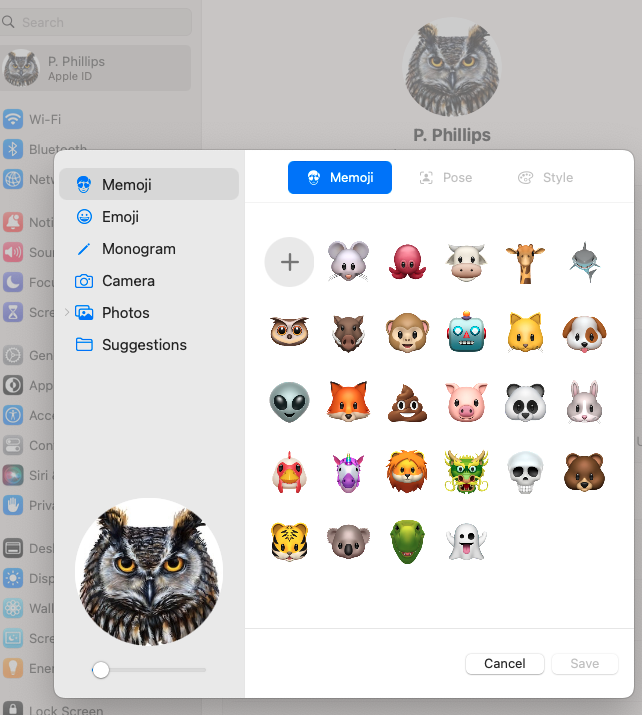
5 - In the System Setting at the very Top Menu in Sidebar >> Click your present user Profile Picture


In my case the Owl image and Mouse Over the Owl


Notice the " edit " ?


Click on it


A Secondary Pop Up is presented


Choose the Avatar you what


Nov 14, 2024 11:09 AM in response to micheleol

Try this: goot into Safe Mode according to How to use safe mode on your Mac open Contacts and go to your admin contact. Change the photo for your contact card. Then reboot normally and see if that helps.


Note:  if you have a wireless keyboard with rechargeable batteries connect it with its charging cable before booting into Safe Mode.  This makes it act as a wired keyboard as will assure a successful boot into Safe Mode.


Aug 7, 2023 6:35 AM in response to micheleol

Go into https://appleid.apple.com/ and Mange your account and change you Apple ID! to change your picture it needs to be small enough to fit! Then open you Picture folder /Hard driveID/Users/Your UserName/Pictures folder put the small picture in there! Then in your ID section of Main Settings settings click on 'Edit' pop-up and select Picture in right hand column to select you small picture you saved!

Nov 13, 2024 1:38 PM in response to micheleol

This may be relevant to your problem where the icon you need to edit is not displaying.


1) First, open your settings

2) Go to Users & Groups

3) Select the User's icon on the left you want to change. Probably already selected under "Current User"

4) Once selected, you will notice a grey space in front of your name in the dialogue box. Move your cursor to the left of your name in the center of the dialogue box and the "Edit" option magically appears. (See attached photos.)

5) Click the semi visible "Edit" button and select the icon you want.


.

This thread has been closed by the system or the community team. You may vote for any posts you find helpful, or search the Community for additional answers.

Unable to change macOS user’s login picture

Welcome to Apple Support Community
A forum where Apple customers help each other with their products. Get started with your Apple Account.