Can I back up my phone to earlier today even though there was a back up after that when I restarted my phone

I backed up my phone today at approximately 1:20 pm before I left it at a store to get fixed. When I returned to the store they had already set up my phone without my iCloud. I plugged in my iCloud but I don’t think I backed it up from 1pm I think it asked to back up at the current time which was 5pm . Is there any way I can go back to the 1pm

iPhone 14 Pro, iOS 16

Posted on Aug 16, 2023 9:51 PM

Reply
Question marked as Top-ranking reply

Posted on Aug 17, 2023 4:56 PM

Hello gaby4199,


Thank you for reaching out in Apple Support Communities. You can restore your iPhone to factory settings and during the set up screen, you'll be able to select the backup that was created around 1pm as you've stated. Here are the steps on how to complete this process:


Restore your device from an iCloud backup

1. Turn on your device. You should see a Hello screen. If you already set up your device, you need to erase all of its content before you can use these steps to restore from your backup.

2. Follow the onscreen setup steps until you reach the Apps & Data screen, then tap Restore from iCloud Backup. 
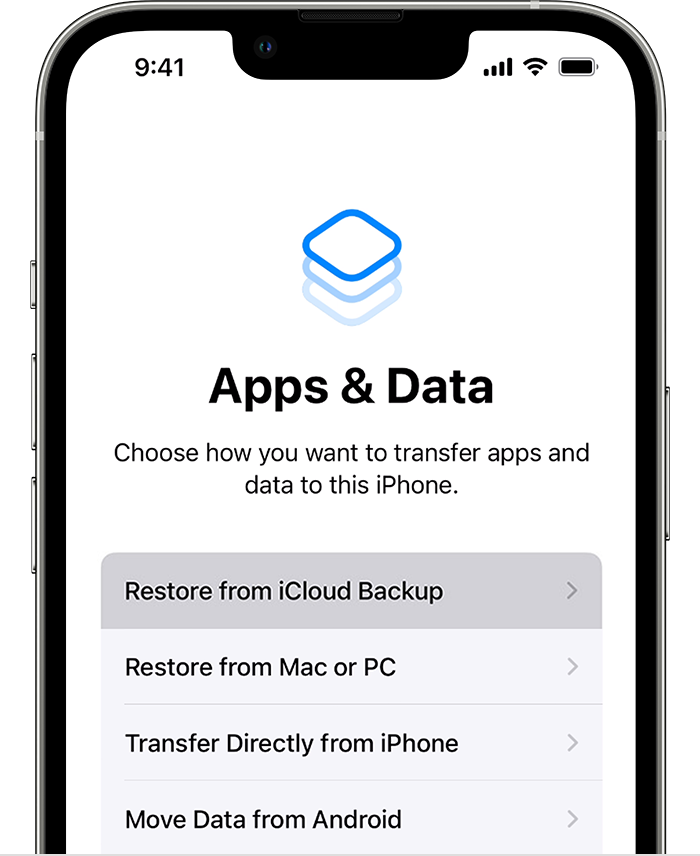
An iPhone showing the Apps & Data screen with the first option, Restore from an iCloud Backup, selected.
3. Sign in to iCloud with your Apple ID.

4. Choose a backup. Look at the date and size of each and pick the most relevant. After you choose a backup, the transfer starts. If a message says that a newer version of software is required, follow the onscreen steps to update. If you don't see onscreen steps to help you update, learn what to do.

5. When asked, sign in with your Apple ID to restore your apps and purchases. If you've purchased iTunes or App Store content using multiple Apple IDs, you'll be asked to sign in to each. If you can't remember your password, you can tap Skip this Step and sign in later. You won't be able to use the apps until you sign in with your Apple ID.

6. Stay connected to Wi-Fi and wait for a progress bar to appear and complete. Depending on the size of the backup and the network speed, the progress bar might need a few minutes to an hour to complete. If you disconnect from Wi-Fi too soon, the progress will pause until you reconnect.
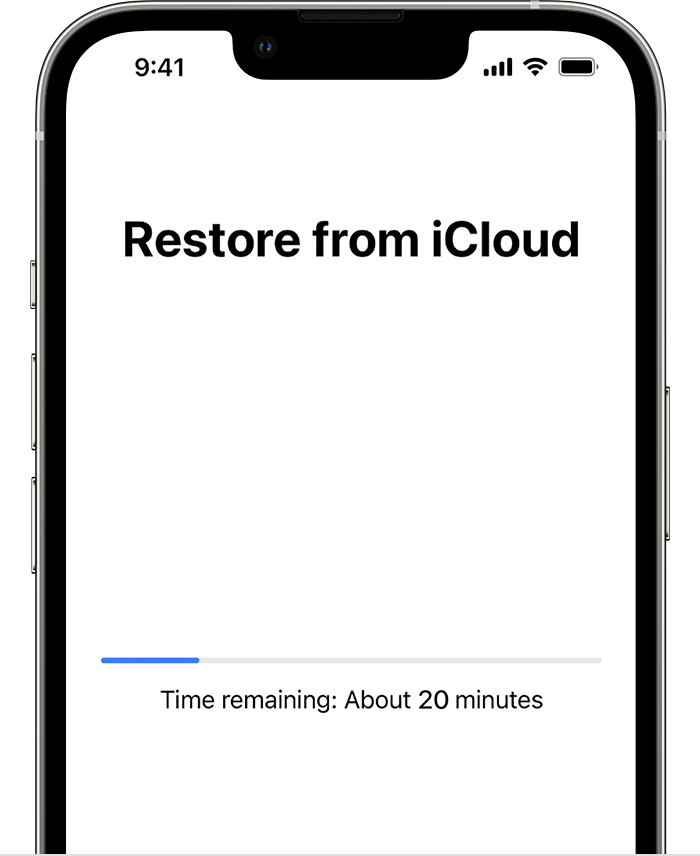
An iPhone showing the Restore from iCloud screen with a progress bar. It says the time remaining is about 20 minutes.

7. Now you can finish setup and enjoy your device. Content like your apps, photos, music, and other information will continue to restore in the background for the next several hours or days, depending on the amount of information there is. Try to connect often to Wi-Fi and power to let the process complete.

Get help with restoring from your iCloud backup.

Following these steps can help and is outlined in this article: Restore your iPhone, iPad, or iPod touch from a backup - Apple Support


Kind regards.

1 reply
Question marked as Top-ranking reply

Aug 17, 2023 4:56 PM in response to gaby4199

Hello gaby4199,


Thank you for reaching out in Apple Support Communities. You can restore your iPhone to factory settings and during the set up screen, you'll be able to select the backup that was created around 1pm as you've stated. Here are the steps on how to complete this process:


Restore your device from an iCloud backup

1. Turn on your device. You should see a Hello screen. If you already set up your device, you need to erase all of its content before you can use these steps to restore from your backup.

2. Follow the onscreen setup steps until you reach the Apps & Data screen, then tap Restore from iCloud Backup. 

An iPhone showing the Apps & Data screen with the first option, Restore from an iCloud Backup, selected.
3. Sign in to iCloud with your Apple ID.

4. Choose a backup. Look at the date and size of each and pick the most relevant. After you choose a backup, the transfer starts. If a message says that a newer version of software is required, follow the onscreen steps to update. If you don't see onscreen steps to help you update, learn what to do.

5. When asked, sign in with your Apple ID to restore your apps and purchases. If you've purchased iTunes or App Store content using multiple Apple IDs, you'll be asked to sign in to each. If you can't remember your password, you can tap Skip this Step and sign in later. You won't be able to use the apps until you sign in with your Apple ID.

6. Stay connected to Wi-Fi and wait for a progress bar to appear and complete. Depending on the size of the backup and the network speed, the progress bar might need a few minutes to an hour to complete. If you disconnect from Wi-Fi too soon, the progress will pause until you reconnect.

An iPhone showing the Restore from iCloud screen with a progress bar. It says the time remaining is about 20 minutes.

7. Now you can finish setup and enjoy your device. Content like your apps, photos, music, and other information will continue to restore in the background for the next several hours or days, depending on the amount of information there is. Try to connect often to Wi-Fi and power to let the process complete.

Get help with restoring from your iCloud backup.

Following these steps can help and is outlined in this article: Restore your iPhone, iPad, or iPod touch from a backup - Apple Support


Kind regards.

This thread has been closed by the system or the community team. You may vote for any posts you find helpful, or search the Community for additional answers.

Can I back up my phone to earlier today even though there was a back up after that when I restarted my phone

Welcome to Apple Support Community
A forum where Apple customers help each other with their products. Get started with your Apple Account.