If your Notes can seemingly disappeared from your iPad, begin by intentionally disabling iCloud Notes:
Settings > [Your Name / AppleID] > iCloud > [Apps Using iCloud] Show All > Notes > Sync this iPad - set to OFF
Close the settings App - and then perform a forced-restart of your iPad:
Force restart iPad (models with Face ID or with Touch ID in the top button)
If your iPad doesn’t have the Home button, do the following:
- Press and quickly release the volume button nearest to the top button.
- Press and quickly release the volume button farthest from the top button.
- Press and hold the top button.
- When the Apple logo appears, release the top button.
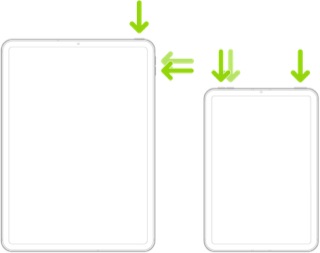
Force restart iPad (models with the Home button)
Press and hold the top button and the Home button at the same time. When the Apple logo appears, release both buttons.

After your iPad restarts, re-enable iCloud Notes:
Settings > [Your Name / AppleID] > iCloud > [Apps Using iCloud] Show All > Notes > Sync this iPad - set to ON
Your Notes, stored in iCloud, should now be synchronised with your iPad. Depending upon how many Notes need to be copied, this may take a little time - as the re-sync is a background process.

