Firmware corrupt
Firmware corrupt error when trying to restore
Firmware corrupt error when trying to restore
Hello MM1225,
If you're receiving a message that your firmware has been corrupted on an iPhone or iPod touch, use these steps to try to resolve it: If you can't update or restore your iPhone or iPod touch
If you can't update or restore your iPhone or iPod touch
You can put your iOS device in recovery mode, then restore it using your computer.
You may need to use recovery mode to restore your device in the following situations:
* Your computer doesn't recognise your device or says it's in recovery mode.
* If your screen is stuck on the Apple logo for several minutes with no progress bar.
* You see the recovery mode screen.
Find out what to do if you see the progress bar on your screen for several minutes.
Put your device in recovery mode and set it up again
1. Make sure your Mac is up to date. If you're using iTunes, make sure you have the latest version of iTunes.
2. Connect your device to your computer with a USB cable.
3. On a Mac with macOS Catalina or later, open the Finder. On a Mac with macOS Mojave or earlier, or on a PC, open iTunes. If iTunes is already open, close it, then open it again. Find out which macOS your Mac is using.
4. Keep your device connected and wait until the recovery mode screen appears:
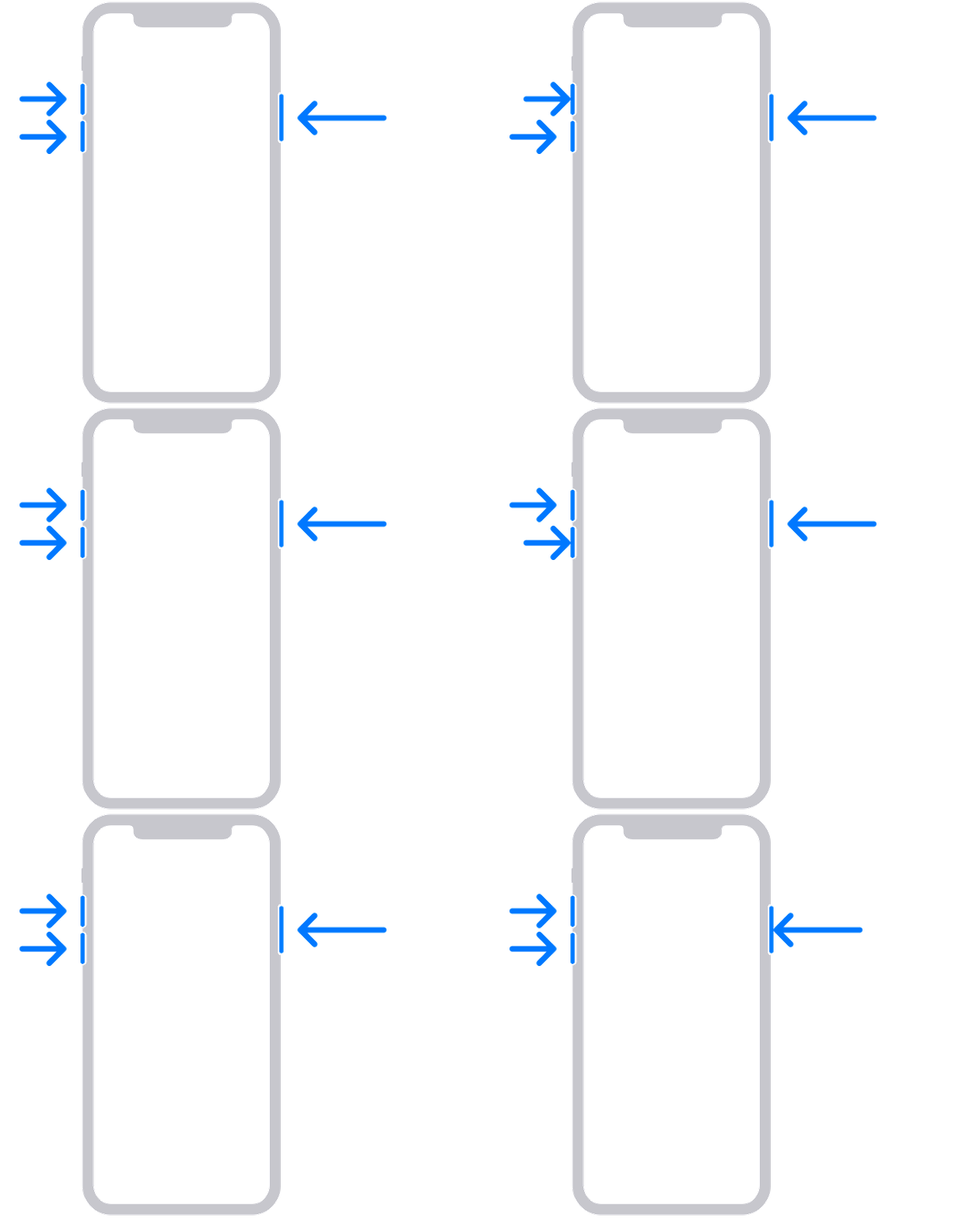
* iPhone 8 or later, including iPhone SE (2nd generation): press and quickly release the volume up button. Press and quickly release the volume down button. Then press and hold the side button until you see the recovery mode screen.
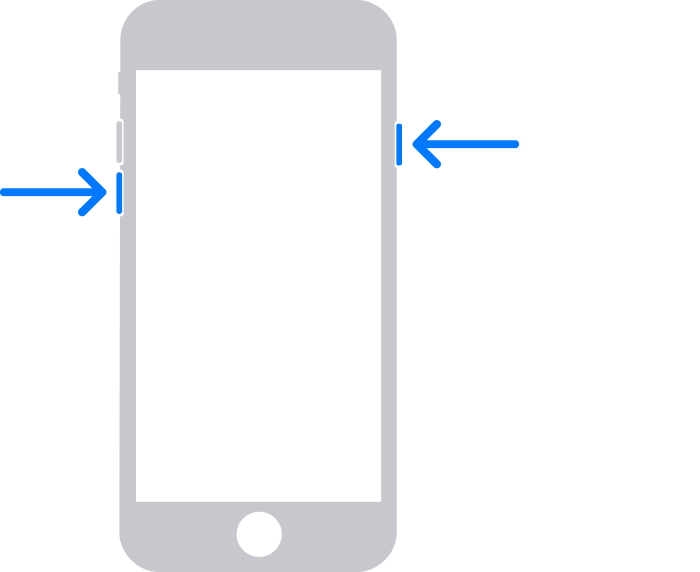
* iPhone 7, iPhone 7 Plus and iPod touch (7th generation): press and hold the top (or side) and volume down buttons at the same time. Keep holding them until you see the recovery mode screen.
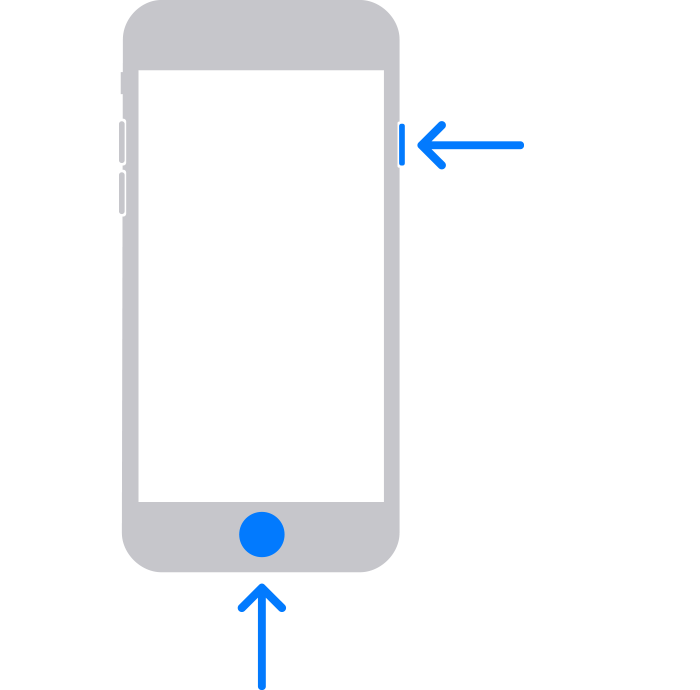
* iPhone 6s or earlier, including iPhone SE (1st generation), and iPod touch (6th generation) or earlier: press and hold both the Home and the top (or side) buttons at the same time. Keep holding them until you see the recovery mode screen.
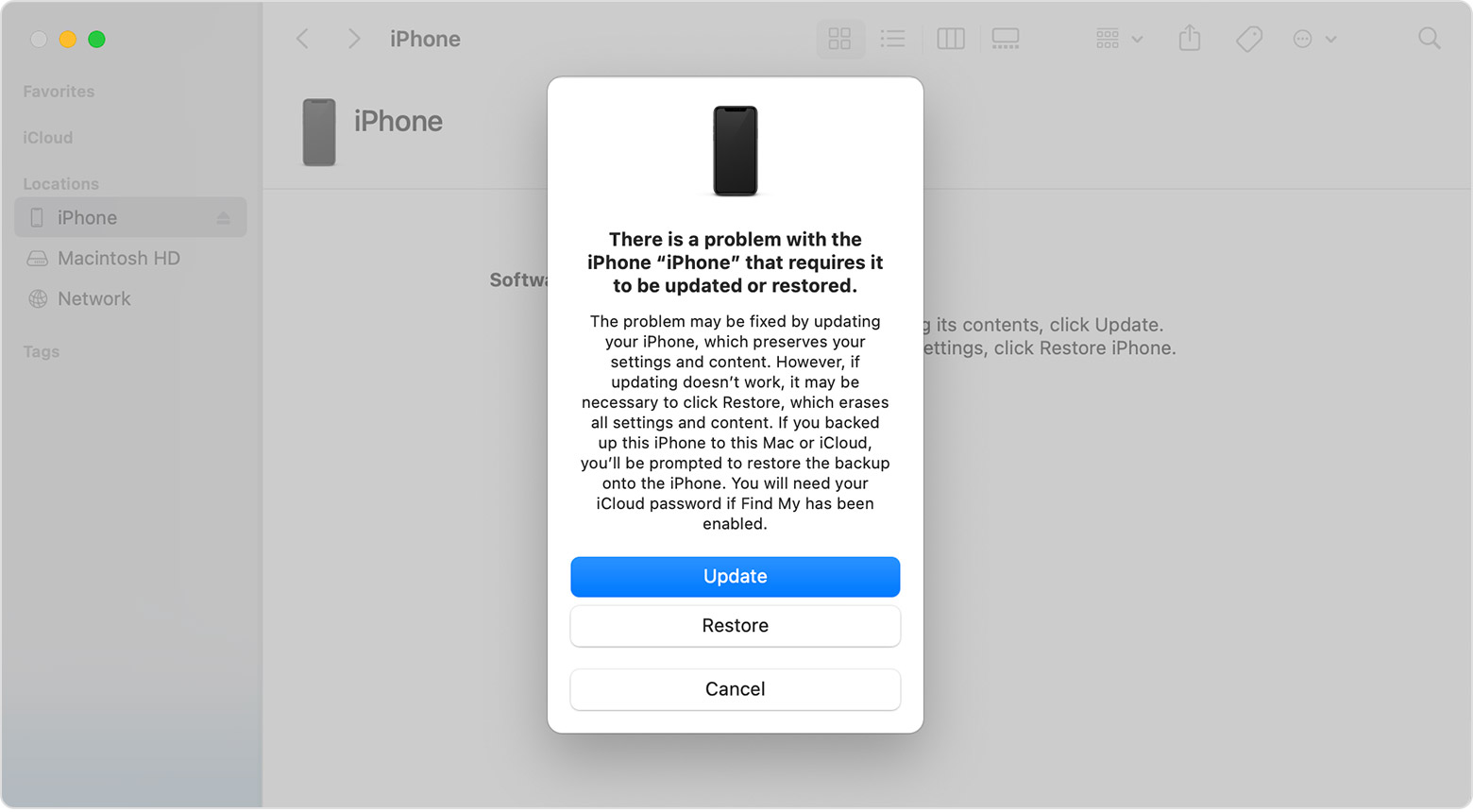
5. Locate your device on your computer. When you see the option to Update or Restore, choose Update. Wait for your computer to download the software for your device. If the download takes more than 15 minutes and your device exits the recovery mode screen, let the download finish, then repeat step 3.
6. After the Update or Restore process has finished, set up your device.
Get more help
* If you see an error when you update or restore your iPhone or iPod, find out what to do.
* If you can’t update or restore your device with recovery mode, you can't use recovery mode because of broken buttons or your device is stuck in Activation Lock, contact Apple Support.
Also see related steps for the iPad here: If you can't update or restore your iPad
If you continue to have issues, then it may be best to contact Apple Support: Get Support They would need to take it from here.
Take care.
Hello MM1225,
If you're receiving a message that your firmware has been corrupted on an iPhone or iPod touch, use these steps to try to resolve it: If you can't update or restore your iPhone or iPod touch
If you can't update or restore your iPhone or iPod touch
You can put your iOS device in recovery mode, then restore it using your computer.
You may need to use recovery mode to restore your device in the following situations:
* Your computer doesn't recognise your device or says it's in recovery mode.
* If your screen is stuck on the Apple logo for several minutes with no progress bar.
* You see the recovery mode screen.
Find out what to do if you see the progress bar on your screen for several minutes.
Put your device in recovery mode and set it up again
1. Make sure your Mac is up to date. If you're using iTunes, make sure you have the latest version of iTunes.
2. Connect your device to your computer with a USB cable.
3. On a Mac with macOS Catalina or later, open the Finder. On a Mac with macOS Mojave or earlier, or on a PC, open iTunes. If iTunes is already open, close it, then open it again. Find out which macOS your Mac is using.
4. Keep your device connected and wait until the recovery mode screen appears:
* iPhone 8 or later, including iPhone SE (2nd generation): press and quickly release the volume up button. Press and quickly release the volume down button. Then press and hold the side button until you see the recovery mode screen.
* iPhone 7, iPhone 7 Plus and iPod touch (7th generation): press and hold the top (or side) and volume down buttons at the same time. Keep holding them until you see the recovery mode screen.
* iPhone 6s or earlier, including iPhone SE (1st generation), and iPod touch (6th generation) or earlier: press and hold both the Home and the top (or side) buttons at the same time. Keep holding them until you see the recovery mode screen.
5. Locate your device on your computer. When you see the option to Update or Restore, choose Update. Wait for your computer to download the software for your device. If the download takes more than 15 minutes and your device exits the recovery mode screen, let the download finish, then repeat step 3.
6. After the Update or Restore process has finished, set up your device.
Get more help
* If you see an error when you update or restore your iPhone or iPod, find out what to do.
* If you can’t update or restore your device with recovery mode, you can't use recovery mode because of broken buttons or your device is stuck in Activation Lock, contact Apple Support.
Also see related steps for the iPad here: If you can't update or restore your iPad
If you continue to have issues, then it may be best to contact Apple Support: Get Support They would need to take it from here.
Take care.
Firmware corrupt