Home Sharing

I have lost the Home Sharing button that was on the iTunes menu under File. Now the iTunes has been replaced by separate apps, Music & AppleTV, there is no Home Sharing button. I have always been able to home share to my Apple TV that is connected to my TV. Please can someone explain how I can get Home Sharing. I have Googled many times but just get told to go to iTunes menu/file/home sharing, but that doesn't exist now. Thank you.

iMac 27″

Posted on Aug 23, 2023 10:33 AM

Reply
Question marked as Top-ranking reply

Posted on Aug 24, 2023 10:51 AM

Hi there tomtreb,


If you are trying to use Home Sharing on your Mac, first ensure you have it set up using these steps from Use Home Sharing to share media from a computer to other devices:

Set up Home Sharing on your Mac
1. Choose Apple menu  > System Settings, then click General in the sidebar.
2. Click Sharing on the right.
3. Turn on Media Sharing, then click the Info button  next to it.
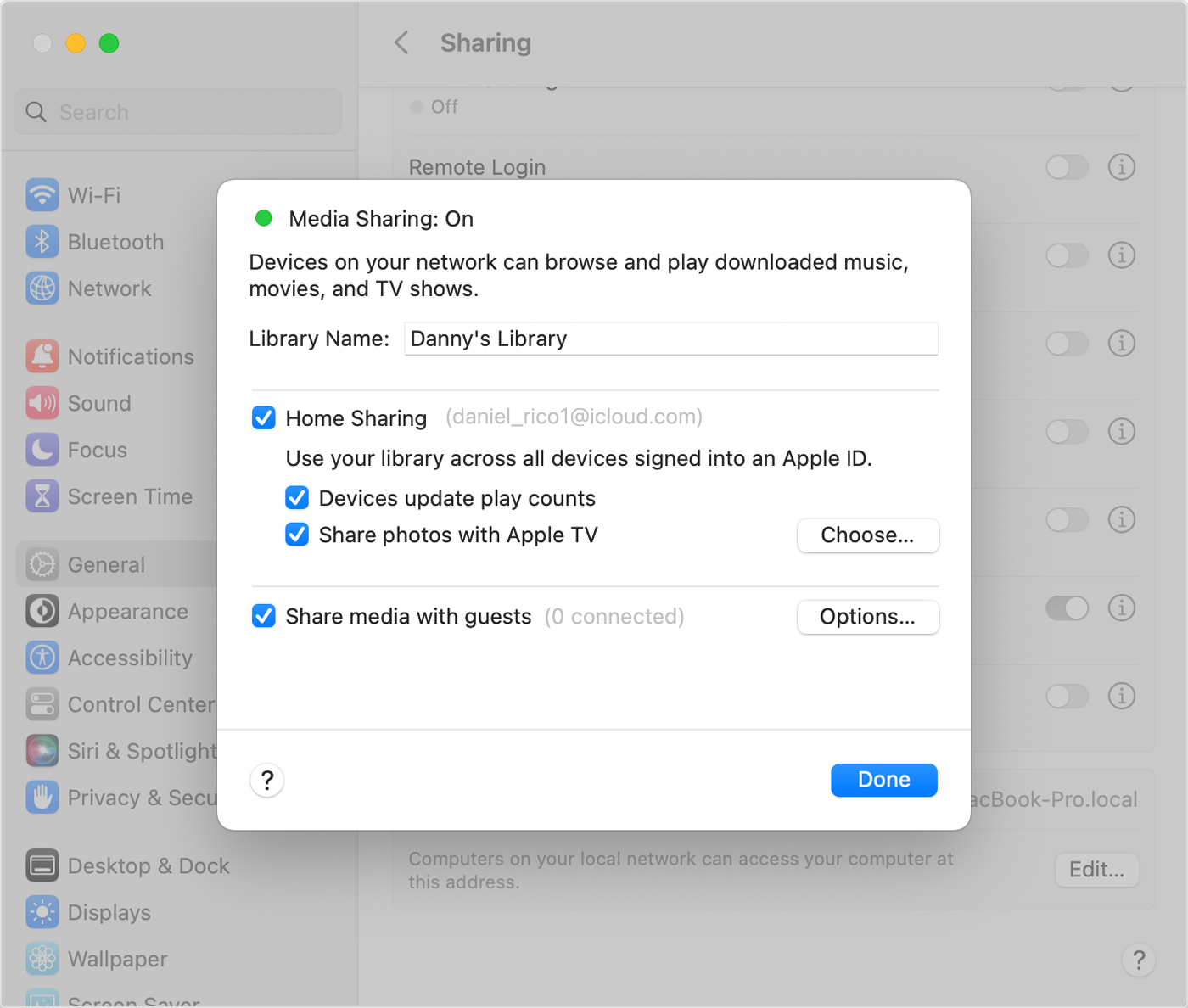
4. Select Home Sharing, then enter your Apple ID and click Turn on Home Sharing. Use the same Apple ID for every computer or device on your Home Sharing network.
After Media Sharing is turned on, Home Sharing is selected


Once Home Sharing is set up on your Mac, follow the 'Use Home Sharing on your Mac' and 'Use Home Sharing on your Apple TV' sections next to learn more about using this feature on your devices.


If you are trying to accomplish something else on your Mac and Apple TV, please provide more details so that we can continue to assist.


Cheers!

1 reply
Question marked as Top-ranking reply

Aug 24, 2023 10:51 AM in response to tomtreb

Hi there tomtreb,


If you are trying to use Home Sharing on your Mac, first ensure you have it set up using these steps from Use Home Sharing to share media from a computer to other devices:

Set up Home Sharing on your Mac
1. Choose Apple menu  > System Settings, then click General in the sidebar.
2. Click Sharing on the right.
3. Turn on Media Sharing, then click the Info button  next to it.
4. Select Home Sharing, then enter your Apple ID and click Turn on Home Sharing. Use the same Apple ID for every computer or device on your Home Sharing network.
After Media Sharing is turned on, Home Sharing is selected


Once Home Sharing is set up on your Mac, follow the 'Use Home Sharing on your Mac' and 'Use Home Sharing on your Apple TV' sections next to learn more about using this feature on your devices.


If you are trying to accomplish something else on your Mac and Apple TV, please provide more details so that we can continue to assist.


Cheers!

This thread has been closed by the system or the community team. You may vote for any posts you find helpful, or search the Community for additional answers.

Home Sharing

Welcome to Apple Support Community
A forum where Apple customers help each other with their products. Get started with your Apple Account.