Hello admiral160,
Thank you for reaching out in Apple Support Communities. By any chance, are you using a dual SIM with an eSIM in which you're using one phone number for personal and another number for work? If so, you can follow these steps on how to use each number separately on your iPhone: Using Dual SIM with an eSIM - Apple Support
Specifically this section has details on how to switch each phone number for iMessage and SMS/MMS:
Send messages with iMessage and SMS/MMS
You can use iMessage or SMS/MMS to send messages with either phone number.5 You can choose a number to use before or after you start a conversation. Here's how.
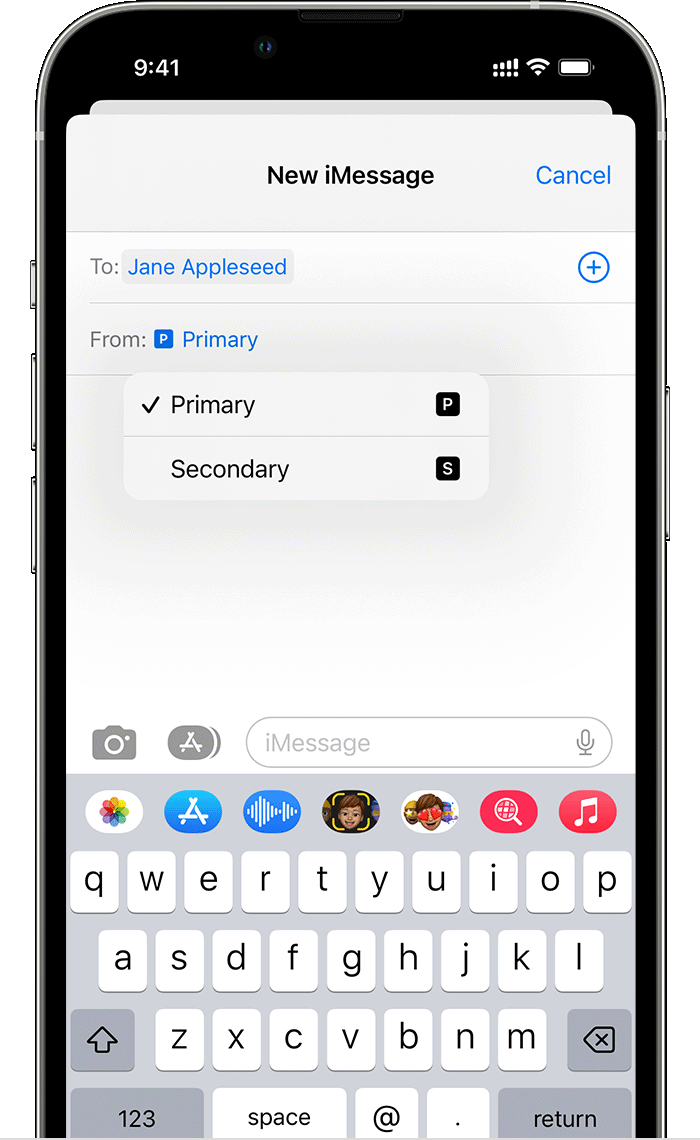
Choose a number before you send an iMessage or SMS/MMS message
1. Open Messages.
2. Tap the New button, in the upper-right corner of the screen.
3. Enter your contact's name.
4. Tap the current phone number.
5. Tap the number you want to use.

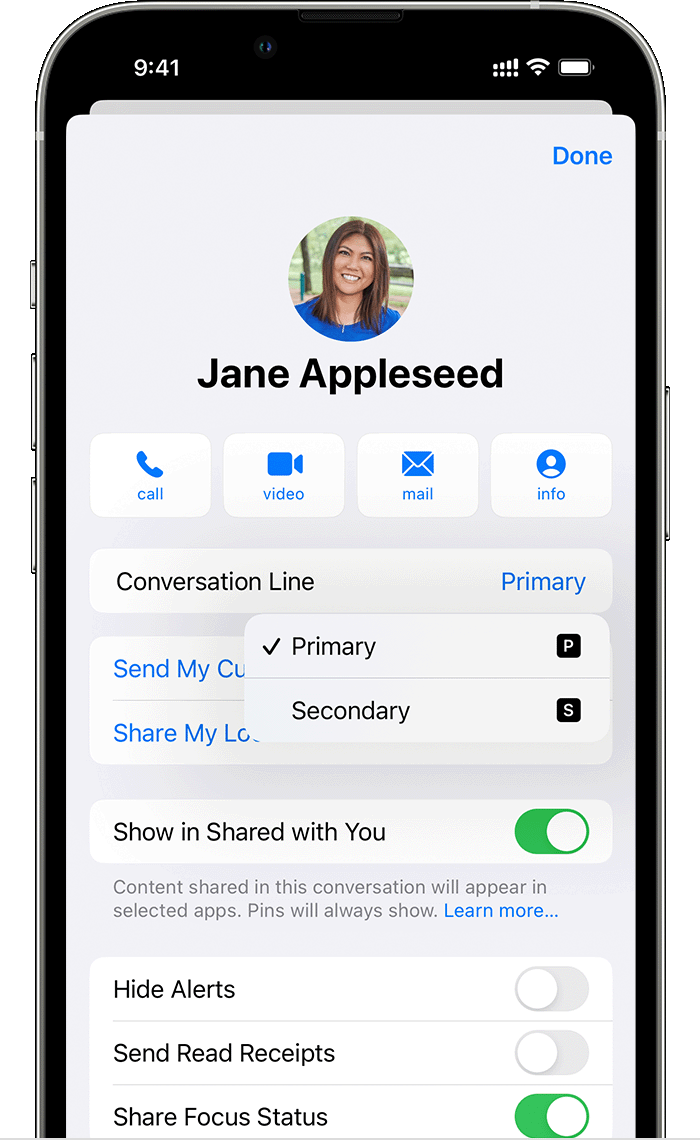
Switch numbers during a conversation
1. Tap the number you're using, near the top of the screen.
2. Choose the number you want to use instead.
This information is outlined in this article: Using Dual SIM with an eSIM - Apple Support
Then, verify that the phone numbers for both your personal and work number is set up under the same Apple ID account in which you're signed into on your Mac. Here's how:
Turn your phone number on or off for your Mac
After you've set up your phone number, you can turn it on or off for Messages and FaceTime on your Mac.
1. Open Messages or FaceTime. If asked, sign in with the Apple ID that you use with Messages and FaceTime on your iPhone.
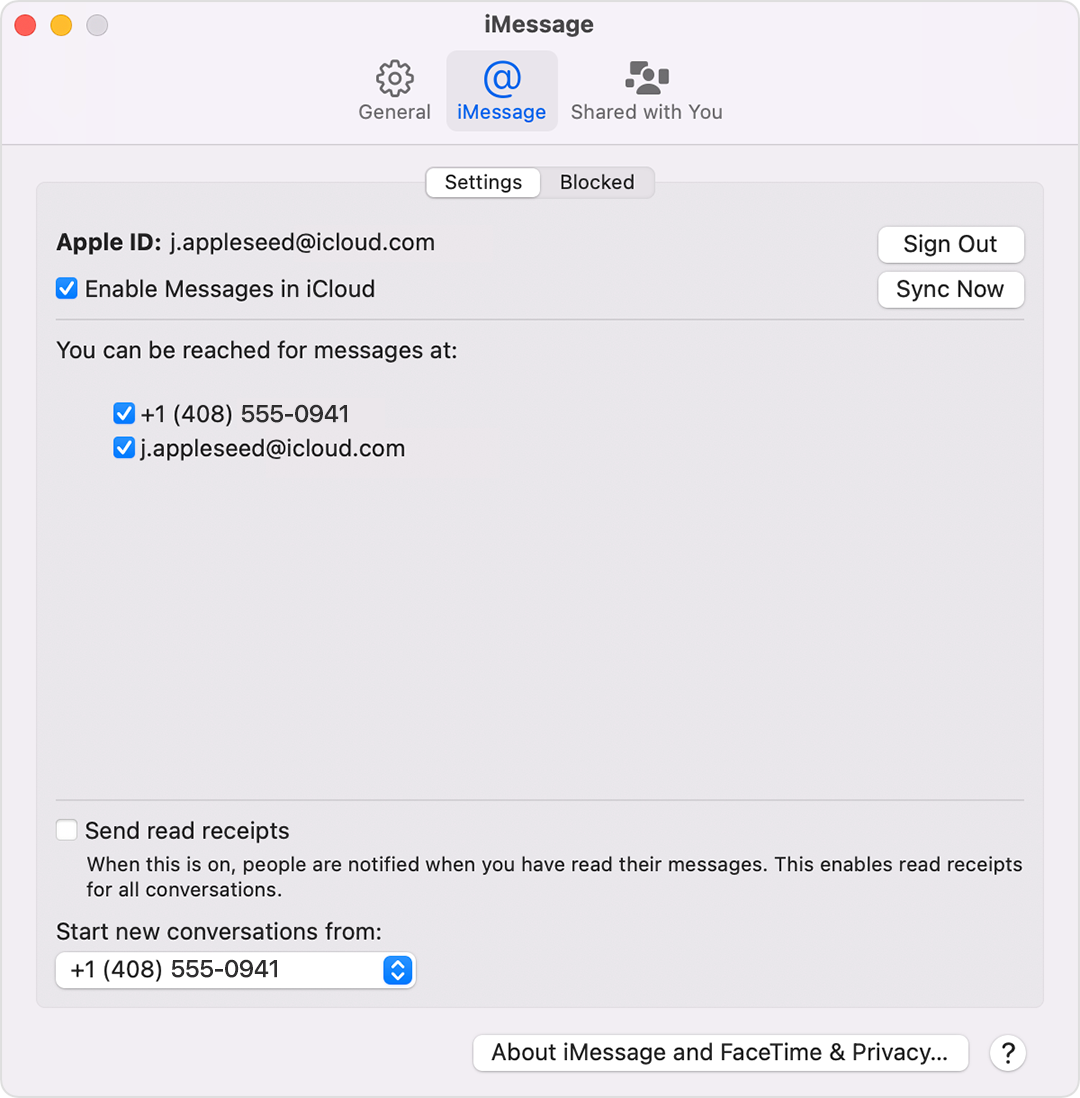
2. For Messages, choose Messages > Preferences, then click iMessage. For FaceTime, choose FaceTime > Preferences, then click Settings.
3. Turn your phone number on or off:
* To turn on your phone number, select it and your Apple ID in the list. If you can't see your phone number, get help with your settings or contact Apple Support. If you see a number that isn't yours, change your Apple ID password.
* To turn off your phone number, untick it in the list.
4. If you want recipients to see your phone number and not your Apple ID, select your phone number from the "Start new conversations from" or "Start new calls from" pop-up menu.
Find out how to make messages that you send and receive on your iPhone appear on your Mac, iPad and iPod touch.
These steps are outlined in this article if you need to reference them: Add or remove your phone number in Messages or FaceTime - Apple Support
Best regards.


