How can 2 iPhones with the same email address and ID be set up with the same password for Apple?

Someone has two iPhones. One is an old model 5s and another one is a new model 14 Pro

Max.

How can 2 iPhones with the same email address and ID be set up with the same password

for Apple?

Steps for set up would be appreciated!

Posted on Sep 5, 2023 10:28 PM

Reply
Question marked as Top-ranking reply

Posted on Sep 6, 2023 5:35 PM

Hi abuaslam,


Thank you for participating in the Apple Support Communities. We understand you'd like to use the same Apple ID and password on two different phones. Your password will always be the same no matter which device you are signing in on. This article has the steps to sign in if needed: Sign in with your Apple ID.


"Sign in on your iPhone, iPad, or iPod touch

  1. Open the Settings app.
  2. Tap Sign in to your [device].
  3. Enter your Apple ID and password.
  4. If prompted, enter the six-digit verification code sent to your trusted device or phone number and complete sign in.

If you're already signed in to iCloud on the iPhone paired with your Apple Watch, you will automatically be signed in to that Apple ID. Learn more about how to set up and sign in to your Apple Watch."


We hope this helps.


Take care.


4 replies
Question marked as Top-ranking reply

Sep 6, 2023 5:35 PM in response to abuaslam

Hi abuaslam,


Thank you for participating in the Apple Support Communities. We understand you'd like to use the same Apple ID and password on two different phones. Your password will always be the same no matter which device you are signing in on. This article has the steps to sign in if needed: Sign in with your Apple ID.


"Sign in on your iPhone, iPad, or iPod touch

  1. Open the Settings app.
  2. Tap Sign in to your [device].
  3. Enter your Apple ID and password.
  4. If prompted, enter the six-digit verification code sent to your trusted device or phone number and complete sign in.

If you're already signed in to iCloud on the iPhone paired with your Apple Watch, you will automatically be signed in to that Apple ID. Learn more about how to set up and sign in to your Apple Watch."


We hope this helps.


Take care.


Sep 7, 2023 7:31 AM in response to abuaslam

Hi abuaslam,


If you have signed in to your new iPhone with a different Apple ID from the one you'd like to use, you'll need to sign out, then sign in with the other Apple ID.

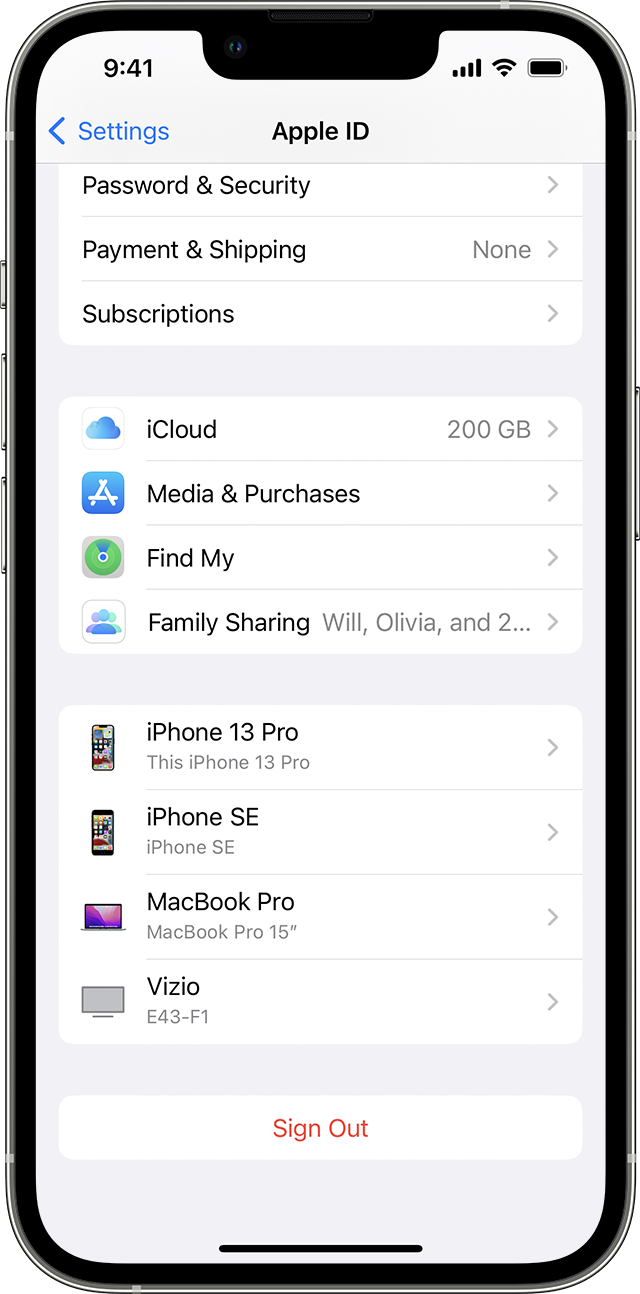
Sign out on your iPhone, iPad, or iPod touch
1. Go to Settings, then tap your name. 
2. Scroll down to the bottom.
The Sign Out button is listed at the bottom of your device list.
3. Tap Sign Out.
4. Enter your Apple ID password and tap Turn Off. Forgot your Apple ID password
5. Turn on the data that you want to keep a copy of on your device.
6. Tap Sign Out.
7. Tap Sign Out again to confirm that you want to sign out of iCloud.

Sign out of iCloud on your iPhone, iPad, iPod touch, Apple TV, or Mac - Apple Support


Then sign in with the correct Apple ID and password.

Sign in with your Apple ID - Apple Support


Take care!

Sep 7, 2023 12:14 AM in response to Jeff_888

Thanks so much for your valuable supports.

​Since I already signed in my new Apple iPhone 14 Pro Max with an unexpected/ new email address, now I may need to delete that unexpected​ email address​? ​Because, I couldn't find any other options.

While I am trying to delete the ​unexpected email address​, the system is saying ​"Choose Another Email Address​". I ​choose my expected email address which is also used with my old iPhone 5s, but the system is saying "Email Used by Another Apple ID. This email address is not available, choose​ a different address"​.

Could you please help in this regard? Many thanks 

This thread has been closed by the system or the community team. You may vote for any posts you find helpful, or search the Community for additional answers.

How can 2 iPhones with the same email address and ID be set up with the same password for Apple?

Welcome to Apple Support Community
A forum where Apple customers help each other with their products. Get started with your Apple Account.