Finder won't show photo dimensions

When I click "Get Info" on a photo, Finder is showing nothing under More Info where it used to show the dimensions of the image. I need to find out the image dimensions and now have no way to do that. Does anyone have a workaround or an alternate way to do this?

MacBook Pro 13″, macOS 10.13

Posted on Sep 21, 2023 4:20 PM

Reply
Question marked as Top-ranking reply

Posted on Sep 21, 2023 6:59 PM

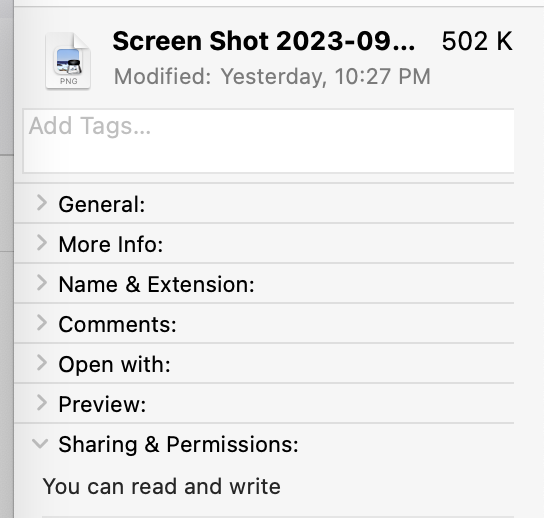
It may be that you have clicked an alias instead of the actual image. Or a file that is not stored on the hard drive but rather in the iCloud. But as you can see below, in Monterey the Finder Get Info window has drop down sections, which I believe are also there in High Sierra. The > More Info drop down section when you click on the > will reveal the dimensions. When too many items are showing on the Get Info window, a scrollbar will emerge, which you can make sure Apple menu -> System Preferences -> General always shows. When no scroll bar shows, you can usually also navigate with the arrow keys, or the scroll wheel of a mouse with a scroll wheel:

If all else fails you can open the document in the Preview application.

command-I (the letter eye) brings up the inspector. It is in the Tools menu of Preview.

This will give you the Image size in pixels.


4 replies
Question marked as Top-ranking reply

Sep 21, 2023 6:59 PM in response to SethFoley

It may be that you have clicked an alias instead of the actual image. Or a file that is not stored on the hard drive but rather in the iCloud. But as you can see below, in Monterey the Finder Get Info window has drop down sections, which I believe are also there in High Sierra. The > More Info drop down section when you click on the > will reveal the dimensions. When too many items are showing on the Get Info window, a scrollbar will emerge, which you can make sure Apple menu -> System Preferences -> General always shows. When no scroll bar shows, you can usually also navigate with the arrow keys, or the scroll wheel of a mouse with a scroll wheel:


If all else fails you can open the document in the Preview application.

command-I (the letter eye) brings up the inspector. It is in the Tools menu of Preview.

This will give you the Image size in pixels.


Sep 22, 2023 4:57 AM in response to SethFoley

Another approach is independent of Spotlight indexing and does not involve the Finder. Here is a short AppleScript that prompts you for the image (including supported camera RAW) and then displays the filename and its true width and height values from within the image.


Results:


AppleScript code (open in Apple's Script Editor):


(*
  img_dim.applescript
  
  Displays the true image dimensions of a selected image.
*)

use framework "Foundation"
use framework "CoreImage"
use AppleScript version "2.4" -- Yosemite or later
use scripting additions

property ca : current application

-- handles any RAW or regular image supported by the operating system
set thisImage to POSIX path of (choose file of type {"public.image"}) as text
set imageURL to ca's NSURL's fileURLWithPath:thisImage
set tildeImg to (imageURL's relativePath)'s stringByAbbreviatingWithTildeInPath() as text
set ci_image to ca's CIImage's imageWithContentsOfURL:imageURL
try
	set ci_image_rect to ci_image's extent
on error
	return
end try
set image_height to (ca's NSRect's NSHeight(ci_image_rect)) as text
set image_width to (ca's NSRect's NSWidth(ci_image_rect)) as text

display dialog "Image: " & tildeImg & return & "Width: " & image_width & return & "Height: " & image_height as text with title "True Image Dimensions"
return

This thread has been closed by the system or the community team. You may vote for any posts you find helpful, or search the Community for additional answers.

Finder won't show photo dimensions

Welcome to Apple Support Community
A forum where Apple customers help each other with their products. Get started with your Apple Account.
