Hey notmorganm,
Congratulations on your new MacBook and Apple account! Separating Apple accounts like this can be tricky, but you should be able to transfer most of your content using Archive or make copies of the information you store in iCloud as a baseline. We'll take you through the steps for Photos, Contacts, and possibly Messages.
PHOTOS
If you save your Photos directly to your iPhone, you can transfer photos and videos from your iPhone to your Mac.
To import to your Mac:
1. Connect your iPhone or iPad to your Mac with a USB cable.
2. Open the Photos app on your computer.
3. The Photos app shows an Import screen with all the photos and videos that are on your connected device. If the Import screen doesn't automatically appear, click the device's name in the Photos sidebar.
4. If asked, unlock your iOS or iPadOS device using your passcode. If you see a prompt on your iOS or iPadOS device asking you to Trust This Computer, tap Trust to continue.
5. Choose where you want to import your photos. Next to "Import to," you can choose an existing album or create a new one.
6. Select the photos you want to import and click Import Selected, or click Import All New Photos. 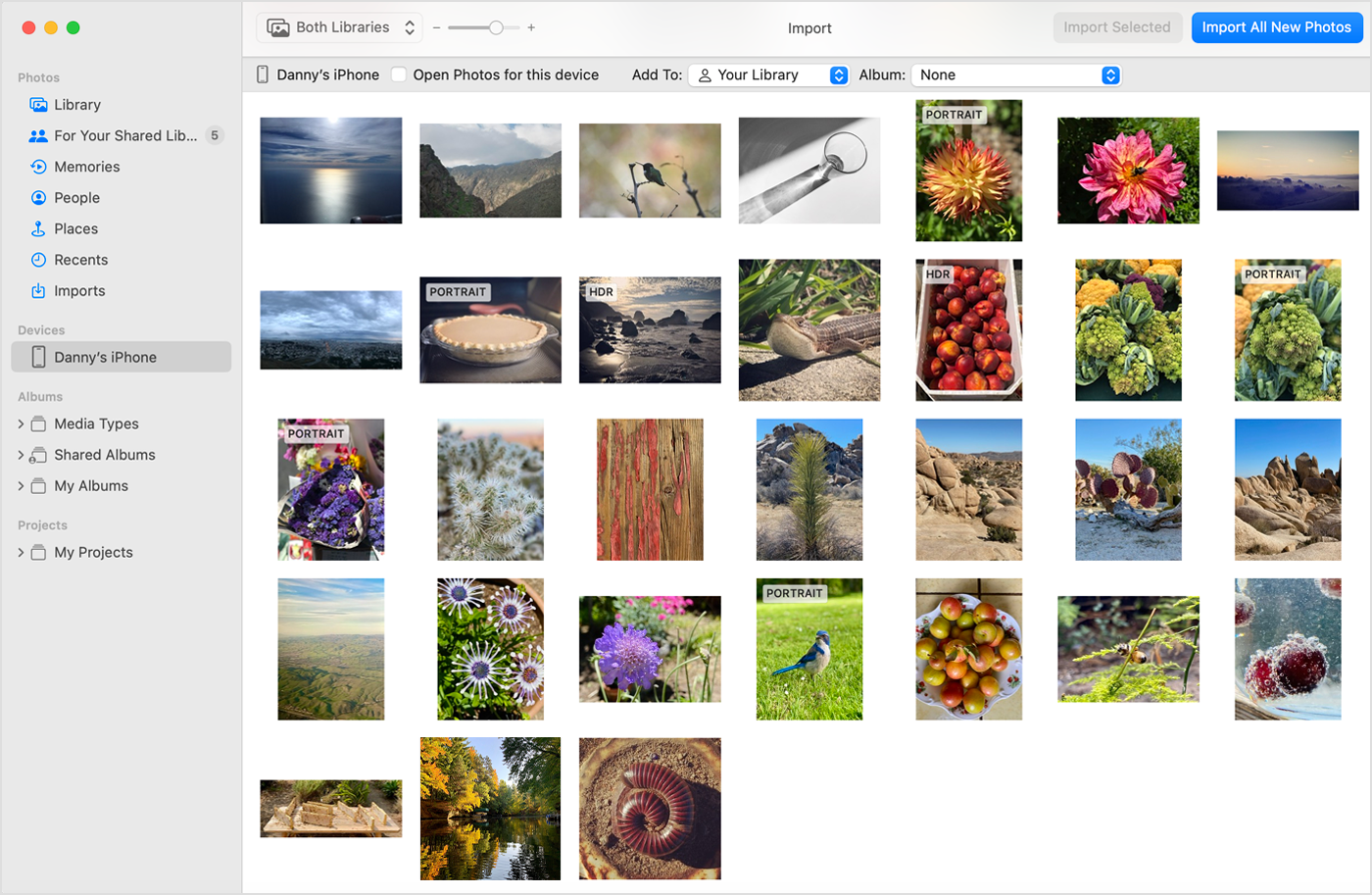
7. Wait for the process to finish, then disconnect your device from your Mac.
If you sync your photos with iCloud, you can log in to your parents account on iCloud.com and download them directly from Safari on your MacBook.
Download copies of your photos and videos from iCloud.com
If you want to download a few photos or videos, use iCloud.com to download the most recent version of photos and videos.
• On your Mac or PC, just go to iCloud.com and click Photos. Then select the photos and videos you want to download and click Download  .
.
You can find the .zip file you downloaded in the Files app under Downloads or Recents.
CONTACTS
If you use iCloud to sync Contacts, you can export your contacts while you are logged in to your parents' account on the iCloud website and import them into Contacts on your MacBook.
While you are logged in to your parents' iCloud account, export your contacts.
Export a vCard
1. In Contacts on iCloud.com, click to select a contact in the contacts list. If you want to export multiple contacts, press and hold Command (on a Mac computer) or Control (on a Windows computer), then click each contact you want to export.
2. Click  on the right, then choose Export vCard.
3. If you select multiple contacts, Contacts exports a single vCard containing all of them.
Import, export, or print contacts on iCloud.com - Apple Support
Then import them on your MacBook.
Import contacts from a vCard file (.vcf)
1. Do one of the following on your Mac:
* Double-click the vCard file—for example, in an email or on the desktop.
* Drag the vCard file to the Contacts icon  in the Dock, or to the list of contacts in the Contacts window.
* In Contacts, choose File > Import, then select the vCard file.
2. Click Add in the message that appears.
Import contacts into Contacts on Mac - Apple Support
MESSAGES
Transferring your Messages history may only be possible if you have Messages in iCloud enabled on your iPhone. You can check at Settings > [your name] > iCloud > Messages.
If you do, set up iCloud for Messages on your Mac using your parents' Apple account and allow it to load your Messages history. Depending on how many messages and conversations you have saved, it may take some time for all of your messages to appear. Once everything is there, you can log out of your parents Apple ID and log in to yours. The Messages history should remain.
We hope this helps!
Warmest Wishes.


