
How to Change Lock screen wallpapers in Mac
If you want to change MacBook login screen background but not the picture on your Desktop, try this clever trick:
- Open the image you want to use as your new lock screen background in Preview.
- Save it to your desktop with the name ‘lock screen.png’
- Click on the Finder icon in the Dock.
- Click on the Go menu and choose Go to Folder.
- Paste this path into the text box: /Library/Caches
- Open the Desktop Pictures folder.
- Inside, there will be more folders, but probably only one you can open. Double-click it to open it.
- Inside, you’ll see a file called lock screen.png
- Drag the file you saved to your desktop with the same name into the folder.
- When you are asked if you are sure you want to replace the existing file, confirm that you want to go ahead.
Display a message on the lock screen
You can set your Mac to display a message on the lock screen when the Mac is locked. This could be a greeting to yourself when you log in, a reminder to other users about something, or just a phrase you like or that motivates you:
- Click on the Apple menu and choose System Settings.
- Choose Lock Screen in the sidebar.
- Look for ‘Show a message when locked’ and set it to the on position.
- Click Set and type your message.
- Click OK.
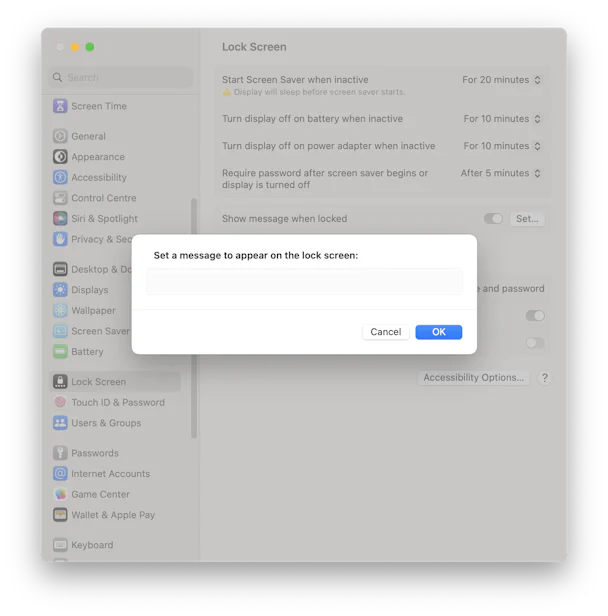
In the same window, you can choose whether to show a list of users and their icons when you switch users or just the username and password text boxes. You can also choose whether to show the Sleep, Restart, and Shut Down buttons on the lock screen.
Many of us love to personalize our Macs, and customizing the lock screen is a great way to do just that. Hopefully, after reading this article, you know how to change lock screen on MacBook. Whether you want to change your user login image, create a specific background just for the lock screen, or leave a message for yourself when you log in, follow the steps above and you’ll have a personalized lock screen in no time.