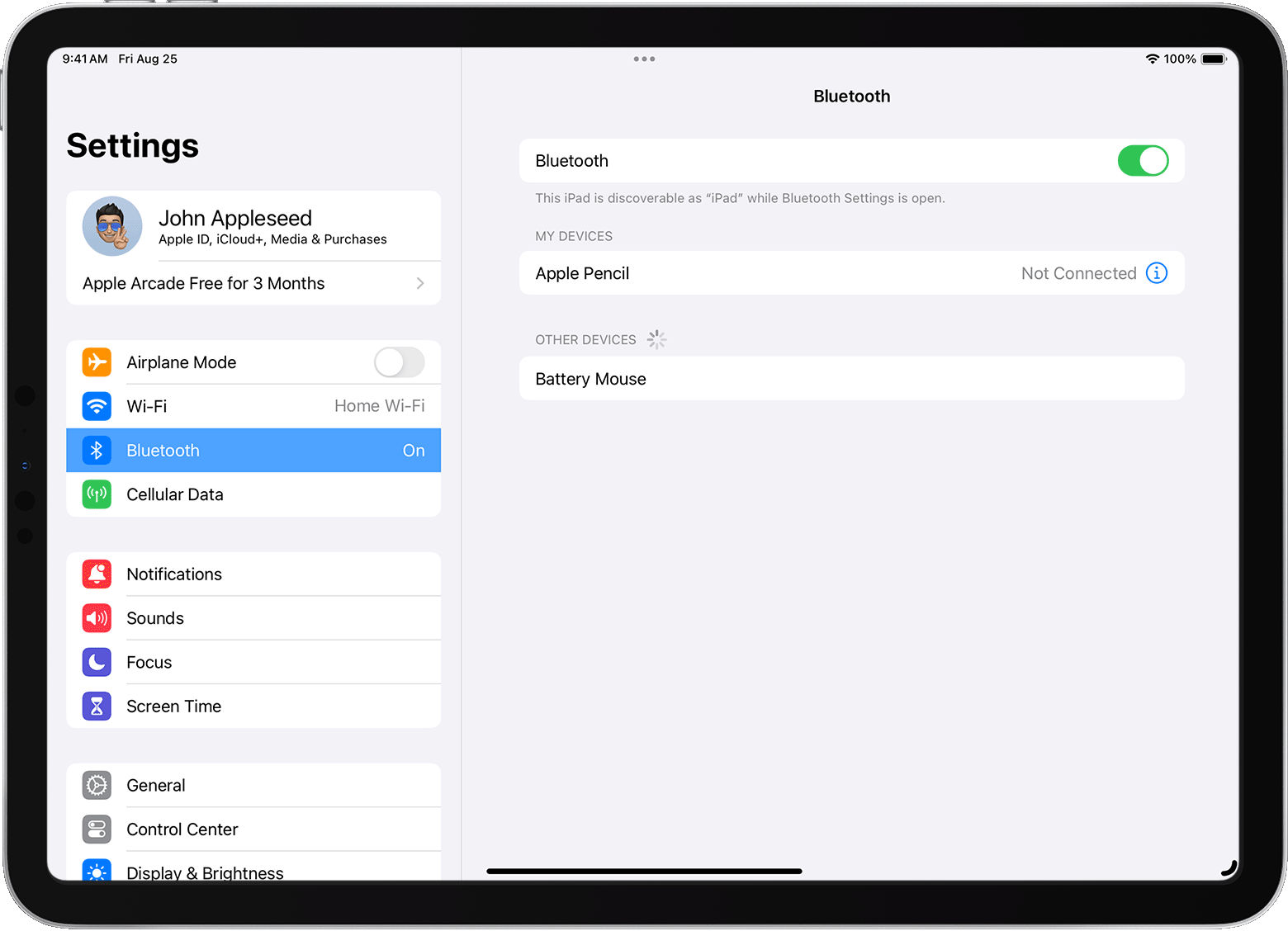
i have had to replace my ipad and my magic mouse was not unpaired before it was replaced and now it will not connect
I had an iPad Pro and i had it replaced as it would not turn on. Now my Magic Mouse will not show up on Bluetooth.
iPhone SE, iOS 16
I had an iPad Pro and i had it replaced as it would not turn on. Now my Magic Mouse will not show up on Bluetooth.
iPhone SE, iOS 16
Hello Benrnathan,
Thanks for that info and for choosing the Apple Support Communities. If we understand correctly, you are unable to pair your Magic Mouse with your replacement iPad. To help with this, you may need to turn the Magic Mouse off, fully charge it, and then turn it on again and follow the steps here Connect a Bluetooth mouse or trackpad to your iPad - Apple Support:
"How to connect a Bluetooth mouse or trackpad to your iPad
1. Turn on your Bluetooth accessory and place it near your iPad.
2. Make sure that your accessory is in pairing or discovery mode.
* Apple Magic Mouse and Magic Trackpad should be ready to pair at this point.
* If you're pairing a third-party accessory that you've used with another device, follow the pairing-mode steps from its manufacturer.
5. Open the Settings app on your iPad.
6. Tap Bluetooth.
7. Look under Other Devices for your Bluetooth accessory, then tap its name to pair it with your iPad.
8.
Depending on the accessory that you're connecting, you might need to take extra steps. Follow any onscreen instructions that appear. If you're pairing with Apple Magic Mouse or Magic Trackpad and you're asked to provide a code, use 0000 (four zeros).
Learn what to do if you're having trouble connecting your accessory."
Cheers!
Hello Benrnathan,
Thanks for that info and for choosing the Apple Support Communities. If we understand correctly, you are unable to pair your Magic Mouse with your replacement iPad. To help with this, you may need to turn the Magic Mouse off, fully charge it, and then turn it on again and follow the steps here Connect a Bluetooth mouse or trackpad to your iPad - Apple Support:
"How to connect a Bluetooth mouse or trackpad to your iPad
1. Turn on your Bluetooth accessory and place it near your iPad.
2. Make sure that your accessory is in pairing or discovery mode.
* Apple Magic Mouse and Magic Trackpad should be ready to pair at this point.
* If you're pairing a third-party accessory that you've used with another device, follow the pairing-mode steps from its manufacturer.
5. Open the Settings app on your iPad.
6. Tap Bluetooth.
7. Look under Other Devices for your Bluetooth accessory, then tap its name to pair it with your iPad.
8.
Depending on the accessory that you're connecting, you might need to take extra steps. Follow any onscreen instructions that appear. If you're pairing with Apple Magic Mouse or Magic Trackpad and you're asked to provide a code, use 0000 (four zeros).
Learn what to do if you're having trouble connecting your accessory."
Cheers!
i have had to replace my ipad and my magic mouse was not unpaired before it was replaced and now it will not connect