Copy mp3 files from Windows 10 or 11 PC to an Iphone

How do I copy mp3 files from a Windows laptop to an IPhone? I installed ITunes on my Windows laptop. I went to File Sharing in ITunes. In the ITunes File Sharing Apps box, Windows File Explorer did not appear as an App.

All my mp3 files are saved in Windows File Explorer. How do I copy mp3 files from Windows File Explorer to an IPhone via the ITunes interface, which seems to be the only interface that can be used to copy files from a Windows laptop to an Iphone?

Posted on Oct 14, 2023 12:56 PM

Reply
Question marked as Top-ranking reply

Posted on Oct 15, 2023 1:35 PM

Hi Wandermann,


Thank you for participating in the Apple Support Communities. We understand you'd like to sync your music from your PC to your iPhone. This article explains how: Sync iTunes content on PC with your devices.


"Select items to sync automatically

  1. Connect your device to your computer.

You can connect your device using a USB or USB-C cable or a Wi-Fi connection. To turn on Wi-Fi syncing, see Sync iTunes content on PC with devices on Wi-Fi.

2. In the iTunes app on your PC, click the Device button near the top left of the iTunes window.

The Device button selected near the top of the iTunes window.

3. Select a type of content you want to sync (for example, Music or TV Shows) in the sidebar on the left.

Summary is selected in the sidebar on the left. The types of content that appear might vary, depending on your device and the contents of your iTunes library.

Note: If you use iCloud Photos and Apple Music, your photos and music are synced automatically with iCloud. When you click Music or Photos, no options appear for syncing.

4. Select the Sync checkbox, then select the items you want to sync automatically each time you connect your device.
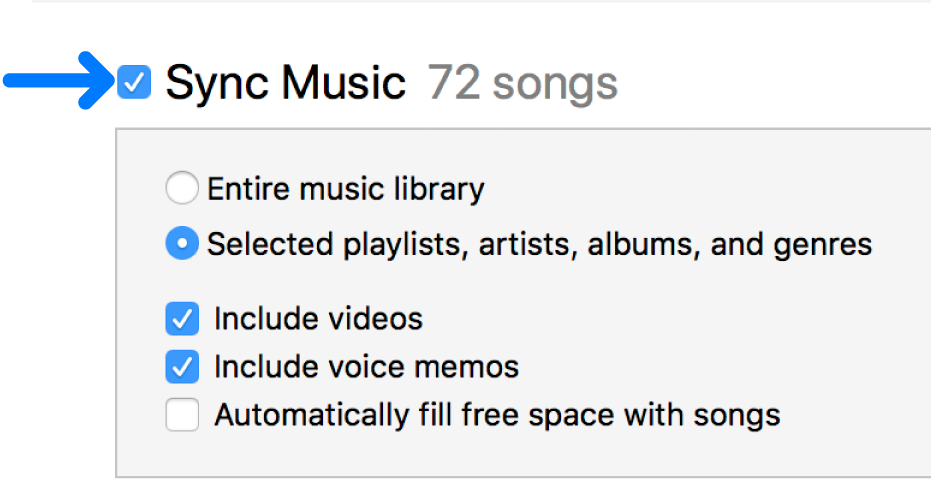
Sync Music near the top left is selected with options to sync your entire library or only selected items.

5. Repeat steps 3 and 4 for each type of content you want to include on your device.

The bar at the bottom of the window shows how much free space remains on your device after you sync.
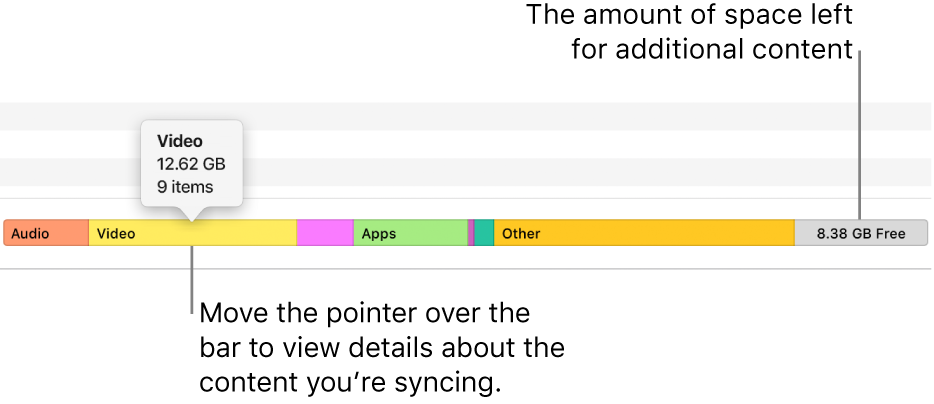
Move the pointer over the bar at the bottom of the window to view details about the content you’re syncing and to see how much space is left for more content.

6. By default, iTunes syncs your device whenever you connect it to your computer. If you want iTunes to ask you before syncing, do one of the following:

    • Require a prompt before syncing this device: Click Summary, then deselect “Automatically sync when this [device] is connected.”
    • Require a prompt before syncing all devices: Choose Edit > Preferences, click Devices, then select “Prevent iPods, iPhones, and iPads from syncing automatically.”

7. When you’re ready to sync, click Apply.

Tip: To automatically sync a connected device at any time, choose File > Devices > Sync [device name].

WARNING: If you delete an automatically synced item from your iTunes library, the deleted item is removed from your device the next time you sync."


Take care.


1 reply
Question marked as Top-ranking reply

Oct 15, 2023 1:35 PM in response to Wandermann

Hi Wandermann,


Thank you for participating in the Apple Support Communities. We understand you'd like to sync your music from your PC to your iPhone. This article explains how: Sync iTunes content on PC with your devices.


"Select items to sync automatically

  1. Connect your device to your computer.

You can connect your device using a USB or USB-C cable or a Wi-Fi connection. To turn on Wi-Fi syncing, see Sync iTunes content on PC with devices on Wi-Fi.

2. In the iTunes app on your PC, click the Device button near the top left of the iTunes window.

The Device button selected near the top of the iTunes window.

3. Select a type of content you want to sync (for example, Music or TV Shows) in the sidebar on the left.

Summary is selected in the sidebar on the left. The types of content that appear might vary, depending on your device and the contents of your iTunes library.

Note: If you use iCloud Photos and Apple Music, your photos and music are synced automatically with iCloud. When you click Music or Photos, no options appear for syncing.

4. Select the Sync checkbox, then select the items you want to sync automatically each time you connect your device.

Sync Music near the top left is selected with options to sync your entire library or only selected items.

5. Repeat steps 3 and 4 for each type of content you want to include on your device.

The bar at the bottom of the window shows how much free space remains on your device after you sync.

Move the pointer over the bar at the bottom of the window to view details about the content you’re syncing and to see how much space is left for more content.

6. By default, iTunes syncs your device whenever you connect it to your computer. If you want iTunes to ask you before syncing, do one of the following:

    • Require a prompt before syncing this device: Click Summary, then deselect “Automatically sync when this [device] is connected.”
    • Require a prompt before syncing all devices: Choose Edit > Preferences, click Devices, then select “Prevent iPods, iPhones, and iPads from syncing automatically.”

7. When you’re ready to sync, click Apply.

Tip: To automatically sync a connected device at any time, choose File > Devices > Sync [device name].

WARNING: If you delete an automatically synced item from your iTunes library, the deleted item is removed from your device the next time you sync."


Take care.


This thread has been closed by the system or the community team. You may vote for any posts you find helpful, or search the Community for additional answers.

Copy mp3 files from Windows 10 or 11 PC to an Iphone

Welcome to Apple Support Community
A forum where Apple customers help each other with their products. Get started with your Apple Account.