Have to constantly go to Settings to click on Wi-Fi

Just a basic user, no games, no movies but when internet drops have to go to Settings where I see Software Update until I click on internet access,This is constantly happening. I have fiber internet from AT&T which tracks good.

iPad Air, iOS 12

Posted on Oct 19, 2023 4:13 PM

Reply
Question marked as Top-ranking reply

Posted on Oct 20, 2023 12:38 PM

Hi PTC615,


Just to confirm, does this happen with all Wi-Fi networks, or only a certain one? Do you receive any errors when this happens? If so, what does the error say?


The above details will help us proceed.


If you experience issues connecting to a Wi-Fi network, this link has some suggestions that may be helpful: If your iPhone or iPad won't connect to a Wi-Fi network


1. Make sure that your router is on and that you're within range

If you're too far from your Wi-Fi router, you can't get a signal, so make sure that you're within range.
 
2. Make sure that Wi-Fi is on and that you can see your network

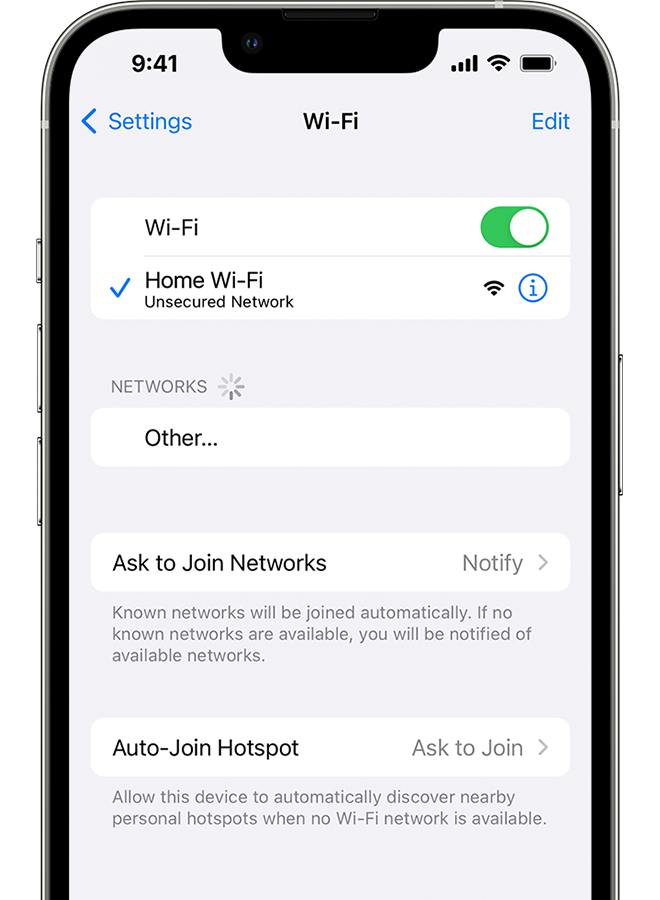
Go to Settings > Wi-Fi and make sure that Wi-Fi is on. Tap the name of your Wi-Fi network to join. A blue checkmark beside a network name means that you're connected.
If you see Auto Join disabled under Settings > Wi-Fi > [Your Network], tap the More Info button and then tap Auto-Join.

An iPhone showing the Wi-Fi screen. There's a blue a checkmark next to the Wi-Fi network's name.

3. If asked, enter your Wi-Fi password

If asked, enter the password for your Wi-Fi network. Get help if you don't know your password.
Even if you enter the correct password, you might see an "unable to join the network" message or an "incorrect password" message. Restart all of your devices, then try to enter your password again.
 
4. Check for issues with your Wi-Fi network

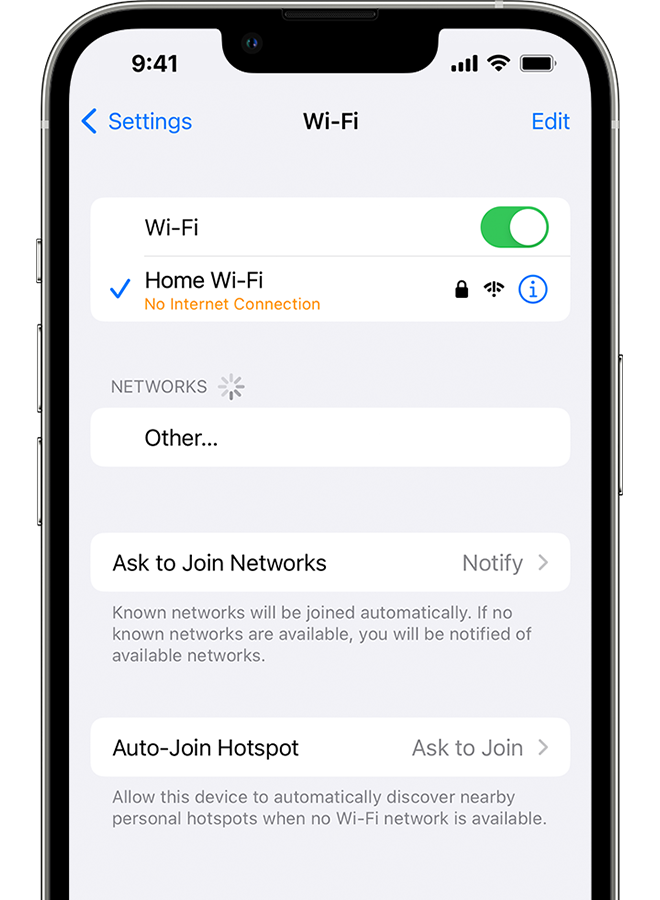
If iOS or iPadOS detects an issue with your Wi-Fi connection, you might see a Wi-Fi recommendation under the name of the Wi-Fi network that you're connected to. For example, you might see the alert "No Internet Connection." To get more information, tap the Wi-Fi network.
 
An iPhone showing the Wi-Fi screen. There's an alert message under the Wi-Fi network's name.

5. Check your cables and connections

If you still can't connect to your network or get online, make sure that your router is connected to the modem and turned on.

 6. Restart

Restart your iOS or iPadOS device.
Restart your router and cable or DSL modem by unplugging the device and then plugging it back in.
After you restart each device, see if you fixed the issue.
 
7. Reset your network settings

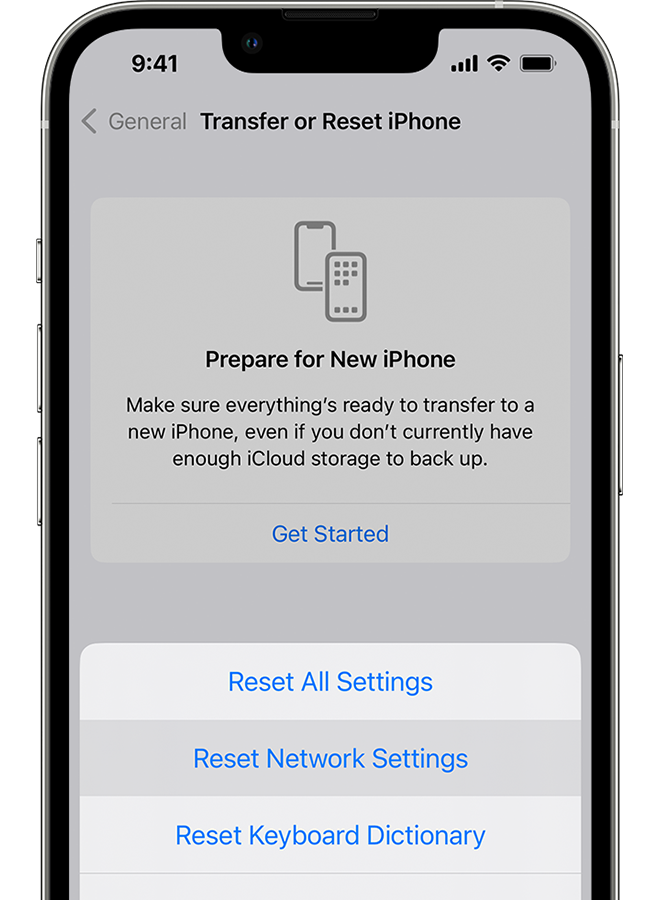
If you're using iOS or iPadOS 15 or later, tap Settings > General > Transfer or Reset [Device] > Reset > Reset Network Settings.
If you're using iOS or iPadOS 14 or earlier, tap Settings > General > Reset > Reset Network Settings.
This also resets Wi-Fi networks and passwords, cellular settings, and VPN and APN settings that you've used before.
An iPhone showing the Transfer or Reset iPhone screen.

Get more help

* If you're connected to a Wi-Fi network but you can’t get online, try to use your Wi-Fi network on other devices. If you can't get online using your other devices, there might be a service outage. Call your cable company or internet provider for help.
* Try connecting to a Wi-Fi network in a different location. If your device can connect, you need to get help with your Wi-Fi network. If your device can't connect to any Wi-Fi networks, contact Apple.
* Update your Wi-Fi router with the latest firmware and make sure that the router supports your Apple product. For more information, contact the router's manufacturer.


Thanks!

2 replies
Question marked as Top-ranking reply

Oct 20, 2023 12:38 PM in response to PTC615

Hi PTC615,


Just to confirm, does this happen with all Wi-Fi networks, or only a certain one? Do you receive any errors when this happens? If so, what does the error say?


The above details will help us proceed.


If you experience issues connecting to a Wi-Fi network, this link has some suggestions that may be helpful: If your iPhone or iPad won't connect to a Wi-Fi network


1. Make sure that your router is on and that you're within range

If you're too far from your Wi-Fi router, you can't get a signal, so make sure that you're within range.
 
2. Make sure that Wi-Fi is on and that you can see your network

Go to Settings > Wi-Fi and make sure that Wi-Fi is on. Tap the name of your Wi-Fi network to join. A blue checkmark beside a network name means that you're connected.
If you see Auto Join disabled under Settings > Wi-Fi > [Your Network], tap the More Info button and then tap Auto-Join.

An iPhone showing the Wi-Fi screen. There's a blue a checkmark next to the Wi-Fi network's name.

3. If asked, enter your Wi-Fi password

If asked, enter the password for your Wi-Fi network. Get help if you don't know your password.
Even if you enter the correct password, you might see an "unable to join the network" message or an "incorrect password" message. Restart all of your devices, then try to enter your password again.
 
4. Check for issues with your Wi-Fi network

If iOS or iPadOS detects an issue with your Wi-Fi connection, you might see a Wi-Fi recommendation under the name of the Wi-Fi network that you're connected to. For example, you might see the alert "No Internet Connection." To get more information, tap the Wi-Fi network.
 
An iPhone showing the Wi-Fi screen. There's an alert message under the Wi-Fi network's name.

5. Check your cables and connections

If you still can't connect to your network or get online, make sure that your router is connected to the modem and turned on.

 6. Restart

Restart your iOS or iPadOS device.
Restart your router and cable or DSL modem by unplugging the device and then plugging it back in.
After you restart each device, see if you fixed the issue.
 
7. Reset your network settings

If you're using iOS or iPadOS 15 or later, tap Settings > General > Transfer or Reset [Device] > Reset > Reset Network Settings.
If you're using iOS or iPadOS 14 or earlier, tap Settings > General > Reset > Reset Network Settings.
This also resets Wi-Fi networks and passwords, cellular settings, and VPN and APN settings that you've used before.
An iPhone showing the Transfer or Reset iPhone screen.

Get more help

* If you're connected to a Wi-Fi network but you can’t get online, try to use your Wi-Fi network on other devices. If you can't get online using your other devices, there might be a service outage. Call your cable company or internet provider for help.
* Try connecting to a Wi-Fi network in a different location. If your device can connect, you need to get help with your Wi-Fi network. If your device can't connect to any Wi-Fi networks, contact Apple.
* Update your Wi-Fi router with the latest firmware and make sure that the router supports your Apple product. For more information, contact the router's manufacturer.


Thanks!

Oct 20, 2023 4:46 PM in response to PTC615

Thank you Brittany for a very thorough and informative response.

Recently upgraded my AT&T Wi-Fi to Fiber and have been in touch with AT&T to see if there was a problem on their side, tested for signal strength and other diagnostics and all strong and good. No issues with my Ring or Samsung phone. We are two retirees with kids gone and limited use of our iPads just internet, videos, email, news etc, no movies or major streaming so it’s not like we are sucking up internet juice.


There are no errors received just when looking at a site and it doesn’t feed the latest info so when I go to Settings I see the wi fi has to be connected, it shows Software Update and when I click on my Wi Fi it links and we are good to go but this is ongoing all day long.

I’m very close to my router and nothing is blocking the signal. I contacted Apple and walked through everything, sent a picture of the Setting page showing Software Update he had me upload the latest update (17.0.03) but still no resolution. I will try your suggestions and see how it goes. I appreciate you taking the time to help me and I’m hoping for a fix.

Joe

This thread has been closed by the system or the community team. You may vote for any posts you find helpful, or search the Community for additional answers.

Have to constantly go to Settings to click on Wi-Fi

Welcome to Apple Support Community
A forum where Apple customers help each other with their products. Get started with your Apple Account.