
Some autocorrected words are misspelled on iOS. How can I fix this?
When texting or e-mailing ,suggested word for auto-fill-in is misspelled. How do I delete or edit?
[Re-titled by Moderator]
iPhone 8, iOS 16
When texting or e-mailing ,suggested word for auto-fill-in is misspelled. How do I delete or edit?
[Re-titled by Moderator]
iPhone 8, iOS 16
Greetings håkan221,
Thanks for posting in Apple Support Communities.
We suggest toggling the features off and back on again to see if that helps. You can follow the steps below for guidance:
"Use Auto-Correction and edit Auto-Correction suggestions
Auto-Correction uses your keyboard dictionary to spellcheck words as you type, automatically correcting misspelled words for you. To use it, just type in a text field.
In iOS 17 and later, Auto-Correction temporarily underlines words that it corrects. To quickly edit an auto-correction, tap the underlined word and choose an option from the pop-up menu.
Turn Auto-Correction on or off
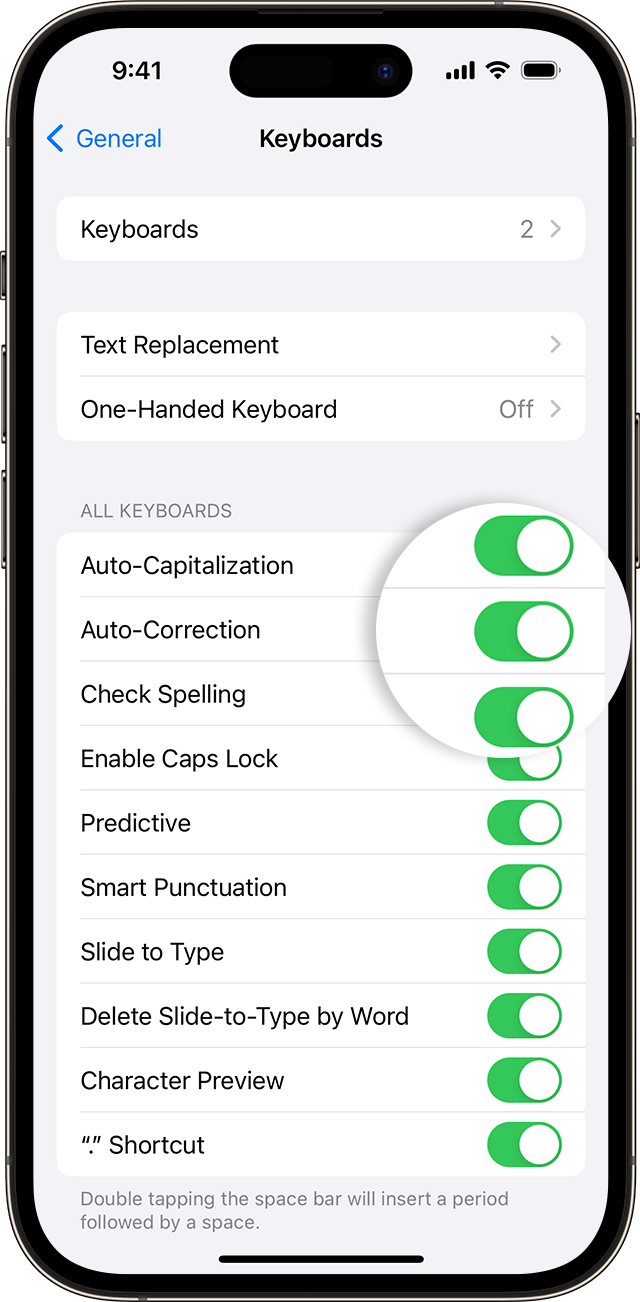
By default, Auto-Correction is on.
Use predictive text
With predictive text, you can write and complete entire sentences with just a few taps.
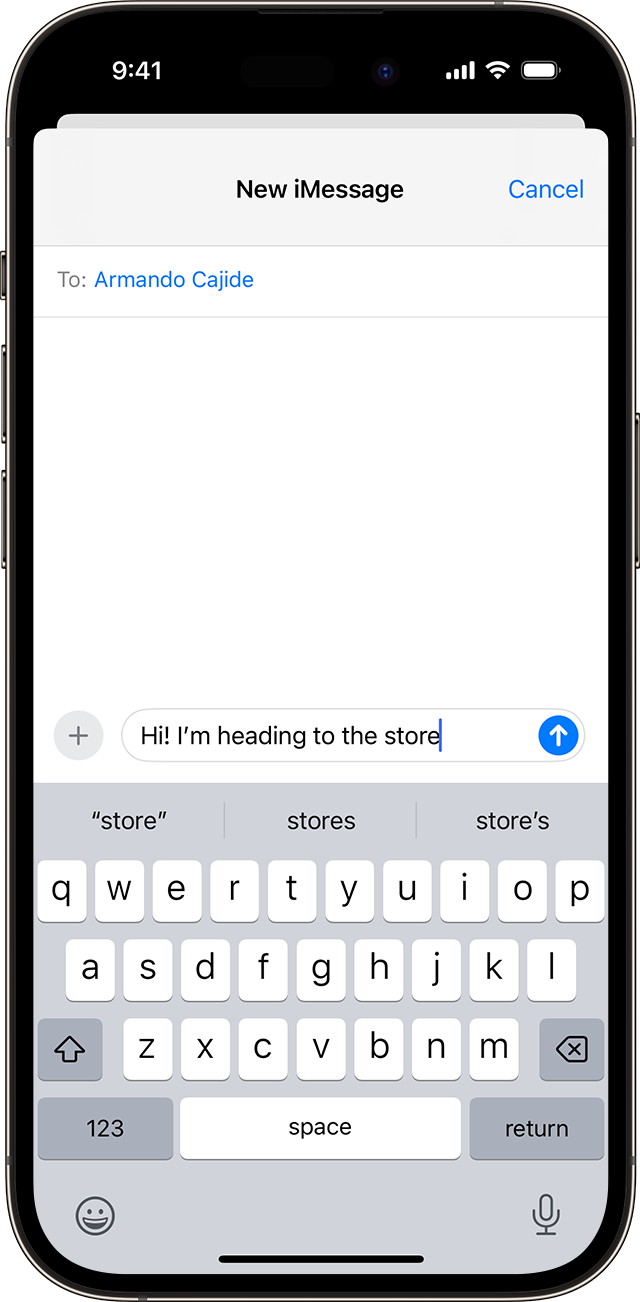
As you type, you can see choices for words and phrases you'd probably type next, based on your past conversations, writing style, and even websites you visit in Safari.
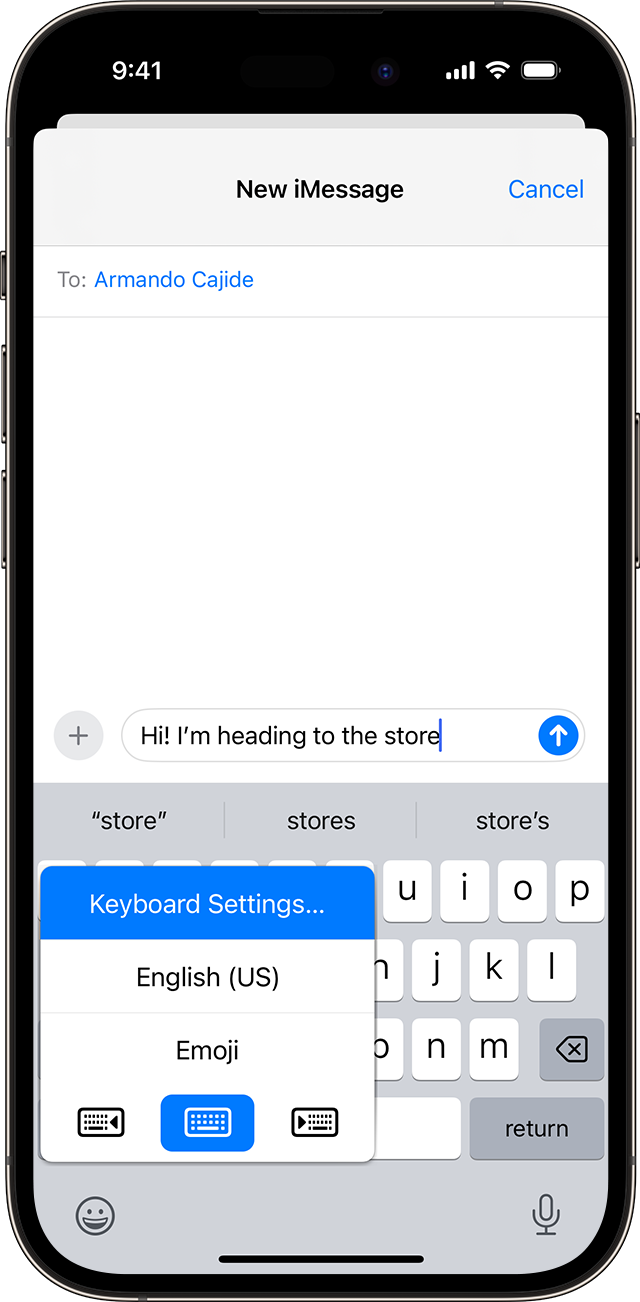
To turn predictive text off or on:
 or the globe icon
  .
.Or go to Settings > General > Keyboard, and turn Predictive on or off.
See a full list of languages that support predictive text.
Set up shortcuts for words or phrases
With text replacement, you can set shortcuts to automatically become longer phrases or words. When you enter the shortcut in a text field, your chosen word or phrase automatically replaces it. For example, you could type "GM" and "Good morning" would automatically replace it.
To manage your text replacements, tap Settings > General > Keyboard > Text Replacement.
Add a text replacement

 .
.Delete a text replacement
More details here: How to use Auto-Correction and predictive text on your iPhone, iPad, or iPod touch
We hope this helps.
Take care.
Greetings håkan221,
Thanks for posting in Apple Support Communities.
We suggest toggling the features off and back on again to see if that helps. You can follow the steps below for guidance:
"Use Auto-Correction and edit Auto-Correction suggestions
Auto-Correction uses your keyboard dictionary to spellcheck words as you type, automatically correcting misspelled words for you. To use it, just type in a text field.
In iOS 17 and later, Auto-Correction temporarily underlines words that it corrects. To quickly edit an auto-correction, tap the underlined word and choose an option from the pop-up menu.
Turn Auto-Correction on or off
By default, Auto-Correction is on.
Use predictive text
With predictive text, you can write and complete entire sentences with just a few taps.
As you type, you can see choices for words and phrases you'd probably type next, based on your past conversations, writing style, and even websites you visit in Safari.
To turn predictive text off or on:
or the globe icon .Or go to Settings > General > Keyboard, and turn Predictive on or off.
See a full list of languages that support predictive text.
Set up shortcuts for words or phrases
With text replacement, you can set shortcuts to automatically become longer phrases or words. When you enter the shortcut in a text field, your chosen word or phrase automatically replaces it. For example, you could type "GM" and "Good morning" would automatically replace it.
To manage your text replacements, tap Settings > General > Keyboard > Text Replacement.
Add a text replacement
.Delete a text replacement
More details here: How to use Auto-Correction and predictive text on your iPhone, iPad, or iPod touch
We hope this helps.
Take care.
Some autocorrected words are misspelled on iOS. How can I fix this?

