Screenshots are still unnecessary big

just upgraded my software on my MacBook air, i remember sometime ago it was upgraded to Sonoma 14.0 and that's when I noticed screenshot was drastically changed, whenever I captured a selection of the screen, upon clicking the image grew unnecessary size instead of the intended size i wanted captured.


I tried downsizing with preview but i didn't like how they looked at all.


now I've upgraded to Sonoma 14.1 and the problem is still there. I don't like this and find this resolution is really unnecessary in my opinion.

MacBook Air 13″, macOS 14.1

Posted on Oct 31, 2023 8:15 AM

Reply
Question marked as Top-ranking reply

Posted on Jun 28, 2024 7:40 AM

I've been having this issue, or one just like it, and think I stumbled across a fix yesterday. I went from older Cinema Displays to new Studio Displays and it started. Screenshots were displaying at 4x their expected size in Quick Look, Preview, Textedit, Mac Mail... but displayed correctly in Photoshop. My best theory was they were capturing using the Studio Displays 5k resolution, then failing to compensate for that when displaying using Default Studio Display settings where the pixels are (?) doubled up.


After a tech support call and supervised screen sharing session, we figured out that creating a brand new user fixed the issue, Screenshots displayed at the expected sizes. But that's not a good solve.


We then did a screen recording of the issue, submitted a ticket to engineers, then got word a week later that this was "expected behavior" (it can't be) and radio silence for six weeks when my tech support rep asked for follow ups. I never heard back from him either.


This week I gave up and decided to reinstall the OS to see if that would work (it did not) and then create a new User from scratch and to migrate everything over. I spent about 3 or 4 hours setting everything back up again. Screenshots were working normally and as expected.


Then I went to set up Screenshot settings how I like them (jpegs, directly to the desktop) and when I turned off "Show Floating Thumbnail" so they'd save immediately to my desktop, the issue returned and Screenshots were now oversized again. Disabling that setting fixed them immediately. I turned this setting on and off a few times to be sure, then logged into my original User and re-enabled "Show Floating Thumbnail" and the issue was fixed even in my original user.


I don't know if everyone has the same issue or if this will work for others, but since I read through this for a solution a few months ago, I figured I'd add my update to the mix. If this works, it seems like maybe something broke with that setting in one of the recent updates? I'd like Screenshots to save immediately, but find them unusable for what I need when they display at absurd sizes so the slight delay is better than nothing.


If anyone else has success with this, I'd love to know.

30 replies
Question marked as Top-ranking reply

Jun 28, 2024 7:40 AM in response to TCthe2nd

I've been having this issue, or one just like it, and think I stumbled across a fix yesterday. I went from older Cinema Displays to new Studio Displays and it started. Screenshots were displaying at 4x their expected size in Quick Look, Preview, Textedit, Mac Mail... but displayed correctly in Photoshop. My best theory was they were capturing using the Studio Displays 5k resolution, then failing to compensate for that when displaying using Default Studio Display settings where the pixels are (?) doubled up.


After a tech support call and supervised screen sharing session, we figured out that creating a brand new user fixed the issue, Screenshots displayed at the expected sizes. But that's not a good solve.


We then did a screen recording of the issue, submitted a ticket to engineers, then got word a week later that this was "expected behavior" (it can't be) and radio silence for six weeks when my tech support rep asked for follow ups. I never heard back from him either.


This week I gave up and decided to reinstall the OS to see if that would work (it did not) and then create a new User from scratch and to migrate everything over. I spent about 3 or 4 hours setting everything back up again. Screenshots were working normally and as expected.


Then I went to set up Screenshot settings how I like them (jpegs, directly to the desktop) and when I turned off "Show Floating Thumbnail" so they'd save immediately to my desktop, the issue returned and Screenshots were now oversized again. Disabling that setting fixed them immediately. I turned this setting on and off a few times to be sure, then logged into my original User and re-enabled "Show Floating Thumbnail" and the issue was fixed even in my original user.


I don't know if everyone has the same issue or if this will work for others, but since I read through this for a solution a few months ago, I figured I'd add my update to the mix. If this works, it seems like maybe something broke with that setting in one of the recent updates? I'd like Screenshots to save immediately, but find them unusable for what I need when they display at absurd sizes so the slight delay is better than nothing.


If anyone else has success with this, I'd love to know.

Oct 31, 2023 12:31 PM in response to dialabrain

Here's another thought. Since you're on a 13" MacBook Air, I presume you're don't have the monitor set to the full native screen resolution?


I thinks that's the difference. The native resolution of your Mac 2560 x 1600. But if you have it set to the next increment down, 1440 x 900, that's close to the 148% size difference I roughly measured in Photoshop.


So, if that 1440 x 900 is correct, everything you view is scaled on the fly to fit the screen. But the Finder window (and everything else) is still sized according to 2560 x 1600. That means the screen shot of the Finder window is being clipped out of a screen buffer size you're not viewing. But when that screen shot is displayed in Preview, it is displaying the file at 1:1, which makes it bigger than the "scaled" live window.


And all of that only makes sense if the Mac is indeed working with a 2560 x 1600 screen buffer in the background at all times, and then scaling it down to fit the lower monitor resolution in use. That seems like a convoluted way of doing things to me, but it's the only way I can currently make sense of what's happening.

Oct 31, 2023 11:04 AM in response to dialabrain

That surprises me. 😉


I thought about it more while eating lunch, and I get it now. Instead of behaving like an image editor, Preview is pretending it's a page layout app, though it doesn't even do that correctly. At least not right away.


When you resample the image from 72 to 144, it doesn't actually do that, as we've already determined. It simply assigns the resolution value of 144 without scaling the image at all, despite the Resample image box being checked. But it doesn't visually change until you close and save the file, then reopen it.


That's what's going on here. I took two screen shots of the same folder and changed one to 144 dpi. Visual size didn't change at all on the scaled image until I closed and reopened the file. Then it's very apparent what Preview is trying to do. Left is still 72 dpi, right is 144 dpi. Both still 409 x 586 pixel images.


Anyone in printing knows that resolution only matters to your printer. The resolution tells the printer how many linear pixels of the image to use per inch (dpi).


So the 72 dpi image appears just as you could expect when you do a Command+P.


And so does the 144 dpi image. Half the size when printed since twice as many pixels are being used per inch.


Not sure how that explains why Preview is showing your screen shot of the Finder window larger than the monitor. But that's very likely related to the default printer your Mac is set to use. If it's say, a 300 dpi printer at the hardware level, it will appear larger in Preview than one that's a 600 dpi printer. At least, that's my theory without installing a printer driver for a device I don't have to see what Preview does.

Oct 31, 2023 9:34 AM in response to Kurt Lang

Oy! Preview in Ventura does the same thing. Here's how your image displays side by side. Photoshop 1:1 on the left, Actual Size in Preview on the right. Which should also mean 1:1.


Photoshop correctly displays the image at exactly the same size as it appears in the forum. Which it should since both are displaying every pixel at 1 pixel of the image to 1 pixel on the screen. aka, 1:1.


Preview is NOT doing that. Basically, you can't trust Preview for any visual size reference. Not even a little.

Oct 31, 2023 8:50 AM in response to dialabrain

That should only happen if the monitor resolution in Monterey is set lower than in Sonoma. You can then take a screen shot that appears to fill the same amount of screen space, but the image being stretched to fill the screen is not taken into account. Only the screen buffer matters.


Such as, if you have the monitor resolution set to, oh, 1024 x 768 and do a full screen capture, you will get a 1024 x 768 pixel screen shot, regardless of what the monitor's native resolution is. It will then appear much smaller in Sonoma, if the monitor resolution there is set to a higher value.


Still, I'll test what I can, such as doing a screen shot in Ventura and comparing it in Sonoma. But I don't expect them to be anything but the same size.

Oct 31, 2023 9:21 AM in response to dialabrain

Please let me know if I'm interpreting this incorrectly.


The smaller Finder window is the actual size (the live OS window). The image behind it is how it appears in Preview and is what's supposed to be a straight screen shot of that Finder window, but it has somehow been scaled up 200% in size.


If that's correct, then something is definitely wrong.


I can't replicate that here on an M2 Pro mini. I took a screen shot of the same folder in Ventura, then Sonoma. Both came out to 72 dpi, and are identical. All except for Apple replacing "at" in the date column in Sonoma with another comma.
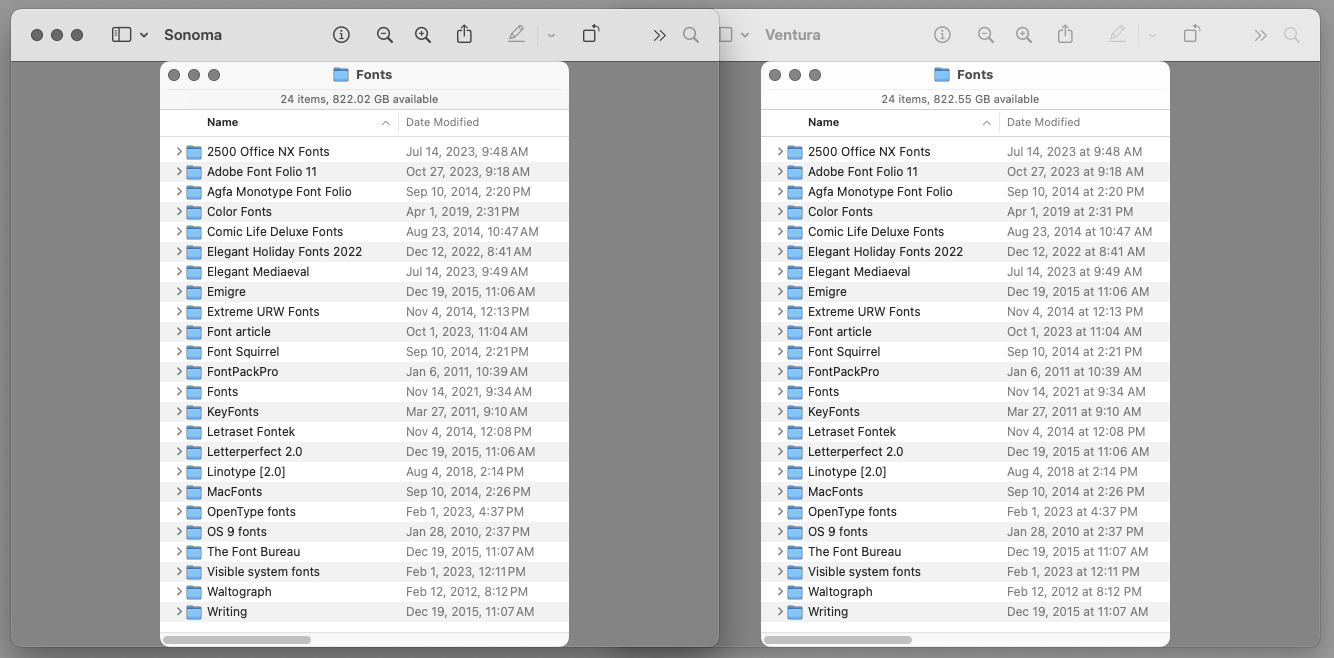


But, here's what is weird. If I take that same screen shot in Sonoma and scale it up to 144 in Preview, it does show that the pixel dimensions go from 409 x 586 to 818 x 1172. Just what you would expect, and it should then display twice as big when viewed as Actual Size. It doesn't! Preview displays it the same size as the original, as if it hasn't had any pixels added to the image at all.


Even weirder. It does that if I change the resolution from 72 to 144. But if I instead resize the image by putting in 200 …


… then the image displays twice the size. Just as it should in either case since the pixel dimensions are 818 x 1172 either way.


And it gets even weirder than that. If I scale the image again by changing the resolution to 144, which doubles the pixel count again to 1334 x 658, and should now be 4 times larger than the original, it then displays in Preview at the original size! That makes not even the slightest bit of sense. At least not in Preview.


Want even more weirdness? Who knows what in the world Preview did on the second scaling to 1334 x 658, which is how it reports the image size, but if I open the scaled screen shot in Photoshop, it's actually still 818 x 1172.


So, I opened the image in Preview again, and it also now reports the size as 818 x 1172, as if I had resized the image with Resample image turned off.


Good thing I never try to used Preview for any kind of image work, because it is seriously screwed up in Sonoma.


Oct 31, 2023 11:42 AM in response to dialabrain

Whatever it's doing, it's not doing it very well. :)

🤣 That's for sure!


I did look at the settings earlier, and images were already set as 1:1 on screen.


But it doesn't even do that. As my earlier comparison shot showed, the 144 dpi image displays at half the size of the 72 dpi image (once closed and reopened), despite both still having the same pixel dimensions. So, Preview isn't even following its own settings. They should display at the same size regardless of the resolution.

Oct 31, 2023 8:27 AM in response to dialabrain

Oh, that. Okay, here's extra info then for TCthe2nd.


Resolution has nothing, repeat, nothing to do with image size. It's pixel count. Always and only pixel count. Like this. Which is the bigger file?


4,000 x 5,000 pixel file at 600 dpi

4,000 x 5,000 pixel file at 10 dpi


The answer should be obvious. It's neither. They are the same pixel dimensions, and when saved to the same file format, will be exactly the same size.

Oct 31, 2023 1:09 PM in response to dialabrain

Yes. Since the OS has never had a resolution independent GUI, monitor resolution controls just about everything.


Some years back, I replaced a much older EIZO monitor, but still needed a high end display for my business. So I tried a much less expensive BenQ 27 SW271, 4K monitor. Unfortunately, it was impossible to profile, so it went back (after trying two of them), and got another EIZO.


But the point here is with macOS, 4K wasn't usable as everything was tiny to the point of illegible. But, I had Windows 10 on a 2018 mini at the time. Windows intelligently used the full 4K monitor resolution with all GUI elements automatically resized to usable dimensions.


It's too bad Apple never seems to have seen the benefit of that system. Though it is admittedly a LOT of work, and a source of undeniable headaches. Windows allows users to pick any font or point size they want. And every single menu, box or whatever has to automatically resize itself to fit without botching the expected layout of whatever you're working in.

Oct 31, 2023 8:24 AM in response to TCthe2nd

I, quite literally, have no idea what you're talking about.


There is no such thing as a screen shot that "grows" in size. You get an image that is x number of pixels tall and x number of pixels wide that is directly related to where you defined your crop.


If you do a Command+4 screen capture, the bottom right corner next to the cursor even tells you what the pixel dimensions are. A Command+5 capture (which calls up the Screenshot app in the Utilities folder), will also capture exactly the pixel dimensions you define.

This thread has been closed by the system or the community team. You may vote for any posts you find helpful, or search the Community for additional answers.

Screenshots are still unnecessary big

Welcome to Apple Support Community
A forum where Apple customers help each other with their products. Get started with your Apple Account.