Airprint seems not working with my iPad Pro

I have an iPad Pro for a few years, but I never used it for Airprint, it‘s because I AirPrint on my home printer by using other iPads that I have. Lately when I was working on a document with this iPad Pro, I want to print it. Thus I choose to Airprint. Yes, a window pops up, and asks me to Select Printer. I touch the Select Printer, window pops up showing my Home Printer, thus I pressed and selected it… but it jumped back to “Select Printer” window… I tried several times, and even reset my WIFI network, but the same problem exists…。Interestly, I can AirPrint the same document on my iPhone, my MacBook, and other iPads that I have, but cannot be done via this iPad Pro… Do you know why? Is it something wrong with the setting of the iPad Pro please? Kindly help, muct appreciated. Thank you

Posted on Nov 18, 2023 1:34 AM

Reply
Question marked as Top-ranking reply

Posted on Nov 18, 2023 7:25 AM

Do you have any security Apps (such as Norton) or VPN installed on your iPad? If so, these may be interfering with your iPad's internal routing table - and may interfere with AirPrint/AirPlay/WiFi Hotspot or other Apple services. If present, it may be necessary to temporarily remove such Apps from your iPad - and then perform a forced-restart.


If your printer supports AirPrint - is set-up correctly and was working as expected prior to the iPadOS17 update - you may find that restart of your network components will resolve the problem. You’ll need to restart your network devices in the correct order. Assuming that you WiFi Router provides DNS services for your network, restart devices in this order - allowing time for devices to fully boot/restart prior to restarting other devices:


  • WiFi Router
  • Upstream wired Network Switch(es) (if any)
  • WiFi Access Points / Network Extenders
  • Other fixed infrastructure devices - such as Printers
  • Client devices (your iPad)


Restarting your iPad, after restarting other devices in the correct sequence, is most simply achieved by a forced-restart of the iPad:


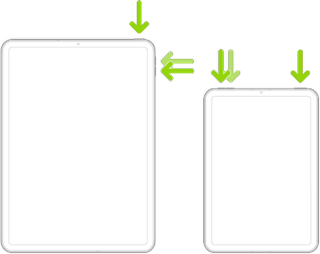
  • On an iPad with a Home button: Press and hold the top button and the Home button at the same time. When the Apple logo appears, release both buttons.



  • On an iPad with Face ID: Press and quickly release the volume up button, press and quickly release the volume down button, then press and hold the top button. When the Apple logo appears, release the button.


If you continue to have difficulties, check to see if your iPad is using the new WiFi Private Address feature. This feature is intended to provide additional privacy and security when using “public” (untrusted) WiFi networks.

Settings > WiFi > [Your WiFi Network / SSID] - tap the “i” icon - Private Address


The Private Address feature is largely unnecessary for your home WiFi network; if enabled, Private Addressing can interfere with anticipated operation of other devices, such as AirPrint/Airplay. In such circumstances, you may need to disable this feature - and can be enabled or disabled for each individual network.


Use private Wi-Fi addresses in iOS 14, iPadOS 14, and watchOS 7 - Apple Support

1 reply
Question marked as Top-ranking reply

Nov 18, 2023 7:25 AM in response to RomeOwl

Do you have any security Apps (such as Norton) or VPN installed on your iPad? If so, these may be interfering with your iPad's internal routing table - and may interfere with AirPrint/AirPlay/WiFi Hotspot or other Apple services. If present, it may be necessary to temporarily remove such Apps from your iPad - and then perform a forced-restart.


If your printer supports AirPrint - is set-up correctly and was working as expected prior to the iPadOS17 update - you may find that restart of your network components will resolve the problem. You’ll need to restart your network devices in the correct order. Assuming that you WiFi Router provides DNS services for your network, restart devices in this order - allowing time for devices to fully boot/restart prior to restarting other devices:


  • WiFi Router
  • Upstream wired Network Switch(es) (if any)
  • WiFi Access Points / Network Extenders
  • Other fixed infrastructure devices - such as Printers
  • Client devices (your iPad)


Restarting your iPad, after restarting other devices in the correct sequence, is most simply achieved by a forced-restart of the iPad:


  • On an iPad with a Home button: Press and hold the top button and the Home button at the same time. When the Apple logo appears, release both buttons.


  • On an iPad with Face ID: Press and quickly release the volume up button, press and quickly release the volume down button, then press and hold the top button. When the Apple logo appears, release the button.


If you continue to have difficulties, check to see if your iPad is using the new WiFi Private Address feature. This feature is intended to provide additional privacy and security when using “public” (untrusted) WiFi networks.

Settings > WiFi > [Your WiFi Network / SSID] - tap the “i” icon - Private Address


The Private Address feature is largely unnecessary for your home WiFi network; if enabled, Private Addressing can interfere with anticipated operation of other devices, such as AirPrint/Airplay. In such circumstances, you may need to disable this feature - and can be enabled or disabled for each individual network.


Use private Wi-Fi addresses in iOS 14, iPadOS 14, and watchOS 7 - Apple Support

This thread has been closed by the system or the community team. You may vote for any posts you find helpful, or search the Community for additional answers.

Airprint seems not working with my iPad Pro

Welcome to Apple Support Community
A forum where Apple customers help each other with their products. Get started with your Apple Account.