Siri and dictation not working on iphone SE, ios 17.2.1

It may have been out for the past couple updates -- i don't use either of these functions much. But now that I want to use them, they are not working. I saw similar posts from a year ago and tried the fixes they suggested. Nothing has worked.

iPhone SE, iOS 17

Posted on Feb 2, 2024 7:33 PM

Reply
Question marked as Top-ranking reply

Posted on Feb 3, 2024 1:01 AM

Siri and Dictation use the Microphone on your device.


You may try some of these steps, please check after each step...


  1. Sometimes, a simple restart can resolve temporary software glitches. Turn off your iPhone, wait for a few seconds, and then turn it back on.
    1. Restart the device. That's it.
    2. Still not solved --> Force restart iPhone - Apple Support
  2. Go to Settings > Privacy > Microphone. Ensure that the apps you're having issues with have permission to access the microphone.
  3. Ensure that all the relevant apps are updated to the latest version. Developers often release updates to fix bugs and improve compatibility.
  4. Delete the problematic apps and reinstall them from the App Store. This can sometimes resolve issues related to corrupted app files.
  5. If you are using AirPods, check the audio settings and Bluetooth connections. Make sure that the correct audio output device is selected.
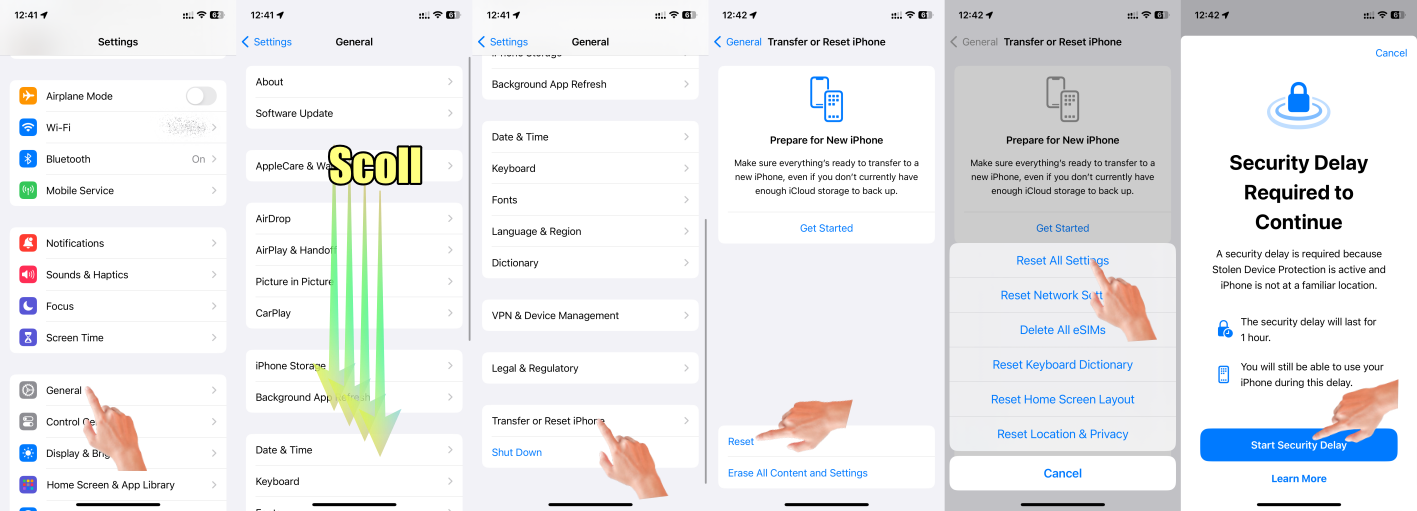
  6. If the issue persists, you can try resetting all settings on your iPhone. This will not erase your data but will reset all personalized settings to their default values. Go to Settings > General > Transfer & Reset > Reset > Reset All Settings and confirm the action. Note that you will need to reconfigure your settings afterward. All settings—including network settings, the keyboard dictionary, the Home screen layout, location settings, privacy settings, and Apple Pay cards—are removed or reset to their defaults. No data or media are deleted.
    1. Reset All Settings: Return iPhone settings to their defaults - Apple Support:- Return iPhone settings to their defaults
    2. You can return settings to their defaults without erasing your content.
    3. If you want to save your settings, back up your iPhone before returning them to their defaults. For example, if you’re trying to solve a problem but returning settings to their defaults doesn’t help, you might want to restore your previous settings from a backup.
  7. Make sure you have the latest updates installed.
    1. Update Over-the-Air (OTA) —> Update your iPhone or iPad - Apple Support (IN)
    2. Update using iTunes/Finder —> Update your iPhone, iPad, or iPod touch - Apple Support (IN)


If none of the above steps resolve the issue, it is recommended to reach out to Apple Support or visit an authorized service center for further assistance. They can provide specific guidance based on your device model and iOS version.



1 reply
Question marked as Top-ranking reply

Feb 3, 2024 1:01 AM in response to BBB-Cookie3

Siri and Dictation use the Microphone on your device.


You may try some of these steps, please check after each step...


  1. Sometimes, a simple restart can resolve temporary software glitches. Turn off your iPhone, wait for a few seconds, and then turn it back on.
    1. Restart the device. That's it.
    2. Still not solved --> Force restart iPhone - Apple Support
  2. Go to Settings > Privacy > Microphone. Ensure that the apps you're having issues with have permission to access the microphone.
  3. Ensure that all the relevant apps are updated to the latest version. Developers often release updates to fix bugs and improve compatibility.
  4. Delete the problematic apps and reinstall them from the App Store. This can sometimes resolve issues related to corrupted app files.
  5. If you are using AirPods, check the audio settings and Bluetooth connections. Make sure that the correct audio output device is selected.
  6. If the issue persists, you can try resetting all settings on your iPhone. This will not erase your data but will reset all personalized settings to their default values. Go to Settings > General > Transfer & Reset > Reset > Reset All Settings and confirm the action. Note that you will need to reconfigure your settings afterward. All settings—including network settings, the keyboard dictionary, the Home screen layout, location settings, privacy settings, and Apple Pay cards—are removed or reset to their defaults. No data or media are deleted.
    1. Reset All Settings: Return iPhone settings to their defaults - Apple Support:- Return iPhone settings to their defaults
    2. You can return settings to their defaults without erasing your content.
    3. If you want to save your settings, back up your iPhone before returning them to their defaults. For example, if you’re trying to solve a problem but returning settings to their defaults doesn’t help, you might want to restore your previous settings from a backup.
  7. Make sure you have the latest updates installed.
    1. Update Over-the-Air (OTA) —> Update your iPhone or iPad - Apple Support (IN)
    2. Update using iTunes/Finder —> Update your iPhone, iPad, or iPod touch - Apple Support (IN)


If none of the above steps resolve the issue, it is recommended to reach out to Apple Support or visit an authorized service center for further assistance. They can provide specific guidance based on your device model and iOS version.


This thread has been closed by the system or the community team. You may vote for any posts you find helpful, or search the Community for additional answers.

Siri and dictation not working on iphone SE, ios 17.2.1

Welcome to Apple Support Community
A forum where Apple customers help each other with their products. Get started with your Apple Account.