Call Fails after international travel - After using a foreign SIM and returning to the US, all Verizon calls on my 13 Pro (iOS 17.3) fail and attempt to dial +1 with area code and calls fail

After using a foreign SIM outside the US for a week and then returning to USA and placing my old Verizon SIM back inside, my iPhone 13 Pro fails to place calls and will often add a an International +1 in front of the area code despite that region is set to the United States.


Clicking on a business phone number in the web browser will also attempt to dial the number with a +1 before the area code and fail.


Tried power cycling, changing region and changing back to United States, disable and re-enable imessenger, nothing fixes this.

iPhone 6s, iOS 14

Posted on Feb 12, 2024 10:54 PM

Reply
Question marked as Top-ranking reply

Posted on Feb 12, 2024 11:04 PM

Check your iPhone settings

Go to Settings and turn on Airplane Mode, wait five seconds, then turn it off. Check Do Not Disturb. Go to Settings > Focus > Do Not Disturb and make sure it's turned off. Check for any blocked phone numbers.


If you can't make or receive calls on your iPhone - Apple Support



Can't send or receive messages then try these steps first

  1. Restart your device: ... 
  2. Check your network connection. ... 
  3. Check with your carrier to see if the type of message you're trying to send, like MMS or SMS, is supported.
  4. If you're trying to send group MMS messages on an iPhone, go to Settings > Messages and turn on MMS Messaging.

More items...


If you can't send or receive messages on your iPhone, iPad, or ...


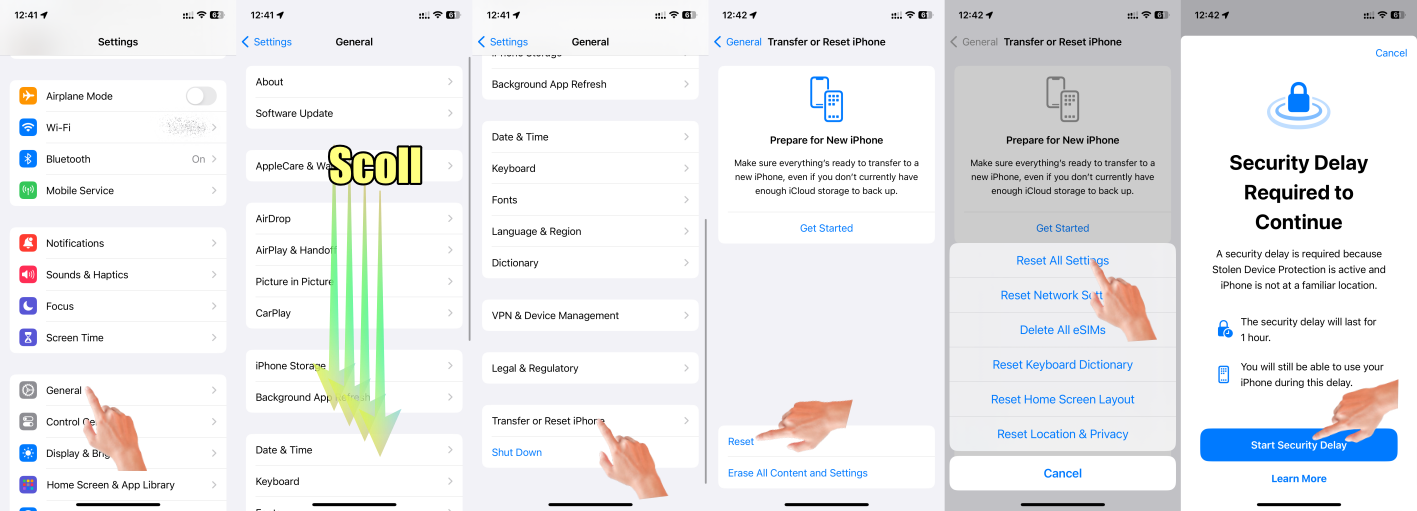
If the issue persists, you can try resetting all settings on your iPhone. This will not erase your data but will reset all personalized settings to their default values. Go to Settings > General > Transfer & Reset > Reset > Reset All Settings and confirm the action. Note that you will need to reconfigure your settings afterward. All settings—including network settings, the keyboard dictionary, the Home screen layout, location settings, privacy settings, and Apple Pay cards—are removed or reset to their defaults. No data or media are deleted.

  1. Reset All Settings: Return iPhone settings to their defaults - Apple Support:- Return iPhone settings to their defaults
  2. You can return settings to their defaults without erasing your content.
  3. If you want to save your settings, back up your iPhone before returning them to their defaults. For example, if you’re trying to solve a problem but returning settings to their defaults doesn’t help, you might want to restore your previous settings from a backup.
  4. Make sure you have the latest updates installed.
    1. Update Over-the-Air (OTA) —> Update your iPhone or iPad - Apple Support (IN)
    2. Update using iTunes/Finder —> Update your iPhone, iPad, or iPod touch - Apple Support (IN)


Similar questions

1 reply
Question marked as Top-ranking reply

Feb 12, 2024 11:04 PM in response to theswordsmith

Check your iPhone settings

Go to Settings and turn on Airplane Mode, wait five seconds, then turn it off. Check Do Not Disturb. Go to Settings > Focus > Do Not Disturb and make sure it's turned off. Check for any blocked phone numbers.


If you can't make or receive calls on your iPhone - Apple Support


Can't send or receive messages then try these steps first

  1. Restart your device: ... 
  2. Check your network connection. ... 
  3. Check with your carrier to see if the type of message you're trying to send, like MMS or SMS, is supported.
  4. If you're trying to send group MMS messages on an iPhone, go to Settings > Messages and turn on MMS Messaging.

More items...


If you can't send or receive messages on your iPhone, iPad, or ...


If the issue persists, you can try resetting all settings on your iPhone. This will not erase your data but will reset all personalized settings to their default values. Go to Settings > General > Transfer & Reset > Reset > Reset All Settings and confirm the action. Note that you will need to reconfigure your settings afterward. All settings—including network settings, the keyboard dictionary, the Home screen layout, location settings, privacy settings, and Apple Pay cards—are removed or reset to their defaults. No data or media are deleted.

  1. Reset All Settings: Return iPhone settings to their defaults - Apple Support:- Return iPhone settings to their defaults
  2. You can return settings to their defaults without erasing your content.
  3. If you want to save your settings, back up your iPhone before returning them to their defaults. For example, if you’re trying to solve a problem but returning settings to their defaults doesn’t help, you might want to restore your previous settings from a backup.
  4. Make sure you have the latest updates installed.
    1. Update Over-the-Air (OTA) —> Update your iPhone or iPad - Apple Support (IN)
    2. Update using iTunes/Finder —> Update your iPhone, iPad, or iPod touch - Apple Support (IN)


This thread has been closed by the system or the community team. You may vote for any posts you find helpful, or search the Community for additional answers.

Call Fails after international travel - After using a foreign SIM and returning to the US, all Verizon calls on my 13 Pro (iOS 17.3) fail and attempt to dial +1 with area code and calls fail

Welcome to Apple Support Community
A forum where Apple customers help each other with their products. Get started with your Apple Account.