How to make a Quick Note on my iPad
I want a quick note for my iPad can you help me please sir
[Re-Titled by Moderator]
iPad, iPadOS 17
I want a quick note for my iPad can you help me please sir
[Re-Titled by Moderator]
iPad, iPadOS 17
Create Quick Notes anywhere on iPad
You can use Quick Notes to jot down information over any app or screen on iPad. Add links, images, tags, and mentions to a Quick Note so you can get to important names, numbers, and ideas easily. When you highlight text in Safari or add a link from an app, you see a Quick Note thumbnail next time you visit the site, taking you right to what you were viewing before.
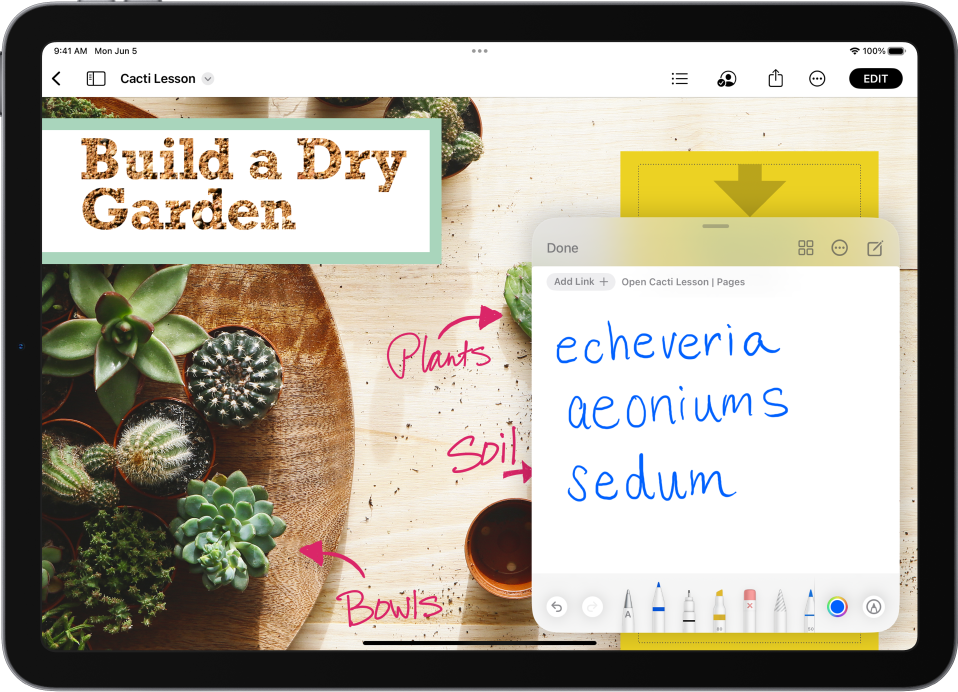
You can access all your Quick Notes in the Notes app  . And when you make a Quick Note on your iPad, you can see the note on your iPhone and Mac, too.
Make a Quick Note
To start a Quick Note from any app, do any of the following:
 , then tap Add to Quick Note.
 > Multitasking & Gestures, then turn on Swipe Finger from Corner.
 ., add it to Control Center—go to Settings > Control Center, then choose Quick Note.)
View and organize Quick Notes
To view all your Quick Notes in the Notes app, tap Quick Notes in the folders list.
Note: You can’t lock a Quick Note unless you move it to a different folder.
If you move an individual Quick Note to a different folder, it becomes a standard note and no longer appears as a Quick Note in other apps.
Change or turn off the corner gesture for Quick Notes
Go to Settings > Notes > Corner Gestures, then do any of the following:
Axel F.
Create Quick Notes anywhere on iPad
You can use Quick Notes to jot down information over any app or screen on iPad. Add links, images, tags, and mentions to a Quick Note so you can get to important names, numbers, and ideas easily. When you highlight text in Safari or add a link from an app, you see a Quick Note thumbnail next time you visit the site, taking you right to what you were viewing before.
You can access all your Quick Notes in the Notes app . And when you make a Quick Note on your iPad, you can see the note on your iPhone and Mac, too.
Make a Quick Note
To start a Quick Note from any app, do any of the following:
, then tap Add to Quick Note. > Multitasking & Gestures, then turn on Swipe Finger from Corner.., add it to Control Center—go to Settings > Control Center, then choose Quick Note.)View and organize Quick Notes
To view all your Quick Notes in the Notes app, tap Quick Notes in the folders list.
Note: You can’t lock a Quick Note unless you move it to a different folder.
If you move an individual Quick Note to a different folder, it becomes a standard note and no longer appears as a Quick Note in other apps.
Change or turn off the corner gesture for Quick Notes
Go to Settings > Notes > Corner Gestures, then do any of the following:
Axel F.
How to make a Quick Note on my iPad