Wifi not working in certain apps

I have an iPhone 14 with iOS 17.3.1. I can connect to wifi, and some apps (Facebook, Messenger, Instagram, telegram) are working fine, while others show "no internet". The wifi works fine on other devices. I have tried changing wifi settings and resetting network settings on iPhone. Doesn't make any difference. How to solve this?

iPhone 14

Posted on Feb 27, 2024 7:20 AM

Reply
Question marked as Top-ranking reply

Posted on Feb 27, 2024 7:28 AM

Since you have tried all the usual steps, try the last step...


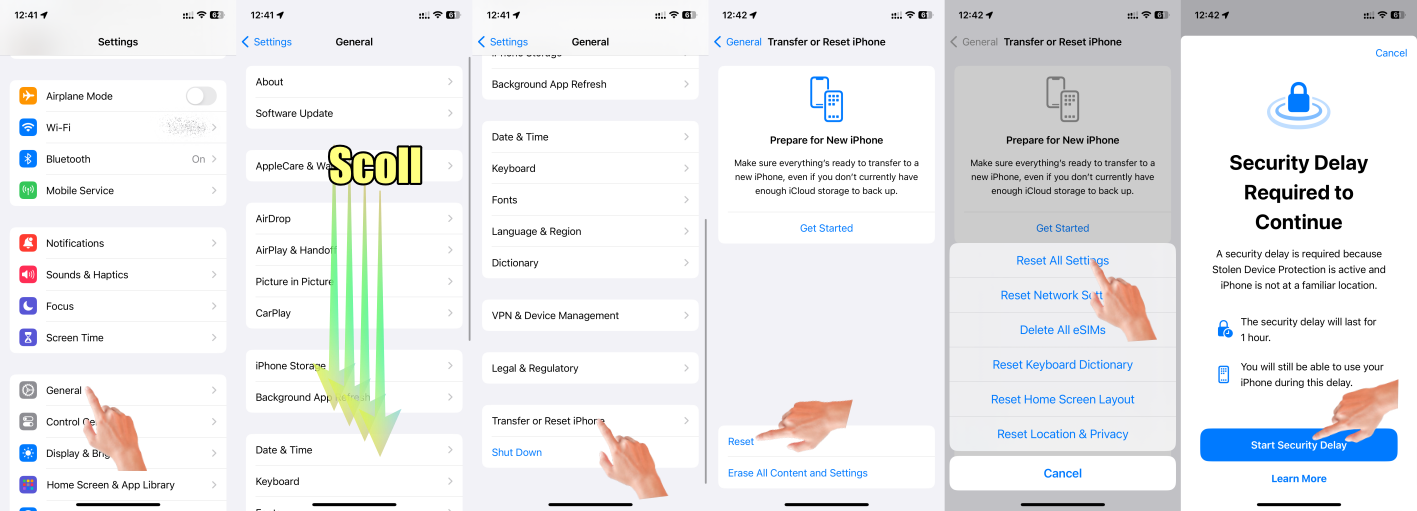
Reset All Settings: If the issue persists, you can try resetting all settings on your iPhone. This will not erase your data but will reset all personalized settings to their default values. Go to Settings > General > Transfer & Reset > Reset > Reset All Settings and confirm the action. Note that you will need to reconfigure your settings afterward. All settings—including network settings, the keyboard dictionary, the Home screen layout, location settings, privacy settings, and Apple Pay cards—are removed or reset to their defaults. No data or media are deleted.

  1. Reset All Settings: Return iPhone settings to their defaults - Apple Support:- Return iPhone settings to their defaults
  2. You can return settings to their defaults without erasing your content.
  3. If you want to save your settings, back up your iPhone before returning them to their defaults. For example, if you’re trying to solve a problem but returning settings to their defaults doesn’t help, you might want to restore your previous settings from a backup.


3 replies
Question marked as Top-ranking reply

Feb 27, 2024 7:28 AM in response to sha30

Since you have tried all the usual steps, try the last step...


Reset All Settings: If the issue persists, you can try resetting all settings on your iPhone. This will not erase your data but will reset all personalized settings to their default values. Go to Settings > General > Transfer & Reset > Reset > Reset All Settings and confirm the action. Note that you will need to reconfigure your settings afterward. All settings—including network settings, the keyboard dictionary, the Home screen layout, location settings, privacy settings, and Apple Pay cards—are removed or reset to their defaults. No data or media are deleted.

  1. Reset All Settings: Return iPhone settings to their defaults - Apple Support:- Return iPhone settings to their defaults
  2. You can return settings to their defaults without erasing your content.
  3. If you want to save your settings, back up your iPhone before returning them to their defaults. For example, if you’re trying to solve a problem but returning settings to their defaults doesn’t help, you might want to restore your previous settings from a backup.


Feb 27, 2024 7:29 AM in response to sha30

If nothing worked then restore from a backup. There are two ways based on where you had backed up your device.


Restore your device from an iCloud backup

  1. Turn on your device. ... 
  2. Follow the onscreen setup steps until you reach the Apps & Data screen, then tap Restore from iCloud Backup.
  3. Sign in to iCloud with your Apple ID.
  4. Choose a backup.

More items...


Restore your iPhone, iPad, or iPod touch from a backup ...


Restore your device from a backup on your computer

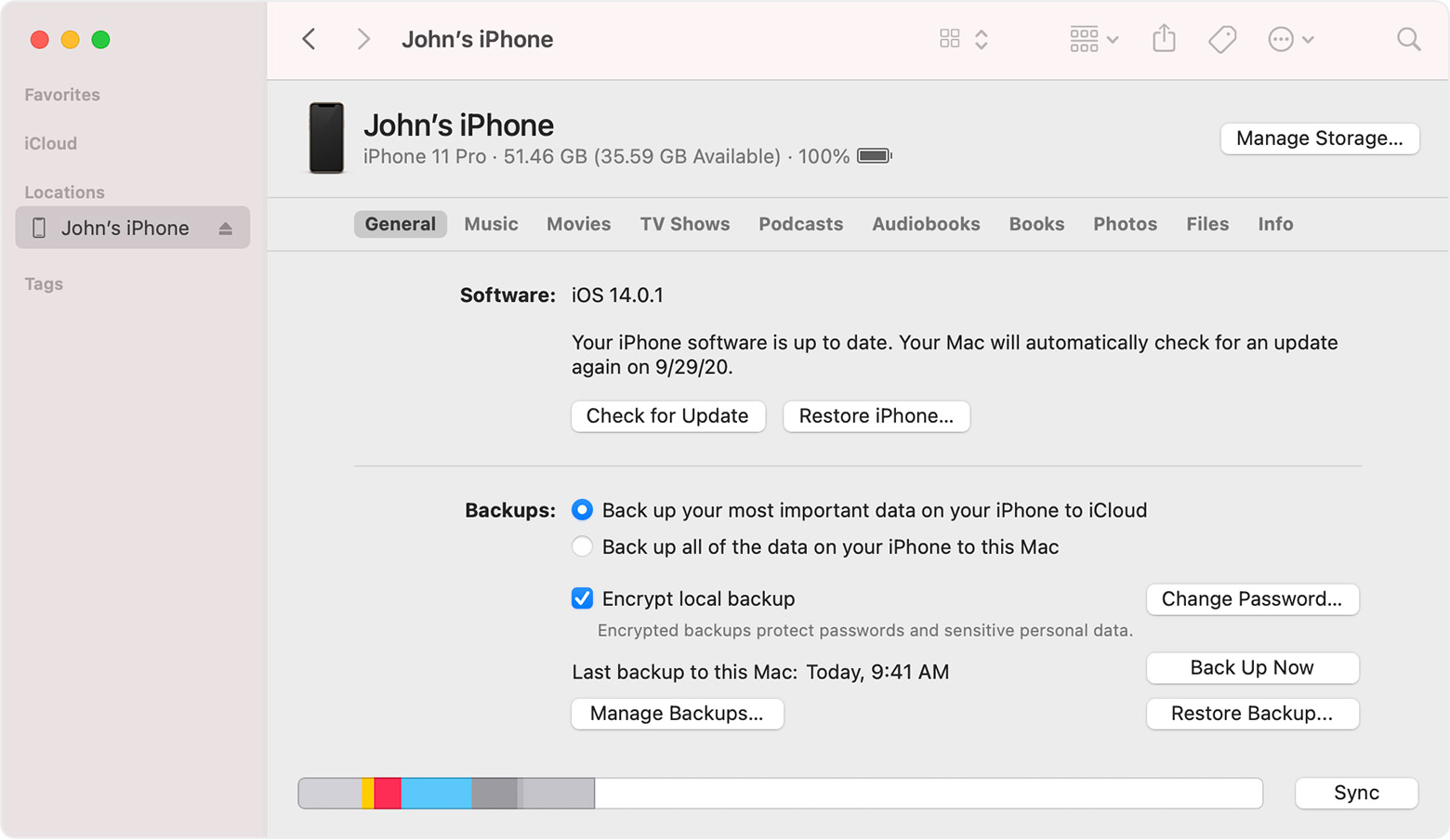
  1. On a Mac with macOS Catalina 10.15 or later, open Finder. On a Mac with macOS Mojave 10.14 or earlier, or on a PC, open iTunes.
  2. Connect your device to your computer with a USB cable.* If a message asks for your device passcode or to Trust This Computer, follow the onscreen steps. If you forgot your passcode, get help.
  3. Select your iPhone, iPad, or iPod touch when it appears in the Finder window or iTunes. If your device doesn't appear, learn what to do.
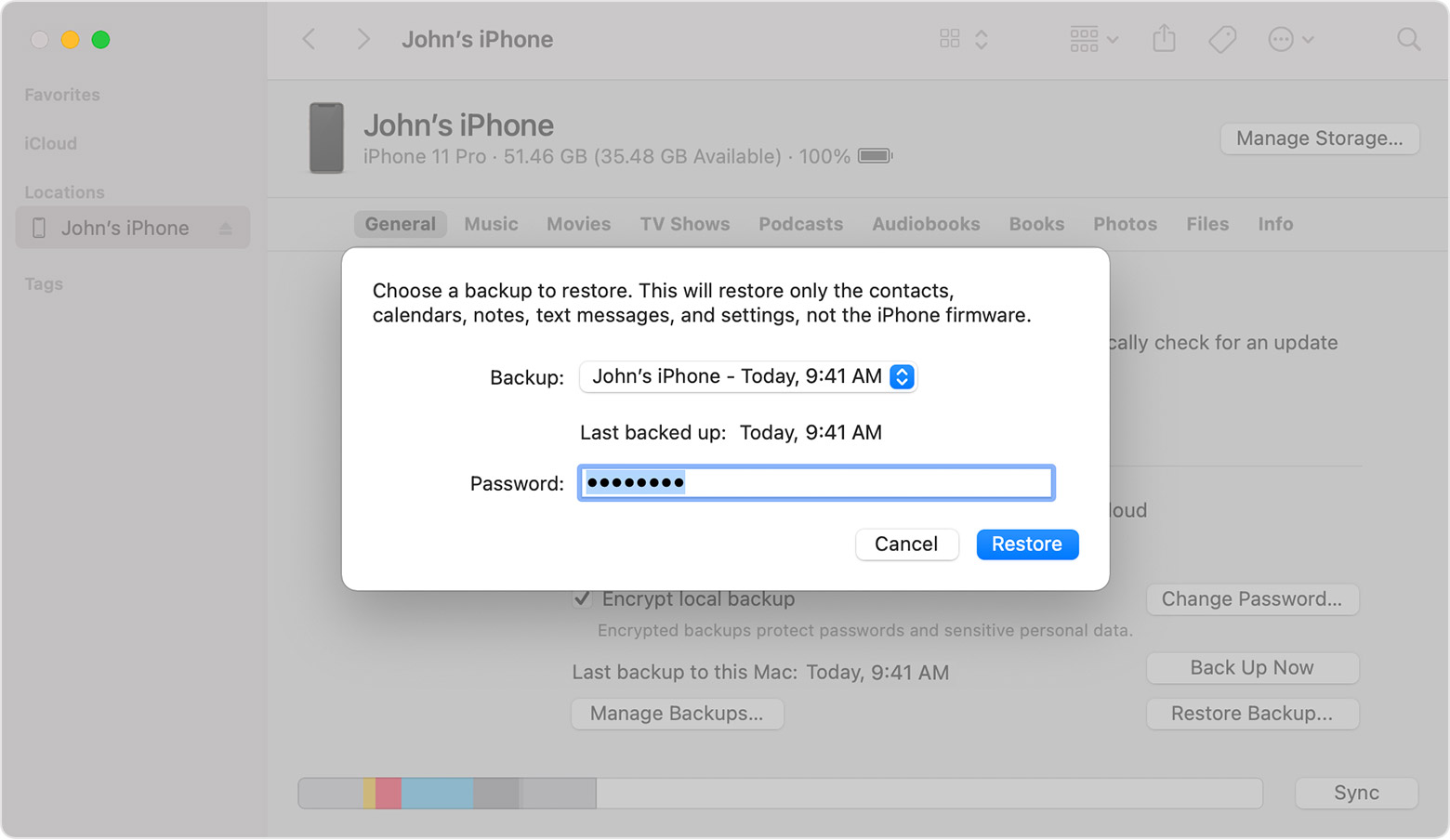
  4. Select Restore Backup. If a message says that your device's software is too old, learn what to do
  5. Look at the date of each backup and pick the most relevant.
  6. Click Restore and wait for the restore time to finish. If asked, enter the password for your encrypted backup.
  7. Keep your device connected after it restarts and wait for it to sync with your computer. You can disconnect after the sync finishes.
  8. Get help restoring from a backup.


This thread has been closed by the system or the community team. You may vote for any posts you find helpful, or search the Community for additional answers.

Wifi not working in certain apps

Welcome to Apple Support Community
A forum where Apple customers help each other with their products. Get started with your Apple Account.