Sharing Photos to Toshiba Hardrive

Hi,


I just bought a Toshiba external hard drive (https://www.amazon.com/Toshiba-Canvio-Basics-Portable-External/dp/B0BQX6NNVC/ref=cm_cr_arp_d_product_top?ie=UTF8) so that I can transfer all my photos to my computer. I did my research and did the erase and restore so that it works for my Mac. I've been dragging and dropping pictures in small sections and have got about 50 photos in and now anytime I try to drag and drop the photos over, nothing happens and they dont carry over. Please help, there must be something that I am missing. Ultimately I am trying to get the photos on my phone off and onto this drive but can't upload those photos until the ones on my computer are gone because I have no more storage.


Thank you in advance!

MacBook Pro 15″, macOS 10.13

Posted on Mar 9, 2024 3:48 PM

Reply
Question marked as Top-ranking reply

Posted on Mar 10, 2024 1:36 PM

Your pictures are not stored in the Photos app-- that's the instructions for how to work with them. The pictures are stored in the Photos Library, probably called Photos Library.photoslibrary, located in the Pictures folder.


If you have dragged the Photos app to your new hard drive-- trash it! It shouldn't be on the hard drive. You should still have the Photos app in your application folder where it belongs.


So, drag the Photos Library from the Pictures folder to the new drive. I would rename it, like NewPhotos, or something. Then double click NewPhotos. It should open Photos and you should be able to look through it. Look at Imports to see if some of the new pictures are there. Drag one new picture of anything from anywhere onto the NewPhotos Library icon that's now on your hard drive, and make sure it shows up in Photos-- we should make absolutely sure that Photos is looking at the new library.


In fact, go to Photos>Settings>General and look at the path for the Library:
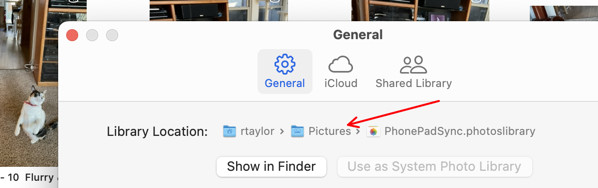

I had renamed my library to remind me what it was for. You can see that mine is in my Pictures folder. Yours should show that your Library is on your new drive. If that's good, tap the Use as System Photo Library. Mine is grayed out, because it is already the System Library.


If you're satisfied that all is well, then go to Settings>iCloud
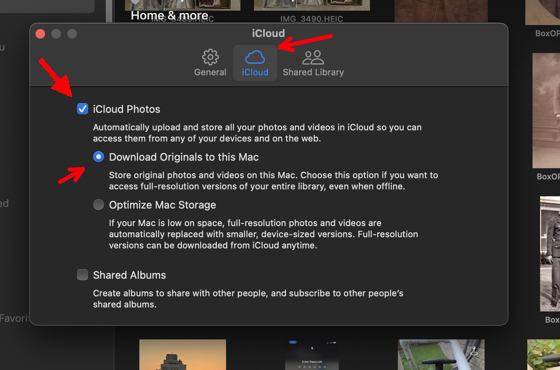

and turn on iCloud. Make sure everything looks good before deleting the Library on your Mac! In fact, you could again drag that Library to the new drive as a backup, since that one has a new name and is no longer the System Library.


You can see all your Libraries by closing Photos and then option-clicking on the Photos icon. You'll get a dialog like this:
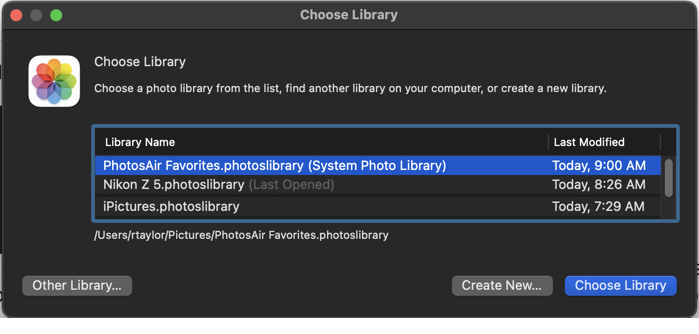
It shows the path to each one and identifies you System Library. The System Library is the only one that connects to iCloud.


Let us know how it goes!


Similar questions

7 replies
Question marked as Top-ranking reply

Mar 10, 2024 1:36 PM in response to Kyliew3

Your pictures are not stored in the Photos app-- that's the instructions for how to work with them. The pictures are stored in the Photos Library, probably called Photos Library.photoslibrary, located in the Pictures folder.


If you have dragged the Photos app to your new hard drive-- trash it! It shouldn't be on the hard drive. You should still have the Photos app in your application folder where it belongs.


So, drag the Photos Library from the Pictures folder to the new drive. I would rename it, like NewPhotos, or something. Then double click NewPhotos. It should open Photos and you should be able to look through it. Look at Imports to see if some of the new pictures are there. Drag one new picture of anything from anywhere onto the NewPhotos Library icon that's now on your hard drive, and make sure it shows up in Photos-- we should make absolutely sure that Photos is looking at the new library.


In fact, go to Photos>Settings>General and look at the path for the Library:


I had renamed my library to remind me what it was for. You can see that mine is in my Pictures folder. Yours should show that your Library is on your new drive. If that's good, tap the Use as System Photo Library. Mine is grayed out, because it is already the System Library.


If you're satisfied that all is well, then go to Settings>iCloud


and turn on iCloud. Make sure everything looks good before deleting the Library on your Mac! In fact, you could again drag that Library to the new drive as a backup, since that one has a new name and is no longer the System Library.


You can see all your Libraries by closing Photos and then option-clicking on the Photos icon. You'll get a dialog like this:

It shows the path to each one and identifies you System Library. The System Library is the only one that connects to iCloud.


Let us know how it goes!


Mar 10, 2024 8:50 AM in response to Kyliew3

First-- how is your new hard drive formatted-- I'm not sure about "erase and restore." Did you use Disk Utility? This is a mechanical drive, so it should be formatted in  Mac OS Extended Journaled. I've heard that APFS, the newer Apple file system, is a bit slower on mechanical drives. Are you in fact using High Sierra (10.13) as your operating system? How is your internal hard drive formatted?


Do you use iCloud to synchronize your Photos Library on your Mac and phone?


Are you trying to transfer pictures from folders in Finder on your Mac, or are you trying to transfer pictures from the Photos app? What do you mean by "transfer?" If from Finder folders, do you mean that you are dragging them to the drive icon? Or are you trying to drag the Photos Library to the new drive?


If your pictures are maintained in the Photos Library that resides in the Pictures folder on your Mac, then you should be able to copy that Library, probably "Photos Library.photoslibrary" directly to the new drive, if it is properly formatted. Then you can double click on the Library and it should open in Photos.


Is your MacBook used as a portable, moving it from place to place, or is it connected permanently on a desk?


If you use iCloud Photos, and your pictures are stored there, then you will need to make sure that the Photos Library is made your System Library (in Photos>Settings) and connected to iCloud.


Let us know about this stuff, because the method may change a bit depending on your setup....


Mar 10, 2024 12:41 PM in response to Richard.Taylor

Hi,


Thanks for replying!


Yes it is now formatted to Mac OS Extended Journaled now that I have updated it. I am using MacOS Catalina 10.15.7. but can't update it because the lack of disk space on my computer.


I use ICloud but it has since stopped syncing due to lack of storage..


I am trying to take the photos from my photo library app and drag them onto the external hard drive. Once they are on there I am then deleting them. If I copy my photo library onto my hardrive am I able to delete what's in the physical library so that I can upload my phones photos to my library on my macbook and then onto the hardrive? I do not have an option when plugging my phone into my laptop to see the photos on my phone. I assume because lack of storage.


My macbook is portable and after checking my photos library is connected to iCloud.


Appreciate your help!!

Mar 13, 2024 2:42 PM in response to Richard.Taylor

I think all is good. I have successfully moved two libraries to my hard drive and now working on uploading my iPhone cloud photos to my new system library to get those over to my hard drive. One thing I noticed is that my iCloud is taking a while to upload saying my Mac needs to cool down. I definitely have more than 30 photos that need to be synced. any ideas?

This thread has been closed by the system or the community team. You may vote for any posts you find helpful, or search the Community for additional answers.

Sharing Photos to Toshiba Hardrive

Welcome to Apple Support Community
A forum where Apple customers help each other with their products. Get started with your Apple Account.
