iPad 8th Gen Screen unresponsive/Pen Issue

So I bought my wife an iPad 8th generation for Christmas last year. It worked fine for a few months but now is randomly freezing for 20-30 seconds at a time and then resuming normal function. It does this about every minute or so. I have restarted the iPad several times to no avail. iPad is 17.4.1


on another note her pencil 1st generation is not working with the iPad either. It shows charge and that it is paired but doesn’t work on the screen, even when the iPad is unfrozen.


any and all help is appreciated!

Posted on May 4, 2024 1:26 PM

Reply
Question marked as Top-ranking reply

Posted on May 6, 2024 7:18 AM

As described, assuming that the Apple Pencil has successfully paired with the iPad, inconsistent drawing is typically due to a problem with the Pencil itself, or its interaction with the iPad screen.


Ensure that the user-replaceable Pencil tip is snugly screwed into the body of the Apple Pencil; when fitted correctly you should see a tiny gap, of about the thickness of a sheet of paper, between the tip and pencil body. If slightly loosened, or overtightened, the Pencil may not work properly, if at all.


Be aware that if your iPad screen has ever been replaced by anyone other than Apple, the screen will not be properly calibrated; this situation is known to cause issues with the Pencil. Also, if the Pencil has been dropped onto its tip, or if the tip has been subjected to unnecessary force, the transducer element that its located beneath the replaceable plastic tip may have been damaged; a damaged Pencil cannot be repaired - only replaced.


Otherwise, try a forced-restart of your iPad - as this will often clear an isolated software issue:


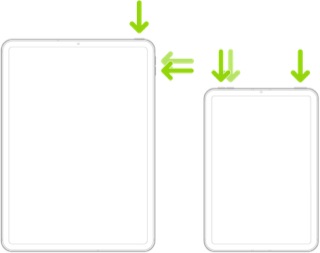
Force restart iPad (models with Face ID or with Touch ID in the top button)

If your iPad doesn’t have the Home button, do the following:

  1. Press and quickly release the volume button nearest to the top button.
  2. Press and quickly release the volume button farthest from the top button.
  3. Press and hold the top button.
  4. When the Apple logo appears, release the top button.


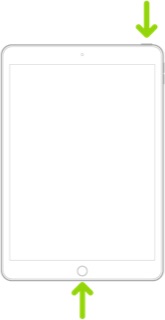
Force restart iPad (models with the Home button)

Press and hold the top button and the Home button at the same time. When the Apple logo appears, release both buttons.


If the problem persists after performing the restart, it may be necessary to reset your iPad settings. While this reset will not cause any loss of data, as a precaution, it is always wise to ensure that you have a current iCloud or iTunes backup before performing the reset:

How to back up your iPhone, iPad, and iPod touch - Apple Support


When you are happy to proceed, you can perform the reset from iPad settings:

Settings > General > Transfer or Reset iPad > Reset > Reset All Settings


If the problem still doesn’t clear, the next step is to reset the iPad to factory settings:

Restore your iPhone, iPad, or iPod to factory settings - Apple Support


Otherwise, you might be best advised to seek assistance directly from Apple Support. You can contact the Support Team using the Support link at top-right or bottom-left of this page. Alternatively and perhaps easier, you can initiate and manage your support cases using the excellent Apple Support App. If not already installed on your iPad, the App can be downloaded from the App Store:

https://apps.apple.com/app/apple-support/id1130498044


You might also visit the Genius Bar at your local Apple Store or Apple Authorised Service Provider (AASP) - where the technicians will be able to test and assess your iPad - and you can explore your available options:

Genius Bar Reservation and Apple Support Options - Apple


Similar questions

2 replies
Question marked as Top-ranking reply

May 6, 2024 7:18 AM in response to Reynolds2018

As described, assuming that the Apple Pencil has successfully paired with the iPad, inconsistent drawing is typically due to a problem with the Pencil itself, or its interaction with the iPad screen.


Ensure that the user-replaceable Pencil tip is snugly screwed into the body of the Apple Pencil; when fitted correctly you should see a tiny gap, of about the thickness of a sheet of paper, between the tip and pencil body. If slightly loosened, or overtightened, the Pencil may not work properly, if at all.


Be aware that if your iPad screen has ever been replaced by anyone other than Apple, the screen will not be properly calibrated; this situation is known to cause issues with the Pencil. Also, if the Pencil has been dropped onto its tip, or if the tip has been subjected to unnecessary force, the transducer element that its located beneath the replaceable plastic tip may have been damaged; a damaged Pencil cannot be repaired - only replaced.


Otherwise, try a forced-restart of your iPad - as this will often clear an isolated software issue:


Force restart iPad (models with Face ID or with Touch ID in the top button)

If your iPad doesn’t have the Home button, do the following:

  1. Press and quickly release the volume button nearest to the top button.
  2. Press and quickly release the volume button farthest from the top button.
  3. Press and hold the top button.
  4. When the Apple logo appears, release the top button.


Force restart iPad (models with the Home button)

Press and hold the top button and the Home button at the same time. When the Apple logo appears, release both buttons.


If the problem persists after performing the restart, it may be necessary to reset your iPad settings. While this reset will not cause any loss of data, as a precaution, it is always wise to ensure that you have a current iCloud or iTunes backup before performing the reset:

How to back up your iPhone, iPad, and iPod touch - Apple Support


When you are happy to proceed, you can perform the reset from iPad settings:

Settings > General > Transfer or Reset iPad > Reset > Reset All Settings


If the problem still doesn’t clear, the next step is to reset the iPad to factory settings:

Restore your iPhone, iPad, or iPod to factory settings - Apple Support


Otherwise, you might be best advised to seek assistance directly from Apple Support. You can contact the Support Team using the Support link at top-right or bottom-left of this page. Alternatively and perhaps easier, you can initiate and manage your support cases using the excellent Apple Support App. If not already installed on your iPad, the App can be downloaded from the App Store:

https://apps.apple.com/app/apple-support/id1130498044


You might also visit the Genius Bar at your local Apple Store or Apple Authorised Service Provider (AASP) - where the technicians will be able to test and assess your iPad - and you can explore your available options:

Genius Bar Reservation and Apple Support Options - Apple



This thread has been closed by the system or the community team. You may vote for any posts you find helpful, or search the Community for additional answers.

iPad 8th Gen Screen unresponsive/Pen Issue

Welcome to Apple Support Community
A forum where Apple customers help each other with their products. Get started with your Apple Account.
