Phase 10 Game not connecting to the internet from iPad

I have installed Phase10 on my iPad and everything else is working on my iPad but the game says to get online and I can’t. I have made sure that my game is updated and my iPad is updated. I have uninstalled and reinstalled the game. I have shut town and turned back on my iPad. Help!


Posted on Jul 12, 2024 10:07 AM

Reply
Question marked as Top-ranking reply

Posted on Jul 13, 2024 5:43 AM

If you have a VPN App or profiles installed, or a security/AV/firewall App such as Norton, these may be interfering with your network connection. The resolution is usually simple; if installed, you may need to disable or remove the Security App and/or VPN.


If some Apps are working as expected, while others are not - or other devices can connect to your WiFi network - you may find that a restart of your WiFi Router, followed by a restart of your iPad will clear the problem….


To restart your router, disconnect power from the router for at least 30 seconds - then reconnect power to restart. After your router reboots (which may take several minutes), force restart your iPad:


Force restart iPad (models with Face ID or with Touch ID in the top button)

If your iPad doesn’t have the Home button, do the following:

  1. Press and quickly release the volume button nearest to the top button.
  2. Press and quickly release the volume button farthest from the top button.
  3. Press and hold the top button.
  4. When the Apple logo appears, release the top button.


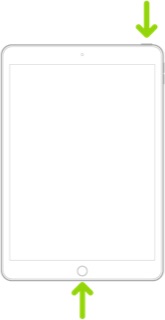
Force restart iPad (models with the Home button)

Press and hold the top button and the Home button at the same time. When the Apple logo appears, release both buttons.


If you continue to have difficulties, check to see if your iPad is using the WiFi Private Address feature. This feature is intended to provide additional privacy and security when using “public” (untrusted) WiFi networks.

Settings > WiFi > [Your WiFi Network / SSID] - tap the “i” icon - Private Address


The Private Address feature is largely unnecessary for your home WiFi network; if enabled, Private Addressing can cause issues if specific MAC addresses are expected by your WiFi Router. You may need to disable this feature - and can be enabled or disabled for each individual network.


Use private Wi-Fi addresses in iOS 14, iPadOS 14, and watchOS 7 - Apple Support

1 reply
Question marked as Top-ranking reply

Jul 13, 2024 5:43 AM in response to Kds2688

If you have a VPN App or profiles installed, or a security/AV/firewall App such as Norton, these may be interfering with your network connection. The resolution is usually simple; if installed, you may need to disable or remove the Security App and/or VPN.


If some Apps are working as expected, while others are not - or other devices can connect to your WiFi network - you may find that a restart of your WiFi Router, followed by a restart of your iPad will clear the problem….


To restart your router, disconnect power from the router for at least 30 seconds - then reconnect power to restart. After your router reboots (which may take several minutes), force restart your iPad:


Force restart iPad (models with Face ID or with Touch ID in the top button)

If your iPad doesn’t have the Home button, do the following:

  1. Press and quickly release the volume button nearest to the top button.
  2. Press and quickly release the volume button farthest from the top button.
  3. Press and hold the top button.
  4. When the Apple logo appears, release the top button.


Force restart iPad (models with the Home button)

Press and hold the top button and the Home button at the same time. When the Apple logo appears, release both buttons.


If you continue to have difficulties, check to see if your iPad is using the WiFi Private Address feature. This feature is intended to provide additional privacy and security when using “public” (untrusted) WiFi networks.

Settings > WiFi > [Your WiFi Network / SSID] - tap the “i” icon - Private Address


The Private Address feature is largely unnecessary for your home WiFi network; if enabled, Private Addressing can cause issues if specific MAC addresses are expected by your WiFi Router. You may need to disable this feature - and can be enabled or disabled for each individual network.


Use private Wi-Fi addresses in iOS 14, iPadOS 14, and watchOS 7 - Apple Support

This thread has been closed by the system or the community team. You may vote for any posts you find helpful, or search the Community for additional answers.

Phase 10 Game not connecting to the internet from iPad

Welcome to Apple Support Community
A forum where Apple customers help each other with their products. Get started with your Apple Account.