Magic Keyboard screen locked on my iPad Pro

This window is vertical and in the center of iPad screen


it shows a lock above


categories are


interactions

movement

Device

gestures


cannot get it closed and cannot see what is behind window


cannot shut down because it blocks swipe function


what the **** is it and do you close it ??

Posted on Aug 25, 2024 3:06 PM

Reply
Question marked as Top-ranking reply

Posted on Aug 26, 2024 3:45 AM

Press and hold the Apple Command key on your keyboard (often abbreviated to cmd - with the looped square symbol); this shortcut will cause the keyboard shortcuts menu to be exposed or hidden:


Cmd ⌘


If the problem persists, try a forced restart of your iPad:


Force restart iPad (models with Face ID or with Touch ID in the top button)

If your iPad doesn’t have the Home button, do the following:

  1. Press and quickly release the volume button nearest to the top button.
  2. Press and quickly release the volume button farthest from the top button.
  3. Press and hold the top button.
  4. When the Apple logo appears, release the top button.


Force restart iPad (models with the Home button)

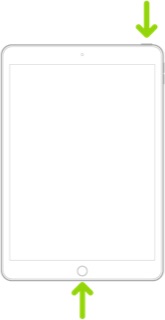
Press and hold the top button and the Home button at the same time. When the Apple logo appears, release both buttons.



3 replies
Question marked as Top-ranking reply

Aug 26, 2024 3:45 AM in response to LasVegas143

Press and hold the Apple Command key on your keyboard (often abbreviated to cmd - with the looped square symbol); this shortcut will cause the keyboard shortcuts menu to be exposed or hidden:


Cmd ⌘


If the problem persists, try a forced restart of your iPad:


Force restart iPad (models with Face ID or with Touch ID in the top button)

If your iPad doesn’t have the Home button, do the following:

  1. Press and quickly release the volume button nearest to the top button.
  2. Press and quickly release the volume button farthest from the top button.
  3. Press and hold the top button.
  4. When the Apple logo appears, release the top button.


Force restart iPad (models with the Home button)

Press and hold the top button and the Home button at the same time. When the Apple logo appears, release both buttons.


Aug 25, 2024 3:39 PM in response to LasVegas143

Have you enabled the Scribble feature? This feature uses a different mini-keyboard that does not respond to the two-finger zoom or pinch gestures.


Settings > Apple Pencil > Scribble - set to OFF


Otherwise, to restore the new Floating Keyboard to the normal on-screen keyboard presentation, use the two-finger “zoom” gesture (i.e., the reverse of the two-finger “pinch”).


If the Split Keyboard is restored instead of the full on-screen keyboard, you can either use two fingers (one on each of the two half-keyboards) and swipe the two halves together - or touch-and-hold the “keyboard” key, then slide your finger to the Merge & Dock option and release.


Use the floating keyboard on your iPad – Apple Support

Split and move the keyboard on your iPad – Apple Support


Aug 25, 2024 4:42 PM in response to LotusPilot

Thank you for your reply but I did not property explain the issue


I was cleaning my Magic Keyboard with a cloth and must have hit a succession of keys that posted a menu screen that I think is for keyboard


it. Will not go away. No ability to move it to the side.


it is a basically listing of key strokes that you type to perform various functions


it does not do much of anything tying in the function key strokes


there seems to be no 'exit' or 'close' tab to click


it is just there


will not exit


This thread has been closed by the system or the community team. You may vote for any posts you find helpful, or search the Community for additional answers.

Magic Keyboard screen locked on my iPad Pro

Welcome to Apple Support Community
A forum where Apple customers help each other with their products. Get started with your Apple Account.