How to use AirPods Pro 2 for hearing loss?

I have a new set of AirPods pro 2 for my hearing loss and need directions for use!


[Re-Titled by Moderator]

iPhone 13 Pro Max, iOS 17

Posted on Oct 9, 2024 11:36 AM

Reply
Question marked as Top-ranking reply

Posted on Oct 9, 2024 11:49 AM

AirPods Pro 2 controls and gestures

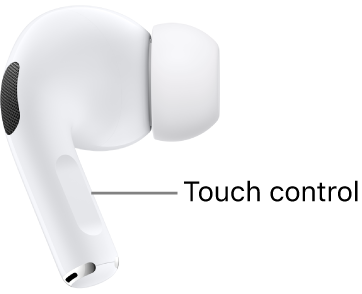
With the Touch control on the stem of both AirPods Pro 2, you can do any of the following:

  • Play and pause audio: Press the stem. To resume playback, press it again.
  • Play the next track: Double-press the stem.
  • Play the previous track: Triple-press the stem.
  • Answer a call: When you receive a call, press the stem.
  • Adjust volume: Lightly swipe up or down on the stem.
  • You can also turn on Personalized Volume to automatically adjust the volume based on listening preferences and your environment. See Use Conversation Awareness, Personalized Volume, and Loud Sound Reduction.
  • Switch between Noise Cancellation, Transparency, and Adaptive Audio noise control modes: You can set either of your AirPods to perform this action when you press and hold the stem. See Change what the force sensor or Touch control does.
  • Activate Siri: You can set either of your AirPods to perform this action when you press and hold the stem. See Use Siri with AirPods.

Use head gestures to respond to Siri

  • Accept a call or reply to notifications and messages: Nod your head up and down.
  • Decline a call or dismiss notifications and messages: Shake your head side to side.

Note: To use head gestures to respond to Siri, Announce Calls and Announce Notifications must be on. See Use Siri to announce calls or notifications.


Copied from:

Use controls and gestures with your AirPods - Apple Support (JO)


Note, if you are looking for instructions on how to use the hearing aid feature, it has not been released yet. It is expected sometime this Fall.

2 replies
Question marked as Top-ranking reply

Oct 9, 2024 11:49 AM in response to lee anne from Nashville

AirPods Pro 2 controls and gestures

With the Touch control on the stem of both AirPods Pro 2, you can do any of the following:

  • Play and pause audio: Press the stem. To resume playback, press it again.
  • Play the next track: Double-press the stem.
  • Play the previous track: Triple-press the stem.
  • Answer a call: When you receive a call, press the stem.
  • Adjust volume: Lightly swipe up or down on the stem.
  • You can also turn on Personalized Volume to automatically adjust the volume based on listening preferences and your environment. See Use Conversation Awareness, Personalized Volume, and Loud Sound Reduction.
  • Switch between Noise Cancellation, Transparency, and Adaptive Audio noise control modes: You can set either of your AirPods to perform this action when you press and hold the stem. See Change what the force sensor or Touch control does.
  • Activate Siri: You can set either of your AirPods to perform this action when you press and hold the stem. See Use Siri with AirPods.

Use head gestures to respond to Siri

  • Accept a call or reply to notifications and messages: Nod your head up and down.
  • Decline a call or dismiss notifications and messages: Shake your head side to side.

Note: To use head gestures to respond to Siri, Announce Calls and Announce Notifications must be on. See Use Siri to announce calls or notifications.


Copied from:

Use controls and gestures with your AirPods - Apple Support (JO)


Note, if you are looking for instructions on how to use the hearing aid feature, it has not been released yet. It is expected sometime this Fall.

This thread has been closed by the system or the community team. You may vote for any posts you find helpful, or search the Community for additional answers.

How to use AirPods Pro 2 for hearing loss?

Welcome to Apple Support Community
A forum where Apple customers help each other with their products. Get started with your Apple Account.