iPad screen unresponsive

Screen is locked and will not respond to touch. Can not turn off as slider is not responsive. It is an iPad pro 11 inch, 2019 running latest iPad OS (18.1 I believe) Its still connected to network and internet as it still receives notifications from News and text messages on Messenger. How can I turn it Off or reset?


iPad Pro, iPadOS 17

Posted on Nov 9, 2024 4:35 PM

Reply
Question marked as Top-ranking reply

Posted on Nov 10, 2024 4:03 AM

If your iPad is unresponsive, connect your iPad to its Power Adapter and allow the iPad to charge undisturbed for at least and hour - or preferably overnight. Then, while still connected to external power, try a forced-restart:


Force restart iPad (models with Face ID or with Touch ID in the top button)

If your iPad doesn’t have the Home button, do the following:

  1. Press and quickly release the volume button nearest to the top button.
  2. Press and quickly release the volume button farthest from the top button.
  3. Press and hold the top button.
  4. When the Apple logo appears, release the top button.
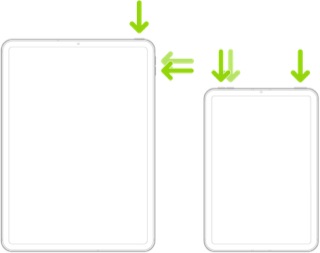


If iPad still doesn’t turn on, or if it gets stuck during start up, see the Apple Support article If your iPhone, iPad, or iPod touch won’t turn on or is frozen. Or if your iPad isn’t working correctly after you restart it, see the iPad Support website.


If you continue to experience difficulties, you might be best advised to seek assistance directly from Apple Support. You can contact the Support Team using the Support link at top-right or bottom-left of this page. Alternatively, you can initiate and manage your support cases from Apple devices using the excellent Apple Support App. If not already installed, the App can be downloaded from the App Store:

https://apps.apple.com/app/apple-support/id1130498044


You might also visit the Genius Bar at your local Apple Store or Apple Authorised Service Provider (AASP) - where the technicians will be able to test and assess your iPad:

Genius Bar Reservation and Apple Support Options - Apple

3 replies
Question marked as Top-ranking reply

Nov 10, 2024 4:03 AM in response to nitejazz

If your iPad is unresponsive, connect your iPad to its Power Adapter and allow the iPad to charge undisturbed for at least and hour - or preferably overnight. Then, while still connected to external power, try a forced-restart:


Force restart iPad (models with Face ID or with Touch ID in the top button)

If your iPad doesn’t have the Home button, do the following:

  1. Press and quickly release the volume button nearest to the top button.
  2. Press and quickly release the volume button farthest from the top button.
  3. Press and hold the top button.
  4. When the Apple logo appears, release the top button.


If iPad still doesn’t turn on, or if it gets stuck during start up, see the Apple Support article If your iPhone, iPad, or iPod touch won’t turn on or is frozen. Or if your iPad isn’t working correctly after you restart it, see the iPad Support website.


If you continue to experience difficulties, you might be best advised to seek assistance directly from Apple Support. You can contact the Support Team using the Support link at top-right or bottom-left of this page. Alternatively, you can initiate and manage your support cases from Apple devices using the excellent Apple Support App. If not already installed, the App can be downloaded from the App Store:

https://apps.apple.com/app/apple-support/id1130498044


You might also visit the Genius Bar at your local Apple Store or Apple Authorised Service Provider (AASP) - where the technicians will be able to test and assess your iPad:

Genius Bar Reservation and Apple Support Options - Apple

Nov 10, 2024 3:16 AM in response to nitejazz

Put it on charge for at least half an hour, then, keeping it plugged in, try a "forced" restart of your iPad, using these instructions:

  • On an iPad with a Home button: Press and hold the power button and the Home button at the same time. When the Apple logo appears, release both buttons.
  • On other iPad models: In rapid sequence, press and quickly release the volume up button, press and quickly release the volume down button, then press and hold the power button. Only when the Apple logo appears (it might take 10-20 seconds), release that button (ignore all other screens that might appear, the one with the "slider" to turn the device off included).


If the issue persists, contact Apple Support, using this link:--> Contact Apple for support and service

Regards

Giulio

This thread has been closed by the system or the community team. You may vote for any posts you find helpful, or search the Community for additional answers.

iPad screen unresponsive

Welcome to Apple Support Community
A forum where Apple customers help each other with their products. Get started with your Apple Account.