My ipad 6 keeps disconnecting from wifi, my other devices are OK.

I have tried rebooting the ipad and router (FritzBox 6660) but the only way to get wifi re-established is to turn the wifi off and back on again. All software on ipad and router is up to date. The signal shows on the ipad but the wifi connection has dropped. I have no such problems with other devices - my MAC laptop and android phones.

iPad

Posted on Nov 11, 2024 7:34 AM

Reply
Question marked as Top-ranking reply

Posted on Nov 11, 2024 4:14 PM

Expanding upon Katana-San’s excellent advice...


WiFi/Internet connection difficulties are usually an indication that your device does not have a routable IP Address - your IP Address usually being assigned by DHCP. When problems occur, your iPad may only have a self-assigned link-local IP address that begins 169.254.x.x.


You can verify your DHCP-assigned IP Address from settings:

Settings > WiFi > [Your WiFi Network / SSID] - tap the blue “i” icon - [IPv4 Address] IP Address


If you have a VPN App or profiles installed, or a security/AV/firewall App such as Norton, these may be interfering with DHCP and preventing your device from obtaining a valid IP Address for the WiFi network to which you are attempting to connect. The resolution is usually simple; if installed, you may only need to temporarily disable or remove the Security App and/or VPN.


DHCP is frequently used to automatically obtain an IP Address. Until your iPad has a valid IP Address to connect to your network, you will not have an internet connection. Disabling or removing VPN and/or the offending security App should allow DHCP to operate normally - allowing connection to your network and the internet.


If this resolves your issue, the VPN and/or security App can be reinstated after the connectivity problem has been resolved.


If some Apps are working as expected, while others are not - or other devices can connect to your WiFi network - you may find that a restart of your WiFi Router, followed by a restart of your iPad will clear the problem….


To restart your router, disconnect power from the router for at least 30 seconds - then reconnect power to restart. After your router reboots (which may take several minutes), force restart your iPad:


Force restart iPad (models with Face ID or with Touch ID in the top button)

If your iPad doesn’t have the Home button, do the following:

  1. Press and quickly release the volume button nearest to the top button.
  2. Press and quickly release the volume button farthest from the top button.
  3. Press and hold the top button.
  4. When the Apple logo appears, release the top button.


Force restart iPad (models with the Home button)

Press and hold the top button and the Home button at the same time. When the Apple logo appears, release both buttons.
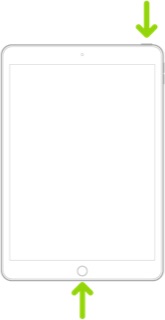


If you continue to have difficulties, check to see if your iPad is using the WiFi Private Address feature. This feature is intended to provide additional privacy and security when using “public” (untrusted) WiFi networks.

Settings > WiFi > [Your WiFi Network / SSID] - tap the “i” icon - Private Address


The Private Address feature is largely unnecessary for your home WiFi network; if enabled, Private Addressing can cause issues if specific MAC addresses are expected by your WiFi Router. You may need to disable this feature - and can be enabled or disabled for each individual network.


Use private Wi-Fi addresses in iOS 14, iPadOS 14, and watchOS 7 - Apple Support


7 replies
Question marked as Top-ranking reply

Nov 11, 2024 4:14 PM in response to gandrew123

Expanding upon Katana-San’s excellent advice...


WiFi/Internet connection difficulties are usually an indication that your device does not have a routable IP Address - your IP Address usually being assigned by DHCP. When problems occur, your iPad may only have a self-assigned link-local IP address that begins 169.254.x.x.


You can verify your DHCP-assigned IP Address from settings:

Settings > WiFi > [Your WiFi Network / SSID] - tap the blue “i” icon - [IPv4 Address] IP Address


If you have a VPN App or profiles installed, or a security/AV/firewall App such as Norton, these may be interfering with DHCP and preventing your device from obtaining a valid IP Address for the WiFi network to which you are attempting to connect. The resolution is usually simple; if installed, you may only need to temporarily disable or remove the Security App and/or VPN.


DHCP is frequently used to automatically obtain an IP Address. Until your iPad has a valid IP Address to connect to your network, you will not have an internet connection. Disabling or removing VPN and/or the offending security App should allow DHCP to operate normally - allowing connection to your network and the internet.


If this resolves your issue, the VPN and/or security App can be reinstated after the connectivity problem has been resolved.


If some Apps are working as expected, while others are not - or other devices can connect to your WiFi network - you may find that a restart of your WiFi Router, followed by a restart of your iPad will clear the problem….


To restart your router, disconnect power from the router for at least 30 seconds - then reconnect power to restart. After your router reboots (which may take several minutes), force restart your iPad:


Force restart iPad (models with Face ID or with Touch ID in the top button)

If your iPad doesn’t have the Home button, do the following:

  1. Press and quickly release the volume button nearest to the top button.
  2. Press and quickly release the volume button farthest from the top button.
  3. Press and hold the top button.
  4. When the Apple logo appears, release the top button.


Force restart iPad (models with the Home button)

Press and hold the top button and the Home button at the same time. When the Apple logo appears, release both buttons.


If you continue to have difficulties, check to see if your iPad is using the WiFi Private Address feature. This feature is intended to provide additional privacy and security when using “public” (untrusted) WiFi networks.

Settings > WiFi > [Your WiFi Network / SSID] - tap the “i” icon - Private Address


The Private Address feature is largely unnecessary for your home WiFi network; if enabled, Private Addressing can cause issues if specific MAC addresses are expected by your WiFi Router. You may need to disable this feature - and can be enabled or disabled for each individual network.


Use private Wi-Fi addresses in iOS 14, iPadOS 14, and watchOS 7 - Apple Support


Nov 12, 2024 5:46 AM in response to LotusPilot

Thanks again. Yes, it is turned-off on my iPad.


I discussed options with both my ISP and AVM (the FritzBox 6660 router provider). The former said they have seen a number of similar problems with some (but not all) iPads and iPhones - they suggested that I could try manually setting a fixed IP via the router. The router provider also acknowledged the problem is well known, stating in an email:


”We are aware of this problem in connection with an error in Apple's "iCloud Passwords & iCloud Keychain" service. Until a solution is available from Apple, you can fix the problem as follows:

  1. open the iCloud settings and go to the "iCloud Passwords & iCloud Keychain" section.
  2. deactivate the synchronisation of your Apple device.”


I followed the advice to deactivate the synchronisation. So far so good - no more disconnections (yet)! I don’t know if this problem is present with other routers but hope the above helps if others have a recurring disconnection problem. I trust Apple etc are investigating a permanent solution.


I’ll post again if the problem comes back or if it doesn’t to confirm the (temporary) solution still works.

Nov 11, 2024 10:07 PM in response to gandrew123

Thank you for your reply. My iPad connects to the internet successfully but will disconnect, seemingly at random, after some time (particularly if the iPad is not used for several minutes).


The IP address begins 192.168.x.x. (not 169.254.x.x). I do not have VPN or a security/AV/firewall App installed on the iPad, and I have tried forcing a restart of both my iPad and the router - but to no avail. As mentioned, I can re-establish the WiFi connection by switching it off and back on again from the iPad Settings, but this is a nuisance. Is there anything else I can try?

This thread has been closed by the system or the community team. You may vote for any posts you find helpful, or search the Community for additional answers.

My ipad 6 keeps disconnecting from wifi, my other devices are OK.

Welcome to Apple Support Community
A forum where Apple customers help each other with their products. Get started with your Apple Account.