No edit button on photos after software update

I have looked at previous messages but I don’t have the extensions option from the 3 dots dropdown list so what do I do? I only updated because it was meant to give me AI access to be able to erase any unwanted objects or people from photos easily via Edit>clean up. No edit button so how do I do this now?

iPhone 15 Plus, iOS 18

Posted on Dec 4, 2024 11:45 PM

Reply
Question marked as Top-ranking reply

Posted on Dec 5, 2024 2:15 AM

The edit button has been moved - it is now below the photo, when you view it enlarged.

See:Use Apple Intelligence in Photos on iPhone - Apple Support


Remove distractions from your photos
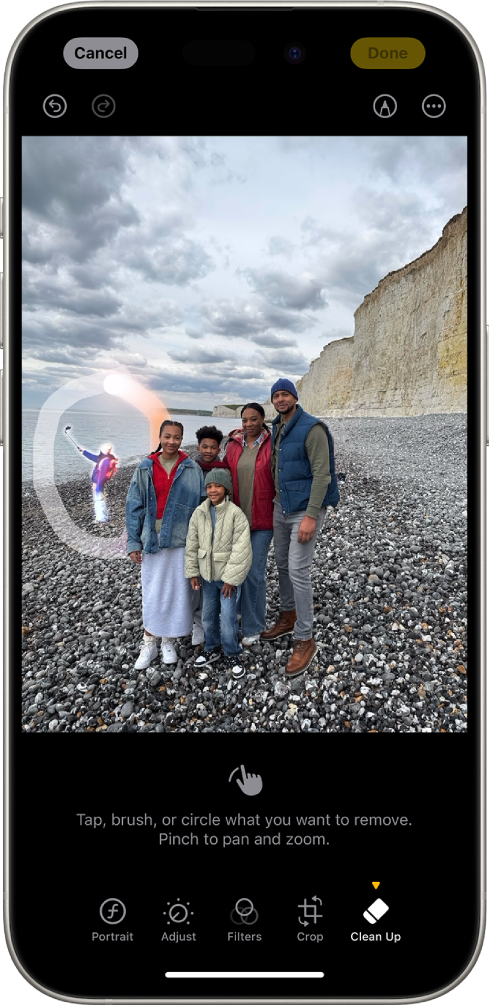
You can use the Clean Up tool to remove distracting objects in the background of a photo.

Note: Clean Up is available in iOS 18.1 on all iPhone 16 models, iPhone 15 Pro, and iPhone 15 Pro Max in most regions around the world.

  1. Go to the Photos app  on your iPhone.
  2. Open a photo, tap , then tap Clean Up.
  3. Note: After you tap Clean Up, some items may be highlighted automatically so you can quickly tap to remove them.
  4. Tap, brush, or circle what you want to remove.
  5. Use two fingers to pinch to zoom or pan the image.
  6. Note: If you brush over a person’s face, the face may become blurred with a pixelated effect.
  7. When you’re finished, tap Done.


1 reply
Question marked as Top-ranking reply

Dec 5, 2024 2:15 AM in response to Tillster20

The edit button has been moved - it is now below the photo, when you view it enlarged.

See:Use Apple Intelligence in Photos on iPhone - Apple Support


Remove distractions from your photos

You can use the Clean Up tool to remove distracting objects in the background of a photo.

Note: Clean Up is available in iOS 18.1 on all iPhone 16 models, iPhone 15 Pro, and iPhone 15 Pro Max in most regions around the world.

  1. Go to the Photos app  on your iPhone.
  2. Open a photo, tap , then tap Clean Up.
  3. Note: After you tap Clean Up, some items may be highlighted automatically so you can quickly tap to remove them.
  4. Tap, brush, or circle what you want to remove.
  5. Use two fingers to pinch to zoom or pan the image.
  6. Note: If you brush over a person’s face, the face may become blurred with a pixelated effect.
  7. When you’re finished, tap Done.


This thread has been closed by the system or the community team. You may vote for any posts you find helpful, or search the Community for additional answers.

No edit button on photos after software update

Welcome to Apple Support Community
A forum where Apple customers help each other with their products. Get started with your Apple Account.
