iPad mini is taking long time to re-connect to wifi

Hi.


I have a strange problem. I am playing some small games on my iPad (mini, 5. generation). To avoid adds I have made some automisations. When I start a game, the wifi turns off and when I stop playing, the wifi turns on again.


Recently the wifi is taking long time to re-connect - sometimes several minuttes. When I go to settings and looking at my home wifi, there is a check mark on it but no connection. Sometimes it says "No internet connection" in yellow text.


I am on latest software. I have tried reset network settings several times and turned the iPad off and on again.


I even tried reset the iPad and setting it up without cloud backup. Then it works for a couple of days and then it goes back to taking long time to re-connect to wifi.


It is not only on my own wifi I experience the problem - it is on every wifi.


Can someone please help med?

iPad mini 5, iPadOS 18

Posted on Jan 15, 2025 2:20 AM

Reply
Question marked as Top-ranking reply

Posted on Jan 15, 2025 4:40 AM

WiFi/Internet connection difficulties are usually an indication that your device does not have a routable IP Address - your IP Address usually being assigned by DHCP. When problems occur, your iPad may only have a self-assigned link-local IP address that begins 169.254.x.x.


You can verify your DHCP-assigned IP Address from settings:

Settings > WiFi > [Your WiFi Network / SSID] - tap the blue “i” icon - [IPv4 Address] IP Address


If you have a VPN App or profiles installed, or a security/AV/firewall App such as Norton, these may be interfering with DHCP and preventing your device from obtaining a valid IP Address for the WiFi network to which you are attempting to connect. The resolution is usually simple; if installed, you may only need to temporarily disable or remove the Security App and/or VPN.


DHCP is frequently used to automatically obtain an IP Address. Until your iPad has a valid IP Address to connect to your network, you will not have an internet connection. Disabling or removing VPN and/or the offending security App should allow DHCP to operate normally - allowing connection to your network and the internet.


If this resolves your issue, the VPN and/or security App can be reinstated after the connectivity problem has been resolved.


If some Apps are working as expected, while others are not - or other devices can connect to your WiFi network - you may find that a restart of your WiFi Router, followed by a restart of your iPad will clear the problem….


To restart your router, disconnect power from the router for at least 30 seconds - then reconnect power to restart. After your router reboots (which may take several minutes), force restart your iPad:


Force restart iPad (models with Face ID or with Touch ID in the top button)

If your iPad doesn’t have the Home button, do the following:

  1. Press and quickly release the volume button nearest to the top button.
  2. Press and quickly release the volume button farthest from the top button.
  3. Press and hold the top button.
  4. When the Apple logo appears, release the top button.


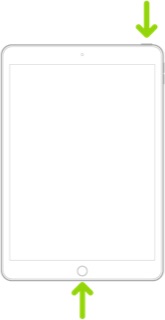
Force restart iPad (models with the Home button)

Press and hold the top button and the Home button at the same time. When the Apple logo appears, release both buttons.


If you continue to have difficulties, check to see if your iPad is using the WiFi Private Address feature. This feature is intended to provide additional privacy and security when using “public” (untrusted) WiFi networks.

Settings > WiFi > [Your WiFi Network / SSID] - tap the “i” icon - Private Address


The Private Address feature is largely unnecessary for your home WiFi network; if enabled, Private Addressing can cause issues if specific MAC addresses are expected by your WiFi Router. You may need to disable this feature - and can be enabled or disabled for each individual network.


Use private Wi-Fi addresses in iOS 14, iPadOS 14, and watchOS 7 - Apple Support


As for your attempted strategy in avoiding the appearance of Ads when playing games, this strategy is unlikely to be effective. Many "free" Apps create income for the App Developer through advising - this requiring an active network connection over which the Ads can be served. Apps that are monetised in this manner often offer a low-cost in-App purchase that will permanently suppress the unwanted advertising. If you block access to an online resource required by the running software, you should anticipate observing unexpected behaviour.


Consider that App Developers need to create an income for their work. If you don't pay for their App, income must be generated from an alternative source. Would you be willing (or able) to work without an income?


Similar questions

10 replies
Question marked as Top-ranking reply

Jan 15, 2025 4:40 AM in response to Birgerbergerbirger

WiFi/Internet connection difficulties are usually an indication that your device does not have a routable IP Address - your IP Address usually being assigned by DHCP. When problems occur, your iPad may only have a self-assigned link-local IP address that begins 169.254.x.x.


You can verify your DHCP-assigned IP Address from settings:

Settings > WiFi > [Your WiFi Network / SSID] - tap the blue “i” icon - [IPv4 Address] IP Address


If you have a VPN App or profiles installed, or a security/AV/firewall App such as Norton, these may be interfering with DHCP and preventing your device from obtaining a valid IP Address for the WiFi network to which you are attempting to connect. The resolution is usually simple; if installed, you may only need to temporarily disable or remove the Security App and/or VPN.


DHCP is frequently used to automatically obtain an IP Address. Until your iPad has a valid IP Address to connect to your network, you will not have an internet connection. Disabling or removing VPN and/or the offending security App should allow DHCP to operate normally - allowing connection to your network and the internet.


If this resolves your issue, the VPN and/or security App can be reinstated after the connectivity problem has been resolved.


If some Apps are working as expected, while others are not - or other devices can connect to your WiFi network - you may find that a restart of your WiFi Router, followed by a restart of your iPad will clear the problem….


To restart your router, disconnect power from the router for at least 30 seconds - then reconnect power to restart. After your router reboots (which may take several minutes), force restart your iPad:


Force restart iPad (models with Face ID or with Touch ID in the top button)

If your iPad doesn’t have the Home button, do the following:

  1. Press and quickly release the volume button nearest to the top button.
  2. Press and quickly release the volume button farthest from the top button.
  3. Press and hold the top button.
  4. When the Apple logo appears, release the top button.


Force restart iPad (models with the Home button)

Press and hold the top button and the Home button at the same time. When the Apple logo appears, release both buttons.


If you continue to have difficulties, check to see if your iPad is using the WiFi Private Address feature. This feature is intended to provide additional privacy and security when using “public” (untrusted) WiFi networks.

Settings > WiFi > [Your WiFi Network / SSID] - tap the “i” icon - Private Address


The Private Address feature is largely unnecessary for your home WiFi network; if enabled, Private Addressing can cause issues if specific MAC addresses are expected by your WiFi Router. You may need to disable this feature - and can be enabled or disabled for each individual network.


Use private Wi-Fi addresses in iOS 14, iPadOS 14, and watchOS 7 - Apple Support


As for your attempted strategy in avoiding the appearance of Ads when playing games, this strategy is unlikely to be effective. Many "free" Apps create income for the App Developer through advising - this requiring an active network connection over which the Ads can be served. Apps that are monetised in this manner often offer a low-cost in-App purchase that will permanently suppress the unwanted advertising. If you block access to an online resource required by the running software, you should anticipate observing unexpected behaviour.


Consider that App Developers need to create an income for their work. If you don't pay for their App, income must be generated from an alternative source. Would you be willing (or able) to work without an income?

Jan 15, 2025 7:41 AM in response to Birgerbergerbirger

Birgerbergerbirger wrote:

My iPad has a DHCP-assigned IP address.

I have tried removing all VPN connections and disabled private address and made a force restart. Didn't help.


I’m not sure what was intended by “removing all VPN connections”.


Remove all of the installed VPN apps. Delete them. Test again.


There have been reports around here of apparently-disabled add-on “privacy” VPNs corrupting Wi-Fi and cellular connections. I don’t expect that all VPNs properly unhook themselves entirely correctly.

Jan 16, 2025 9:25 AM in response to Birgerbergerbirger

That’s so weird.

If you said that it fails with all the Wi-fi networks, it can’t be a network problem.

After factory reset it works for 2 days, and then the issue comes back.

I would immediately contact Apple, they should be able to find the cause of this glitch. If they can’t, I would take it to an Apple Store. If still is on warranty, they should give you a replacement. If the issue is easy to reproduce, they should be able to help you out

This thread has been closed by the system or the community team. You may vote for any posts you find helpful, or search the Community for additional answers.

iPad mini is taking long time to re-connect to wifi

Welcome to Apple Support Community
A forum where Apple customers help each other with their products. Get started with your Apple Account.