- iMessage by Default: If both you and the recipient have iMessage enabled and both devices are connected to the internet (Wi-Fi or cellular data), your messages will be sent as iMessages (blue bubbles).
- "Send as Text Message" Option: If the recipient’s device is not connected to the internet or their iMessage service is temporarily unavailable, the message may not go through. When that happens, you get an option to "Send as Text Message" — which sends the message as a regular SMS (green bubble).
- One-Time SMS, Not Permanent: Choosing "Send as Text Message" only applies to that specific message — not future ones. Once both devices are back online and iMessage is working, future messages will continue to be sent as iMessages automatically.
- When SMS Becomes Default: If iMessage remains unavailable for the recipient for an extended period, you can go to Settings > Messages and toggle "Send as SMS" — this lets your phone fall back on SMS when iMessage isn’t working. But again, it won’t override iMessage when both devices are connected to the internet.
See the pic below
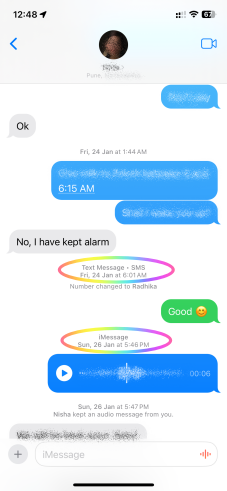
If iMessage is enabled on both devices and both are connected to the internet, you cannot choose to send an SMS instead of an iMessage — there’s no built-in option to force SMS while iMessage is active and available.
The only time an iPhone gives you the "Send as Text Message" option is when iMessage fails — like if the recipient’s device is offline or iMessage isn’t working. Otherwise, as long as both devices stay connected and iMessage is enabled, messages will always default to iMessage (blue bubbles).
If you ever wanted to force SMS for a particular contact, you’d have to turn off iMessage entirely on your own device — but that would apply to all conversations to all contacts, not just one.

