What is "Synced Media" on iPhone Storage?
Synced Media refers to music, videos, and other media files that have been manually transferred to your iPhone via Finder (on macOS Catalina and later) or iTunes (on older macOS versions or Windows PC). These files are not downloaded from Apple Music, even if they appear in the same "Music" app.

iTunes Match gives you access to all of your music on all of your devices, even songs that you've imported from other sources such as CDs.
Subscribe to iTunes Match
![]()
How it differs from Apple Music Downloads
- Apple Music Downloads are songs or albums that you've saved to your device through your Apple Music subscription.
- These are also stored locally and show up in the Music app, but they are tagged differently in the metadata.
How to Tell the Difference
You might see the same song twice if:
- You've synced it from your Mac/PC, and
- Also downloaded it via Apple Music.
Here’s how you can differentiate:
- Synced media usually cannot be deleted directly from the iPhone; you have to remove it by connecting to the Mac/PC and changing the sync settings.
- Apple Music downloads can be removed directly from the device in the Music app (long press > Remove > Remove Download).
- If you view metadata (e.g., through the Files app or a third-party media manager), you might see info like:
- "Kind: Apple Music AAC audio file" (Apple Music)
- "Kind: Purchased AAC audio file" or "Kind: MPEG audio file" (Synced)
How to remove Synced Media.
UN-Sync photos to your device
- Connect your device to your Mac.
- You can connect your device using a USB or USB-C cable or using a Wi-Fi connection. To turn on Wi-Fi syncing, see Sync content between your Mac and iPhone or iPad over Wi-Fi.
- In the Finder
 on your Mac, select the device in the Finder sidebar.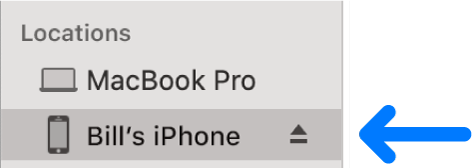
- Select Photos in the button bar.

- Note: When iCloud Photos is turned on, no photo syncing options appear when you select Photos in the button bar.
- Select “Sync Photos to your device from” tickbox, then choose Photos, Pictures or a folder from the pop-up menu.

- Uncheck Sync photos
- Click on Apply / Sync

