How to disable liquid glass in iOS 26?
Is there a way to completely disable the liquid glass functionality on iOS 26? I'm not going to get into a lengthy diatribe over why it's awful, I just want it gone.
iPhone 13 Pro Max, iOS 18
Is there a way to completely disable the liquid glass functionality on iOS 26? I'm not going to get into a lengthy diatribe over why it's awful, I just want it gone.
iPhone 13 Pro Max, iOS 18
amdc101 wrote:
There is a serious issue around accessibility with the Liquid Glass display, it’s not just an aesthetic issue. I do personally think it’s an unnecessary overlay, and don’t like it, but part of that is that I work for a charity for blind people and in terms of apples usual excellence with accessibility this is a huge fail.
iOS/iPadOS 26.1 introduced a new setting that subtly charges the appearance of Liquid Glass:
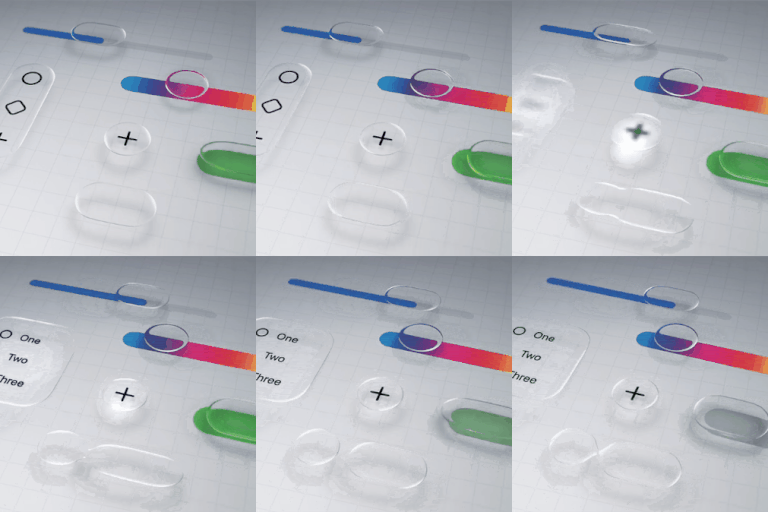
Settings > Display & Brightness > Liquid Glass - select Clear or Tinted
Sadly, for iPad, this new setting makes very little difference for those that struggle with both the appearance and overlapping screen elements introduced with Liquid Glass - an issue that is often not understood by those that have perfect eyesight.
If you are experiencing difficulty with the new Liquid Glass UI, there are other settings that can significantly improve the appearance and suppress the majority of unwanted effects:
Each if these settings can be used individually, or in combination. Setting Reduce Transparency alone (1) will likely suppress the majority of your issues. The Reduce Motion setting (3), if used, will eliminate the "lensing" effects of the Liquid Glass UI. Experiment; you should find a combination that works for you.
I suggest that you begin with setting Reduce Transparency to ON - and then, if needed, experiment with additional use of one or more of the other options.
NB: The new Display & Brightness > Liquid Glass setting can only be changed/toggled while Reduce Transparency is set to OFF. You might find that setting Liquid Glass to Clear, prior to enabling Reduced Transparency to ON, may give the best result.
Liquid Glass is here to stay - and will likely evolve throughout the lifespan of iOS/iPadOS 26. Hopefully, Apple will provide additional controls over time with which to selectively eliminate aspects of the new UI to better meet the functional and visual needs of the wider user population. Liquid Glass is very "pretty" - but for some is arguably form over function, reducing legibility and usability for some users.
You - and anyone else that has an issue with the Liquid Glass implementation - should submit constructive comments via Apple's Product Feedback portal. For iPhone:
Every Report counts.
If you fully close using the forum, the next time you open it, you have to sign in. Also, after a period of inactivity, you will need to sign in again.
Thanks for this tip on Sort Order. I will try that.
QuiGonJohn wrote:
Thanks for this tip on Sort Order. I will try that.
You're welcome.
What is it about disable that is not getting through?
I don’t mean to be offensive but his thread has completely disintegrated into useless sniping that is cluttering up our inboxes. Is there any way for the mods to close it down to new comments?
You didn't skip that many updates! Apple operating systems are now numbered based on the year after announcement or the year of primary use, so iOS 26 is numbered after 2026.
Thanks!
Well you can technically reduce the Liquid Glass effect by setting it to transparent in settings > Display and brightness > Liquid Glass but you cannot disable Liquid Glass completely.
This is true, for those who want to know how it looks like, you can see it here : https://www.youtube.com/watch?v=hF8swzNR1-o&t=462s
It's not fully disabled but it helps a lot...
Reduce motion, unfortunately, does nothing to eliminate the app open effects where the corners are rounded as it opens and then kind of “flicker” into place. It is awful for those of us that really can’t abide visual distractions. I think I’m going to revert to iOS 18.7 pending some interface cleanup in iOS 26. iPhone SE 2020.
I, too, dislike the forced dark mode on the lock screen. Why anyone would want it to be difficult to read the time on a quick press of the lock button to wake is beyond me. Thankfully, you can at least customize the lock screen and toggle the time display to solid (turn off glass), at least.
Dear Apple, my phone is a tool, not an object de art. Need unobtrusive, not “in my face” design.
>>People don't know what they want until you show it to them.
This is completely unrelated nonsense, you did not understand what you quoted. This is not showing people what they didn't know they wanted yet. It is showing people something they then hate and absolutely not want.
I upgraded to the first developer beta of iOS26 and hated the glass theme.
It is 100% doable and quite simple to go back to iOS 18 if you have a Mac and cable capable of data transfer (not just a cheap charger cable). I know this because I did it.
Note: doing it will install a fresh version of IOS18 as the backup created will be an IOS26 back and won’t work so you’ll lose any existing data. But it’s definitely doable.
Totatora wrote:
I upgraded to the first developer beta of iOS26 and hated the glass theme.
It is 100% doable and quite simple to go back to iOS 18 if you have a Mac and cable capable of data transfer (not just a cheap charger cable). I know this because I did it.
Note: doing it will install a fresh version of IOS18 as the backup created will be an IOS26 back and won’t work so you’ll lose any existing data. But it’s definitely doable.
It's NOT doable if someone installed iOS 26 last week when it was officially released.
JockoSr65 wrote:
Most everyone that I spoke with ( family, friends & coworkers) aren’t crazy about it. They can live with it but they’d like the option to be able to toggle it off as would I. I’ve made the adjustments in my settings but I’m still not completely satisfied. Apple really should’ve given us the right to choose for those who aren’t interested. The one feature that I’m glad that they did think ahead about was giving us the option to make the time solid.
Many mistakenly think Liquid Glass is a simple skin, which should have an on or off switch. It's not. It's a fundamental part of the UI in iOS. While it might sound such a simple thing to do, it's not. It IS the iOS and as with all operating systems, users don't get to pick and choose the parts of the operating system they want.
And telling your fellow users on this user to user only forum what you think Apple should have done, won't be read by anyone at Apple. They don't participate here, nor read for user feedback. You can if you like, provide your thoughts to Apple here --> Product Feedback - Apple
I truly don't think what people are suggesting is something they're going to get, but it never hurts to provide feedback anyway.
I want a way to turn off Liquid Glass. I cannot “see” the display as easily as before. I updated my iPhone 16 as well as my iPad Pro, to IOS 26 and am very disappointed. Please fix this with an update to give us a choice.
How to disable liquid glass in iOS 26?