Constant UI lockups when trying to rearrange desktop icons and folders!

When trying to move app icons and folders around on iPadOS 26, the UI constantly locks up. Everything keeps “wiggling” but stops responding to touch. You cannot force shutdown and you cannot use the home button to lock the device. This happens most frequently when you try to move an app icon or folders around to another page, as it stops with icon or folders halfway off the screen and then stops responding. The OS finally ‘“recovers” with a black screen and spinning wheel and reverts to the lock screen after 60 to 90 seconds.


It seems to work properly with small single page movement, but fails when you try to move anything to another page.

iPad Pro (5th generation)

Posted on Sep 18, 2025 7:36 PM

Reply
Question marked as Top-ranking reply

Posted on Sep 19, 2025 2:48 AM

If your iPad is not operating as expected, try a forced-restart - as this will often clear an isolated or post-update software issue. If you haven't already done so since updating to iPadOS 26, your iPad will almost certainly behave differently having performed the restart:


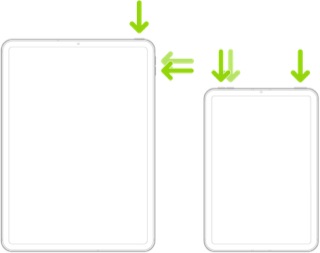
Force restart iPad (models with Face ID or with Touch ID in the top button)

If your iPad doesn’t have the Home button, do the following:

  1. Press and quickly release the volume button nearest to the top button.
  2. Press and quickly release the volume button farthest from the top button.
  3. Press and hold the top button.
  4. When the Apple logo appears, release the top button.


If the problem persists after performing the restart, it may be necessary to reset your iPad settings. While this reset will not cause any loss of data, as a precaution, it is always wise to ensure that you have a current iCloud or iTunes backup before performing the reset:

How to back up your iPhone, iPad, and iPod touch - Apple Support


When you are happy to proceed, you can perform the reset from iPad settings:

Settings > General > Transfer or Reset iPad > Reset > Reset All Settings


If the problem still doesn’t clear, the next step is to reset the iPad to factory settings:

Restore your iPhone, iPad, or iPod to factory settings - Apple Support


Otherwise, you would be best advised to seek assistance directly from Apple Support. You can contact the Support Team using the Support link at top-right or bottom-left of this page. Alternatively and perhaps easier, you can initiate and manage your support cases using the excellent Apple Support App. If not already installed on your iPad, the App can be downloaded from the App Store:

https://apps.apple.com/app/apple-support/id1130498044


You might also visit the Genius Bar at your local Apple Store or Apple Authorised Service Provider (AASP) - where the technicians will be able to assist with troubleshooting:

Genius Bar Reservation and Apple Support Options - Apple

1 reply
Question marked as Top-ranking reply

Sep 19, 2025 2:48 AM in response to Tracy_5769

If your iPad is not operating as expected, try a forced-restart - as this will often clear an isolated or post-update software issue. If you haven't already done so since updating to iPadOS 26, your iPad will almost certainly behave differently having performed the restart:


Force restart iPad (models with Face ID or with Touch ID in the top button)

If your iPad doesn’t have the Home button, do the following:

  1. Press and quickly release the volume button nearest to the top button.
  2. Press and quickly release the volume button farthest from the top button.
  3. Press and hold the top button.
  4. When the Apple logo appears, release the top button.


If the problem persists after performing the restart, it may be necessary to reset your iPad settings. While this reset will not cause any loss of data, as a precaution, it is always wise to ensure that you have a current iCloud or iTunes backup before performing the reset:

How to back up your iPhone, iPad, and iPod touch - Apple Support


When you are happy to proceed, you can perform the reset from iPad settings:

Settings > General > Transfer or Reset iPad > Reset > Reset All Settings


If the problem still doesn’t clear, the next step is to reset the iPad to factory settings:

Restore your iPhone, iPad, or iPod to factory settings - Apple Support


Otherwise, you would be best advised to seek assistance directly from Apple Support. You can contact the Support Team using the Support link at top-right or bottom-left of this page. Alternatively and perhaps easier, you can initiate and manage your support cases using the excellent Apple Support App. If not already installed on your iPad, the App can be downloaded from the App Store:

https://apps.apple.com/app/apple-support/id1130498044


You might also visit the Genius Bar at your local Apple Store or Apple Authorised Service Provider (AASP) - where the technicians will be able to assist with troubleshooting:

Genius Bar Reservation and Apple Support Options - Apple

This thread has been closed by the system or the community team. You may vote for any posts you find helpful, or search the Community for additional answers.

Constant UI lockups when trying to rearrange desktop icons and folders!

Welcome to Apple Support Community
A forum where Apple customers help each other with their products. Get started with your Apple Account.