No Photo synch on MacOS

My Photos (formerly called iPhoto) are not synchronizing on Macbook MacOS. It's been 3 days since the last synch. My iPad and iPhone are synching fine with iCloud. The photos are visible in iCloud. But I can't a way to get my Mac to do anything related to synch. This is a recurring problem, for me, and for many other users, as shown by search results here. Apple needs to fix this.


(screenshot taken on Monday)

MacBook Air (M2, 2023)

Posted on Jan 12, 2026 7:06 AM

Reply
Question marked as Top-ranking reply

Posted on Jan 13, 2026 1:34 AM

The status message is showing "1 item on this Mac only".

This usually means, that you have an item in your Photos Library that is blocking the syncing, because it is incompatible with iCloud, or damaged, or is having a missing original. Your other devices are syncing well, because this item has not been uploaded and hopefully never will. You will have to identify this item.


Are you seeing an album folder in the sidebar named "unable to upload"? Look there for a problematic item.

You can also test with a smart album as described here: Check the status of your library in Photos for macOS - Apple Support

The "on this Mac only" message could be caused by referenced items, that have not been copied into the library. iCloud Photos does not work with referenced files. Then consolidating will help. If the files cannot be consolidated, try to export them and delete them from the library.


"If you see "Items on This Mac Only"

If you set up Photos to allow referenced files, which are photos and videos stored outside of your library, Photos counts those as “Items on This Mac Only.” If you want to consolidate those items into your library so that they can be uploaded to iCloud Photos and available to your other devices, follow these steps:

  1. From the menu bar in Photos, choose File > New Smart Album.
  2. Name the Smart Album “Referenced” and set the conditions to “Photo is referenced.” Click OK.
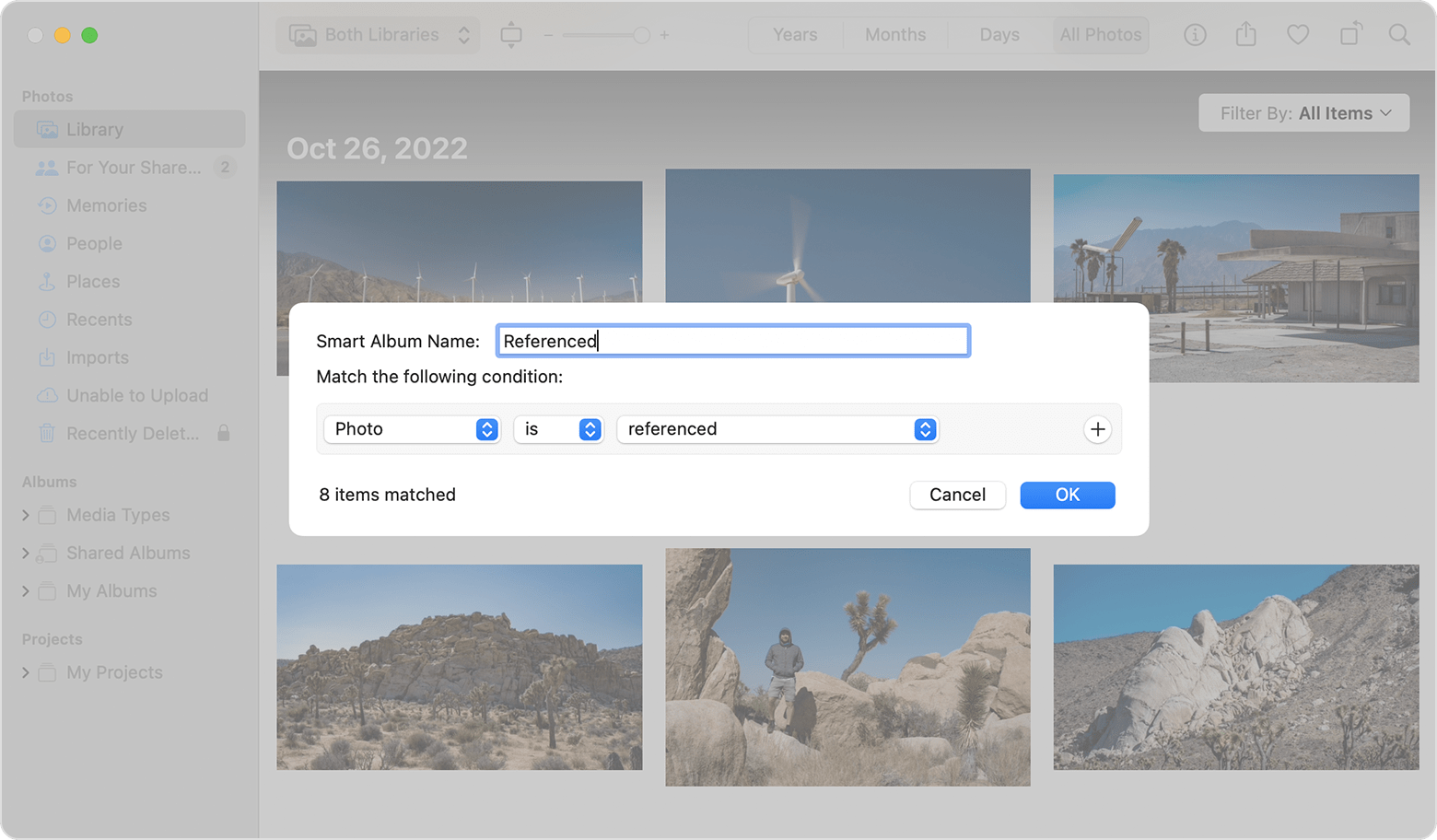
  3. Select the Referenced album in the sidebar.
  4. Press Command-A to select all items in the album, then choose File > Consolidate.

"


7 replies
Question marked as Top-ranking reply

Jan 13, 2026 1:34 AM in response to leesonoffred

The status message is showing "1 item on this Mac only".

This usually means, that you have an item in your Photos Library that is blocking the syncing, because it is incompatible with iCloud, or damaged, or is having a missing original. Your other devices are syncing well, because this item has not been uploaded and hopefully never will. You will have to identify this item.


Are you seeing an album folder in the sidebar named "unable to upload"? Look there for a problematic item.

You can also test with a smart album as described here: Check the status of your library in Photos for macOS - Apple Support

The "on this Mac only" message could be caused by referenced items, that have not been copied into the library. iCloud Photos does not work with referenced files. Then consolidating will help. If the files cannot be consolidated, try to export them and delete them from the library.


"If you see "Items on This Mac Only"

If you set up Photos to allow referenced files, which are photos and videos stored outside of your library, Photos counts those as “Items on This Mac Only.” If you want to consolidate those items into your library so that they can be uploaded to iCloud Photos and available to your other devices, follow these steps:

  1. From the menu bar in Photos, choose File > New Smart Album.
  2. Name the Smart Album “Referenced” and set the conditions to “Photo is referenced.” Click OK.

  3. Select the Referenced album in the sidebar.
  4. Press Command-A to select all items in the album, then choose File > Consolidate.

"


Jan 12, 2026 7:25 AM in response to leesonoffred

Just for your information, Photos was never called iPhoto. Photos is a modern app that replaced the iPhoto app 10 years ago.


In general, fast syncing is helped with having strong, fast internet, and leaving the Mac plugged in and running undisturbed, with the Photos app in the background. Doing this overnight is ideal.


Can you tell us a bit more?

  1. What macOS are you using? 
  2. Do you have “Optimize Storage” checked in Photos’ Settings?
  3. Do you have more than 10% free storage on your iCloud account?
  4. Have you checked to see if the Apple Account is really really the same on the Mac and on the iPhone and at iCloud.com?
  5. Where does your Mac's Photos Library reside-- in the Pictures folder of your internal drive, or on an external drive? or on a network? on iCloud drive?
  6. What is your storage on this Mac? At System Settings>General>iStorage, what does yours say? Do you have more than 10% free storage on your Mac?
  7. Have you re-started Photos?
  8. Have you re-started the Mac?
  9. Have you tried restarting the Mac in Safe Mode?

           Start up your Mac in safe mode - Apple Support 


Jan 12, 2026 9:59 AM in response to leesonoffred

leesonoffred wrote:

Hi Richard
have plenty of space

What is your storage on this Mac? At System Settings>General>iStorage, what does yours say? Do you have more than 10% free storage on your Mac? It will not say "Plenty"

Where does your Mac's Photos Library reside?

I should not have to restart in Safe Mode to force basic functions to work

This is not the point. I was asking as a diagnostic test.

Jan 12, 2026 7:46 AM in response to Richard.Taylor

Hi Richard. I added "iPhoto" for keyword search/discovery as many people still call it that.


I'm on MacOS 15.7.3. Optimize storage is on, I have plenty of space in iCloud (paid) and on my MacBook. It's the same account everywhere, (it works on MacBook sometimes, and other times, not, like now). I have restarted everything. I should not have to restart in Safe Mode to force basic functions to work as expected, but I can try when I'm not in the middle of a workday.

Jan 12, 2026 10:30 AM in response to Richard.Taylor

I have 767GB out of 2TB free on my Mac.

the "Photos library.photoslibrary" file resides in the default location, in the Pictures folder.

I've done nothing to mess with the preferred, out-of-the-box, as-intended-by-Apple workings of Photos.


I have long since given up hope that there's a simple fix for this, other than Apple fixing their cloud services.

Jan 12, 2026 10:42 AM in response to leesonoffred

leesonoffred wrote:

I have 767GB out of 2TB free on my Mac.
the "Photos library.photoslibrary" file resides in the default location, in the Pictures folder.
I've done nothing to mess with the preferred, out-of-the-box, as-intended-by-Apple workings of Photos.

I have long since given up hope that there's a simple fix for this, other than Apple fixing their cloud services.

Except that it's not a problem for me. Makes me wonder what's the difference.


Do you use CleanMyMac or other cleaners that are known to corrupt Macs? Do you use VPNs?

Jan 12, 2026 10:53 AM in response to Richard.Taylor

I do not use CleanMyMac. I am not on a VPN. This is a "vanilla" setup as far as I'm aware.

Yet periodically, the Macbook just stops synchronizing. Eventually after a fortnight or a week or a month, it starts again.


My iPhone and iPad are synching images between each other and to iCloud normally. All 3 devices are all on the same wifi network, under the same conditions.

No Photo synch on MacOS

Welcome to Apple Support Community
A forum where Apple customers help each other with their products. Get started with your Apple Account.