Finder backup via symlink failed; iPhone storage full after attempted iphone backup

Hey all — trying to figure out if these issues are related or just bad timing.

Context: My Mac doesn’t have enough free space for a local iPhone backup, so I moved the Finder/iTunes backup location to an external drive using a symlink.

Symlink confirms:

~/Library/Application Support/MobileSync/Backup -> /Volumes/Backup Plus/iPhoneBackup/Backup

What happened:

  • Started a Finder backup. After a couple hours it failed with a message like the backup couldn’t complete because the iPhone “would be disconnected.” I suspect sleep/idle/USB power management.
  • Shortly after that, my iPhone started saying storage full. WhatsApp won’t open anymore (complains about storage). Before this I consistently had ~100GB free.
  • When I connect to Finder and hit Sync, I now get: “The iPhone … cannot be synced because not enough free space is available.” One time it got to a “diagnostics file” step then stopped; after that it only shows the space error.
  • Finder → Manage Backups… shows nothing (no backups listed).
  • External drive format is exFAT (mentioning in case it matters for Mac-side backup reliability).

Questions:

  1. Could the failed backup / symlink / external drive setup have caused the iPhone itself to run out of storage? Or is this more likely “System Data” / caches / iOS update / WhatsApp media blowing up at the same time?
  2. What’s the safest, fastest way to free enough space to make the iPhone usable again (and get WhatsApp opening), ideally without risky reinstall/restore steps?
  3. For the Mac side: is exFAT a bad idea for the iPhone backup target (via symlink)? If so, what’s the recommended format/setup for a reliable Finder local backup to an external drive?

Any “do this first / avoid this” advice appreciated.

iPhone 13, iOS 18

Posted on Jan 26, 2026 6:30 PM

Reply

Similar questions

2 replies

Jan 26, 2026 8:11 PM in response to apple__problem

The symbolic link method, often recommended in Google Search results, has never worked in my experience. Apple does not provide an official process or article on this.


If you are running short of space, take the backup and then copy to another location and delete it from the default place.


Delete or copy backups on your Mac or PC

Don't edit, relocate, rename, or extract content from your backup files, because these actions might ruin the files. Use the following sections to make copies of your backups or delete backups that you no longer need.

Copy backups to another location

If you need copies of your backups, you can find the Backup folder and copy the entire folder (not just part of it) to another place, like an external drive or network-storage location.

When you use Time Machine, it automatically copies your Backup folder when you back up the Home folder on your Mac.

Delete backups

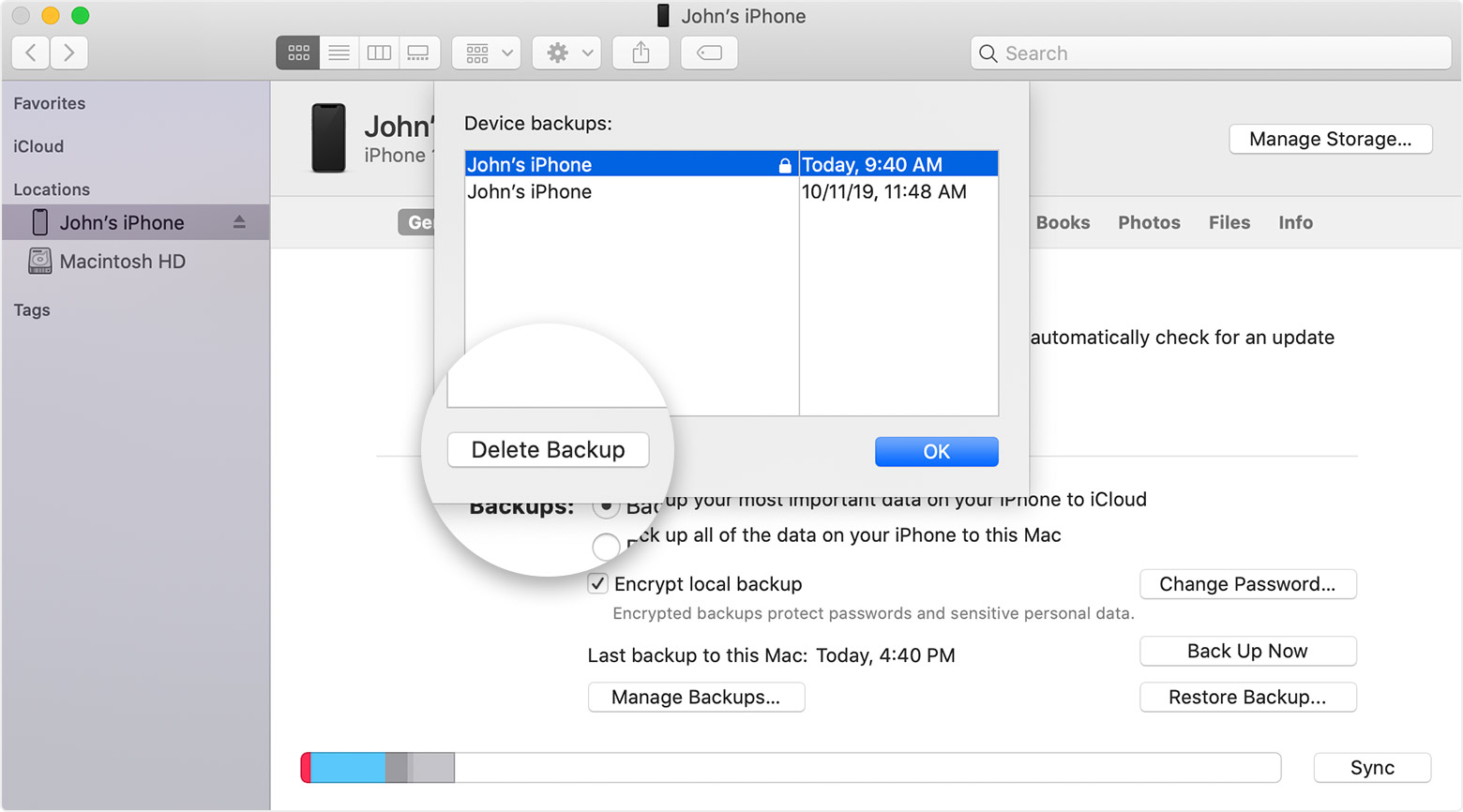
  1. On a Mac with macOS Catalina 10.15 or later, open the Finder. On a Mac with macOS Mojave 10.14 or earlier, or on a PC, open iTunes. Click your device. 
  2. In the Finder, under the General tab, click Manage Backups to see a list of your backups. From here, you can right-click on the backup that you want, then select Delete or Archive. In iTunes, choose Preferences, then click Devices. From here, you can right-click on the backup that you want, then choose Delete or Archive. Click OK when you're finished.
  3. Click Delete Backup, then confirm.


If you still feel you need to process and try it out, it will be on your own risk...


You can but you need to be well versed with the Terminal app. If you mess up you may never be able to back up again even on your Mac/PC.


You will have to create a symbolic link of the backup. See the Step 3 process on --> https://www.imore.com/how-move-your-iphone-or-ipad-backups-external-hard-drive


Jan 27, 2026 4:55 AM in response to SravanKrA

Thanks SravanKrA, really appreciate your thoughtful response. This is very helpful. While it's a shame that the symlink change does not actually work in your experience, I already tried and currently have two issues - possibly you can help me fix them:

1) The backup did not actually work so I still don't have any backup of my data which I get worried about, esp. as:

2) The iPhone storage is shown as full so that most apps (WhatsApp, Gmail, Slack, Safari etc) do not work anymore (they directly close when opening) and even when I delete more apps (I think it had auto-deleted some in the background), it still says not enough space in the next second.


Looking forward to hearing from you or others for advise as this is significantly blocking me!

This thread has been closed by the system or the community team. You may vote for any posts you find helpful, or search the Community for additional answers.

Finder backup via symlink failed; iPhone storage full after attempted iphone backup

Welcome to Apple Support Community
A forum where Apple customers help each other with their products. Get started with your Apple Account.