You will need to reformat the USB drive - but before doing so, ensure that you have transferred any data from the drive that has not been backed-up elsewhere.
You can either reformat the USB drive using your iPad (requires iPadOS 18 or later), or use a Windows PC or a Mac computer.
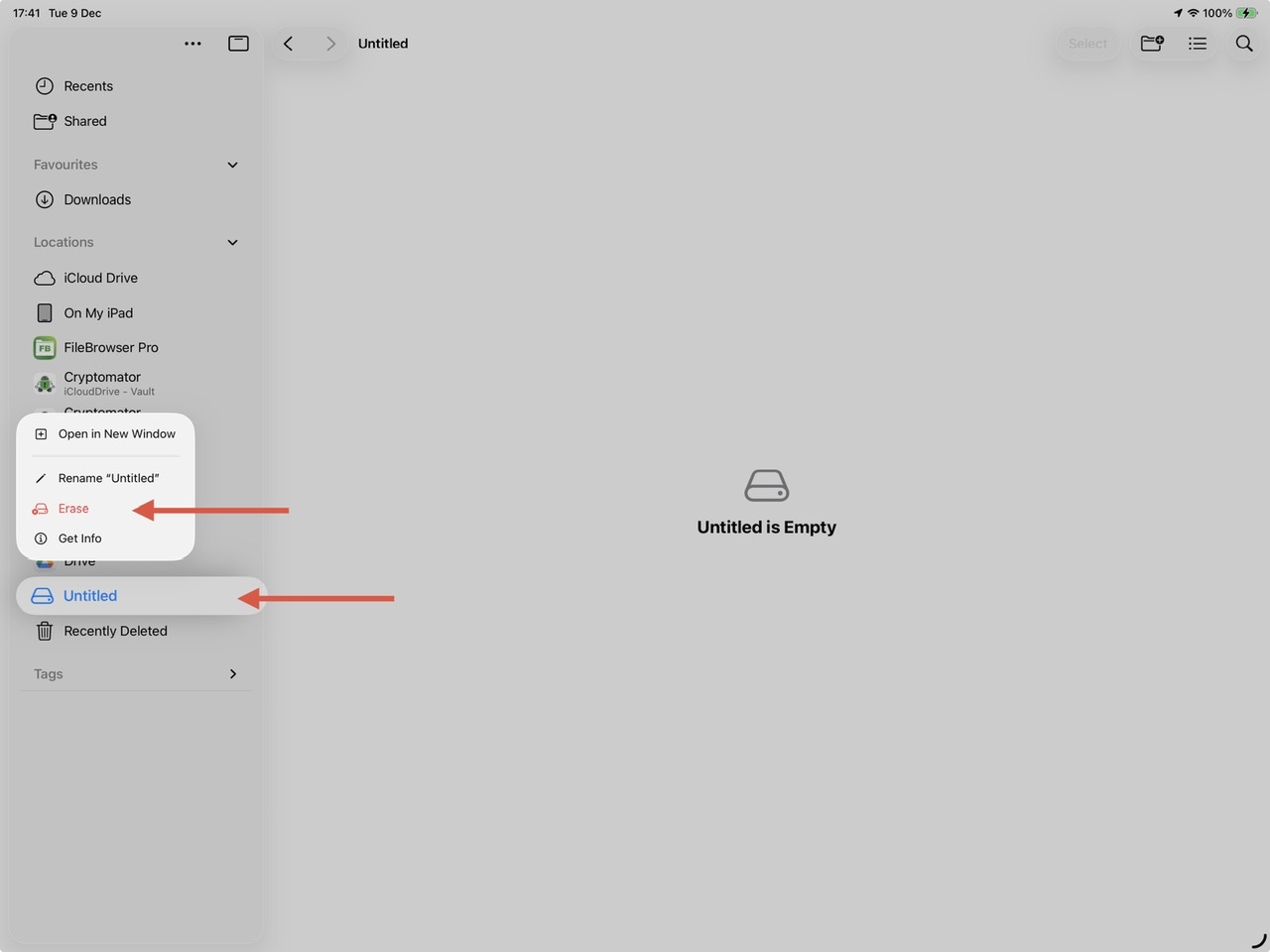
From your iPad, connect your external USB storage via an appropriate USB-C hub or Adapter. Using the Files App, identify the external storage device from sidebar - then touch-and-hold the associated USB device icon to expose the Action Menu:
From the menu, select the required device format - then tap the red Erase button:
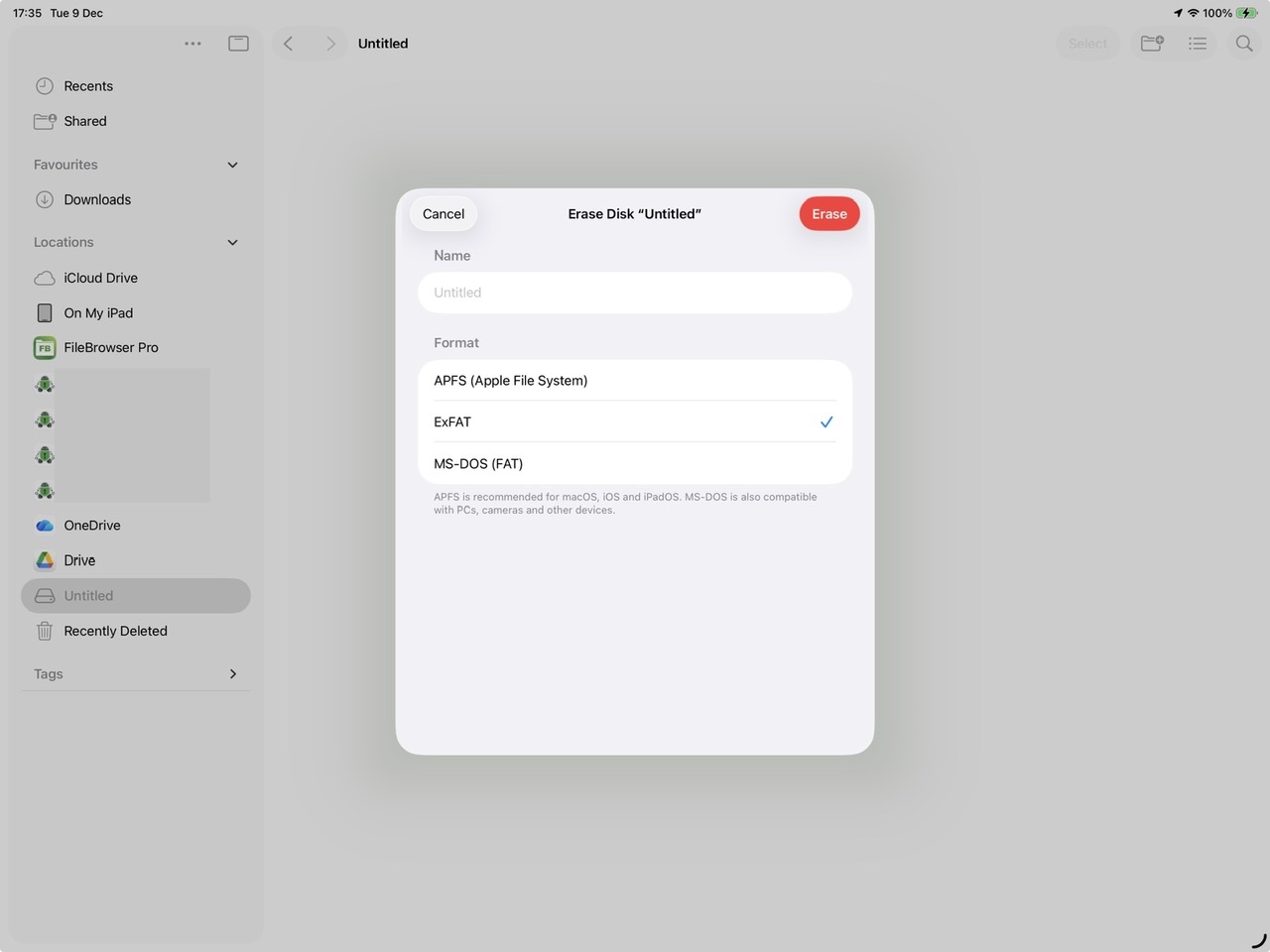
You should note that exFAT is supported by iPadOS, Windows PC and Mac. APFS is not supported by Windows PC.
If instead you reformat the drive using a Windows PC or Mac, your iPad supports FAT, FAT32, exFAT (FAT64), APFS or HFS+ with a single partition. Microsoft NTFS and other proprietary formats are not supported by iPadOS or Mac.
The most flexible format to choose, for compatibility between various computer Operating Systems, would be exFAT.


