How to manually activate iMessage and FaceTime for unavailable phone number on Apple ID?

“My phone number shows as unavailable for iMessage and FaceTime even though I received the verification SMS. Can you manually activate it for my Apple ID?”


[Re-Titled by Moderator]

Original Title: imessage

iPhone 11 Pro, iOS 17

Posted on Feb 1, 2026 12:19 AM

Reply
Question marked as Top-ranking reply

Posted on Feb 2, 2026 12:42 AM

To activate iMessage and FaceTime using your Phone number

  1. First, check to know whether you have an SMS plan enabled for at least one SMS*** with your carrier. Contact your Carrier (Cellular Service Provider), the agency that issued the SIM to you
  2. If your iPhone is used with a carrier not found in the wireless carrier articles, make sure you can send and receive international SMS. (One international SMS*** Only)
  3. If you can't turn on or sign in to iMessage or FaceTime - Apple ...


*** You may not have an SMS plan (Domestic & International) enabled by your carrier for the SIM/eSIM that you use on your device. Apple Inc. does not provide SMS services.



iMessage (Blue) -

  • iPhone to iPhone: requires internet (Either over WiFi or Cellular Service) as it is sent over internet protocol. Needs Activation on your device.
  • iPhone to Android: Not available


SMS/MMS (Green) -

  • iPhone to Android: does not require any internet, it is sent over cellular voice protocol. Needs to be enabled by your Carrier for the SIM used by you.
  • iPhone to iPhone: When iMessage is not activated or the device is not connected to the internet either over cellular or WiFi
  • You need to have an SMS/MMS plan enabled by your carrier for the SIM/eSIM that you use on your device. Apple Inc. does not provide SMS/MMS services.


It will turn from Blue to Green if you have enabled "Send as SMS" and whenever your iPhone is not connected to the internet, it is sent as SMS (green) to all iPhone users.


  1. iMessage by Default: If both you and the recipient have iMessage enabled and both devices are connected to the internet (Wi-Fi or cellular data), your messages will be sent as iMessages (blue bubbles).
  2. "Send as Text Message" Option: If the recipient’s device is not connected to the internet or their iMessage service is temporarily unavailable, the message may not go through. When that happens, you get an option to "Send as Text Message" — which sends the message as a regular SMS (green bubble).
  3. One-Time SMS, Not Permanent: Choosing "Send as Text Message" only applies to that specific message — not future ones. Once both devices are back online and iMessage is working, future messages will continue to be sent as iMessages automatically.
  4. When SMS Becomes Default: If iMessage remains unavailable for the recipient for an extended period, you can go to Settings > Messages and toggle "Send as SMS" — this lets your phone fall back on SMS when iMessage isn’t working. But again, it won’t override iMessage when both devices are connected to the internet.


See the pic below
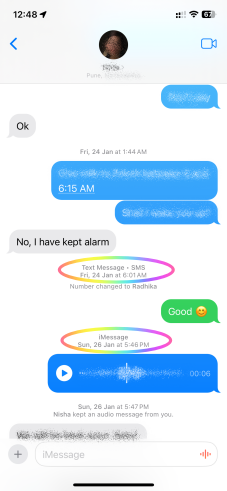


If iMessage is enabled on both devices and both are connected to the internet, you cannot choose to send an SMS instead of an iMessage — there’s no built-in option to force SMS while iMessage is active and available.


The only time an iPhone gives you the "Send as Text Message" option is when iMessage fails — like if the recipient’s device is offline or iMessage isn’t working. Otherwise, as long as both devices stay connected and iMessage is enabled, messages will always default to iMessage (blue bubbles).


If you ever wanted to force SMS for a particular contact, you’d have to turn off iMessage entirely on your device — but that would apply to all conversations to all contacts, not just one.


There are a few reasons why your texts might not be delivered to your friend's iPhone even though you can receive theirs:

iMessage Issues:

  • iMessage Not Enabled: Both you and your friend need to have iMessage turned on for texts to exchange as iMessage (blue bubbles). Check-in Settings > Messages > iMessage.
  • Data Connection: iMessages rely on data or Wi-Fi. Make sure you both have a stable internet connection.


It's possible that you used their Phone Number to send an iMessage, while they might have sent an iMessage using your Apple ID. There's a chance that iMessage isn't activated for their phone number on their device.


iMessage requires phone number activation for sending and receiving messages with other phone numbers. Without activation, you can only chat with people using their Apple IDs.


Activate iMessage and FaceTime using your… - Apple Community


1 reply
Question marked as Top-ranking reply

Feb 2, 2026 12:42 AM in response to katarina37

To activate iMessage and FaceTime using your Phone number

  1. First, check to know whether you have an SMS plan enabled for at least one SMS*** with your carrier. Contact your Carrier (Cellular Service Provider), the agency that issued the SIM to you
  2. If your iPhone is used with a carrier not found in the wireless carrier articles, make sure you can send and receive international SMS. (One international SMS*** Only)
  3. If you can't turn on or sign in to iMessage or FaceTime - Apple ...


*** You may not have an SMS plan (Domestic & International) enabled by your carrier for the SIM/eSIM that you use on your device. Apple Inc. does not provide SMS services.


iMessage (Blue) -

  • iPhone to iPhone: requires internet (Either over WiFi or Cellular Service) as it is sent over internet protocol. Needs Activation on your device.
  • iPhone to Android: Not available


SMS/MMS (Green) -

  • iPhone to Android: does not require any internet, it is sent over cellular voice protocol. Needs to be enabled by your Carrier for the SIM used by you.
  • iPhone to iPhone: When iMessage is not activated or the device is not connected to the internet either over cellular or WiFi
  • You need to have an SMS/MMS plan enabled by your carrier for the SIM/eSIM that you use on your device. Apple Inc. does not provide SMS/MMS services.


It will turn from Blue to Green if you have enabled "Send as SMS" and whenever your iPhone is not connected to the internet, it is sent as SMS (green) to all iPhone users.


  1. iMessage by Default: If both you and the recipient have iMessage enabled and both devices are connected to the internet (Wi-Fi or cellular data), your messages will be sent as iMessages (blue bubbles).
  2. "Send as Text Message" Option: If the recipient’s device is not connected to the internet or their iMessage service is temporarily unavailable, the message may not go through. When that happens, you get an option to "Send as Text Message" — which sends the message as a regular SMS (green bubble).
  3. One-Time SMS, Not Permanent: Choosing "Send as Text Message" only applies to that specific message — not future ones. Once both devices are back online and iMessage is working, future messages will continue to be sent as iMessages automatically.
  4. When SMS Becomes Default: If iMessage remains unavailable for the recipient for an extended period, you can go to Settings > Messages and toggle "Send as SMS" — this lets your phone fall back on SMS when iMessage isn’t working. But again, it won’t override iMessage when both devices are connected to the internet.


See the pic below


If iMessage is enabled on both devices and both are connected to the internet, you cannot choose to send an SMS instead of an iMessage — there’s no built-in option to force SMS while iMessage is active and available.


The only time an iPhone gives you the "Send as Text Message" option is when iMessage fails — like if the recipient’s device is offline or iMessage isn’t working. Otherwise, as long as both devices stay connected and iMessage is enabled, messages will always default to iMessage (blue bubbles).


If you ever wanted to force SMS for a particular contact, you’d have to turn off iMessage entirely on your device — but that would apply to all conversations to all contacts, not just one.


There are a few reasons why your texts might not be delivered to your friend's iPhone even though you can receive theirs:

iMessage Issues:

  • iMessage Not Enabled: Both you and your friend need to have iMessage turned on for texts to exchange as iMessage (blue bubbles). Check-in Settings > Messages > iMessage.
  • Data Connection: iMessages rely on data or Wi-Fi. Make sure you both have a stable internet connection.


It's possible that you used their Phone Number to send an iMessage, while they might have sent an iMessage using your Apple ID. There's a chance that iMessage isn't activated for their phone number on their device.


iMessage requires phone number activation for sending and receiving messages with other phone numbers. Without activation, you can only chat with people using their Apple IDs.


Activate iMessage and FaceTime using your… - Apple Community



How to manually activate iMessage and FaceTime for unavailable phone number on Apple ID?

Welcome to Apple Support Community
A forum where Apple customers help each other with their products. Get started with your Apple Account.