CPU/GPU intensive Apps will obviously drain your iPad battery significantly more quickly than Apps that make less demands upon the iPad's hardware. Similarly, high screen brightness settings, such as when being used in bright ambient lighting conditions (e.g. outdoors or a bright office environment) will also heavily impact battery utilisation.
With this is mind, it is difficult to provide a definitive indication as to what is "normal" for your own usage pattern and Apps that you use.
With that said, for moderate screen brightness of 20-30% (often more than adequate for normal indoor ambient lighting conditions), for Apps that don't stress the CPU/GPU, you might reasonably anticipate battery utilisation of 10-15% per hour of continuous use.
Speaking of my own experience with an iPad Pro M1, used throughout the day, I tend to achieve 15% battery utilisation per hour with screen brightness around 30% of maximum.
If your iPad is not operating as expected, try a forced-restart - as this will often clear an isolated software issue:
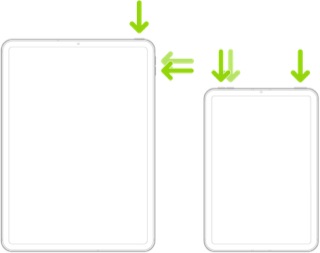
Force restart iPad (models with Face ID or with Touch ID in the top button)
If your iPad doesn’t have the Home button, do the following:
- Press and quickly release the volume button nearest to the top button.
- Press and quickly release the volume button farthest from the top button.
- Press and hold the top button.
- When the Apple logo appears, release the top button.
If the problem persists after performing the restart, it may be necessary to reset your iPad settings. While this reset will not cause any loss of data, as a precaution, it is always wise to ensure that you have a current iCloud or iTunes backup before performing the reset:
How to back up your iPhone, iPad, and iPod touch - Apple Support
When you are happy to proceed, you can perform the reset from iPad settings:
Settings > General > Transfer or Reset iPad > Reset > Reset All Settings
If the problem still doesn’t clear, the next step is to reset the iPad to factory settings:
Restore your iPhone, iPad, or iPod to factory settings - Apple Support
Otherwise, you would be best advised to seek assistance directly from Apple Support - and request a remote diagnostic test of your iPad. You can contact the Support Team using the Support link at top-right or bottom-left of this page. Alternatively you can initiate and manage your support cases using the excellent Apple Support App. If not already installed on your iPad, the App can be downloaded from the App Store:
https://apps.apple.com/app/apple-support/id1130498044
You might also visit the Genius Bar at your local Apple Store or Apple Authorised Service Provider (AASP) - where the technicians will be able to test and assess your iPad. If a hardware fault or an ailing battery is identified, you'll be in the best possible place to explore your available options:
Genius Bar Reservation and Apple Support Options - Apple

