iPad running slow after iOS 26 upgrade

iPad running slow after upgrade to iOS 26.

My iPad is about 2 and a half years old. Ran fine until I upgraded the iOS software to version 26.

Since then, it is running slow. However the biggest problem is navigating anyway from anything!

In Safari, if I am trying to carry out a transaction, I dare not navigate away as if I do, the page I am on then freezes when I navigate back, then takes me back to the original page where I started or the home page. Even skipping between sites the same thing happens.

Unfortunately this also occurs when I am using apps including Kindle, eg if I am in the library scrolling through books, go to Amazon to buy a book, then go back, I’m taken back to the library home page and not where I was before. Sam things happens if I navigate away from Safari to go to the calendar.

This issue has only happened since I did the upgrade, never happened before.

Can anyone tell me why this is happening and whether there is anything I can do about it. Thanks.

Posted on Mar 1, 2026 1:01 AM

Reply
Question marked as Top-ranking reply

Posted on Mar 19, 2026 8:40 AM

MikeyJohnS wrote:

Finally sorted this out. Went to Apple shop for a check, they found Safari was over 3gb rather than more usual 750mb. No idea why. They fiddled around with things and got it back down to usual size, running fine ever since! So if anyone else has similar issues, try checking Safari size first


Should you need to do so, your locally cached Safari data can be deleted from iPad settings:

Settings > Apps > Safari > [History & Website Data] Clear History & Website Data

7 replies
Question marked as Top-ranking reply

Mar 19, 2026 8:40 AM in response to MikeyJohnS

MikeyJohnS wrote:

Finally sorted this out. Went to Apple shop for a check, they found Safari was over 3gb rather than more usual 750mb. No idea why. They fiddled around with things and got it back down to usual size, running fine ever since! So if anyone else has similar issues, try checking Safari size first


Should you need to do so, your locally cached Safari data can be deleted from iPad settings:

Settings > Apps > Safari > [History & Website Data] Clear History & Website Data

Mar 1, 2026 1:56 AM in response to MikeyJohnS

Reduced performance can be expected immediately following a system software update as the iPad will still be running background housekeeping tasks (such as reindexing and downloading/installing additional software assets) - however nominal performance should return within a day or two.


If your iPad is not operating as expected, try a forced-restart - as this will often clear an isolated or post-update software issue:


Force restart iPad (models with Face ID or with Touch ID in the top button)

If your iPad doesn’t have the Home button, do the following:

  1. Press and quickly release the volume button nearest to the top button.
  2. Press and quickly release the volume button farthest from the top button.
  3. Press and hold the top button.
  4. When the Apple logo appears, release the top button.



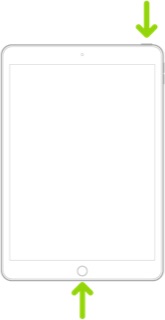
Force restart iPad (models with the Home button)

Press and hold the top button and the Home button at the same time. When the Apple logo appears, release both buttons.


If the problem persists after performing the restart, it may be necessary to reset your iPad settings. While this reset will not cause any loss of data, as a precaution, it is always wise to ensure that you have a current iCloud or iTunes backup before performing the reset:

How to back up your iPhone, iPad, and iPod touch - Apple Support


When you are happy to proceed, you can perform the reset from iPad settings:

Settings > General > Transfer or Reset iPad > Reset > Reset All Settings


If the problem still doesn’t clear, the next step is to reset the iPad to factory settings:

Restore your iPhone, iPad, or iPod to factory settings - Apple Support


Otherwise, you would be best advised to seek assistance directly from Apple Support - and request a remote diagnostic test of your iPad. You can contact the Support Team using the Support link at top-right or bottom-left of this page. Alternatively and perhaps easier, you can initiate and manage your support cases using the excellent Apple Support App. If not already installed on your iPad, the App can be downloaded from the App Store:

https://apps.apple.com/app/apple-support/id1130498044


You might also visit the Genius Bar at your local Apple Store or Apple Authorised Service Provider (AASP) - where the technicians will be able to hands-on test and assess your iPad - and you can explore your available options:

Genius Bar Reservation and Apple Support Options - Apple

Mar 17, 2026 2:46 PM in response to MikeyJohnS

The upgrade have made my iPad Air 3 a nitemare I don’t won’t excuses about do this try that…my iPad is slow it DONT search for pages sometimes..it’s now out off focus wen you have to click on some thing it’s out off the page…it’s got too the stage now wen I’m thinking off upgrade a decent no problem until b4 Xmas that is working charging fine iPad 3 air…we should be getting compensated for this mess our apple equipment as been left in no fault off our own


iPad running slow after iOS 26 upgrade

Welcome to Apple Support Community
A forum where Apple customers help each other with their products. Get started with your Apple Account.

