All Internet Apps Stopped Working on My iPad After an Update

I have an iPad 6th generation running iPadOS 17.7.11. After updating to this version, my iPad started having serious internet connectivity problems.


The device connects to Wi-Fi normally and receives an IP address, but almost nothing that requires internet works. I cannot download or update any apps from the App Store, websites usually do not load in Safari, and apps such as VK cannot connect to the internet or load content. Safari also displays security certificate warnings for websites like Google and marks their certificates as untrusted.


I have tested multiple networks, including a mobile hotspot from my phone, but the problem remains the same. The date and time are set correctly, I have restarted the iPad several times, and I have already reset all settings, but nothing helped.


The issue started shortly after updating to iPadOS 17.7.11. Since it affects all internet-related functions on the device, I believe it may be related to the operating system itself. I don't know what to do now to avoid losing my data.

iPad, iPadOS 17

Posted on May 31, 2026 12:32 PM

Reply
Question marked as Top-ranking reply

Posted on Jul 28, 2026 6:26 PM

Check to see if you have a VPN profile installed, even if you aren’t using it: Delete any VPN profiles in Settings/General/VPN & Device Management/VPN, then restart your device. Don't just turn VPN off; delete the profile. 

16 replies

Aug 5, 2026 6:19 AM in response to NicoleGena

NicoleGena wrote:
Hey! I just downloaded that update and having the same connectivity issues! I have no clue about this tech stuff, could you tell me when you changed your DNS from auto to manual did you add a new server? It’s asking me to do that but no idea what to change it to or how to get that info! Bit desperate as I’m using the iPad for study and it’s not working now


If manually setting DNS settings, I recommend using one of the following DNS services - for which IPv4 and IPv6 server addresses are listed:


Quad9 (highly recommended)


9.9.9.9

149.112.112.112

2620:fe::fe

2620:fe::9


OpenDNS


208.67.222.222

208.67.220.220

2620:119:35::35

2620:119:53::53


Cloudflare


1.1.1.1

1.0.0.1

2606:4700:4700::1111

2606:4700:4700::1001


If you need to reconfigure the DNS settings for your iPad or iPhone, these are set individually for each WiFi network that you connect to:

Settings > WiFi > [Your WiFi Network] - tap the blue "i" icon - [DNS] Configure DNS - select Manual


Enter all four of the DNS Server entries for the chosen DNS service, one per line, exactly as shown. The sequence doesn't particularly matter; delete any other DNS Server addresses before selecting Done.


If you are unsure how to change your DNS settings, or are uncomfortable doing so, a really easy way to set and manage them is to use a third-party utility App - DNSecure:

https://apps.apple.com/app/dnsecure/id1533413232


DNSecure is free to download and install - and has no privacy issues.

Jul 9, 2026 3:32 AM in response to dokko_

Hi, you’re not the only person experiencing this after updating to iPadOS 17.7.11. I’ve seen several reports from users with older iPads describing the same symptoms: SSL/certificate errors in Safari, App Store not working, and most internet-connected apps failing even though Wi-Fi is connected.  


Since you’ve already tried different Wi-Fi networks, reset all settings, and verified the date and time, it doesn’t sound like a network configuration issue. It appears to be either a software bug or a problem that occurred during the update.


Before erasing your iPad, I would recommend contacting Apple Support and reporting the issue, as multiple users seem to be affected after updating to iPadOS 17.7.11. If you have a recent backup, you could also consider restoring the device using a Mac or PC if Apple Support recommends it.


Hopefully Apple acknowledges the issue and provides a fix in a future software update. Thanks for sharing your experience—it may help others who are facing the same problem.

May 31, 2026 12:54 PM in response to dokko_

WiFi/Internet connection difficulties are usually an indication that your device does not have a routable IP Address - your IP Address usually being assigned by DHCP. When problems occur, your iPad may only have a self-assigned link-local IP address that begins 169.254.x.x.


You can verify your DHCP-assigned IP Address from settings:

Settings > WiFi > [Your WiFi Network / SSID] - tap the blue “i” icon - [IPv4 Address] IP Address


If you have a VPN App or profiles installed, or a security/AV/firewall App such as Norton, these may be interfering with DHCP and preventing your device from obtaining a valid IP Address for the WiFi network to which you are attempting to connect. The resolution is usually simple; if installed, you may only need to temporarily disable or completely remove the Security App and/or VPN.


DHCP is frequently used to automatically obtain an IP Address. Until your iPad has a valid IP Address to connect to your network, you will not have an internet connection. Disabling or removing VPN and/or the offending security App should allow DHCP to operate normally - allowing connection to your network and the internet.


If this resolves your issue, the VPN and/or security App can be reinstated after the connectivity problem has been resolved.


If some Apps are working as expected, while others are not - or other devices can connect to your WiFi network - you may find that a restart of your WiFi Router, followed by a restart of your iPad will clear the problem….


To restart your router, disconnect power from the router for at least 30 seconds - then reconnect power to restart. After your router reboots (which may take several minutes), force restart your iPad:


Force restart iPad (models with Face ID or with Touch ID in the top button)

If your iPad doesn’t have the Home button, do the following:

  1. Press and quickly release the volume button nearest to the top button.
  2. Press and quickly release the volume button farthest from the top button.
  3. Press and hold the top button.
  4. When the Apple logo appears, release the top button.


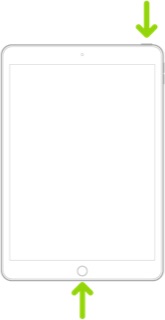
Force restart iPad (models with the Home button)

Press and hold the top button and the Home button at the same time. When the Apple logo appears, release both buttons.


If you continue to have difficulties, check to see if your iPad is using the WiFi Private Address feature. This feature is intended to provide additional privacy and security when using “public” (untrusted) WiFi networks.

Settings > WiFi > [Your WiFi Network / SSID] - tap the “i” icon - Private Address


The Private Address feature is largely unnecessary for your home WiFi network; if enabled, Private Addressing can cause issues if specific MAC addresses are expected by your WiFi Router. You may need to disable this feature - and can be enabled or disabled for each individual network.


Use private Wi-Fi addresses in iOS 14, iPadOS 14, and watchOS 7 - Apple Support

Aug 5, 2026 7:38 AM in response to NicoleGena

NicoleGena wrote:
Hey! I just downloaded that update and having the same connectivity issues! I have no clue about this tech stuff, could you tell me when you changed your DNS from auto to manual did you add a new server? It’s asking me to do that but no idea what to change it to or how to get that info! Bit desperate as I’m using the iPad for study and it’s not working now

The most important first step is if you are using VPN COMPLETELY remove it, including deleting the profile in Settings/General/VPN & Device Management/VPN.

Jul 28, 2026 7:40 AM in response to dokko_

Possible Fix

I spent a couple of days playing with this issue after installing iPadOS 17.7.11

i was trying anything at this point.

The last thing I did just before it started to work was I changed the DNS from Auto to Manual.

After doing that I was up and running and had no internet issues.

I even put the setting back to Auto to see if the issue would return and it did not.

Jun 12, 2026 1:07 AM in response to Philippe Foucart

System software updates on any computer can, on occasion, trigger an unexpected condition. Consider the many possible combination of Apps that might be installed - along with the possible permutations of settings - and you may begin to comprehend that any one of them might be the trigger.


Experience with Apple devices, specifically iPad and iPhone, demonstrates that WiFi and Internet connectivity issues are often attributable to third-party VPN/Security Apps (e.g., Norton) or the other items that I have suggested that you check. Often, after the issue has been cleared, you can simply restore the previous settings and/or reinstall the App or Apps that had triggered the problem.


While avoiding in-depth technical explanation as to how the "network stack" operates, suffice to say that its complexity is hidden from view.


To cite an analogy, consider the classic Jenga game - consisting of a tower of wooden blocks. The challenge of the game is to remove one or more of the blocks without the tower collapsing.

https://en.wikipedia.org/wiki/Jenga


In this analogy, the tower of blocks represents the iPad's network stack that provides your WiFi network connection. The system software update that you performed may need to remove and replace (or rearrange the sequence of) individual blocks without upsetting the stability of the tower. Usually, the update is successful in manipulating the individual elements without issue - but, occasionally, the stack will topple - and the network connection is lost.


Simply resetting some specific settings - and/or removing specific Apps that are known to be involved in the network stack - allows the connection (and the Jenga tower) to be reconstructed - restoring the WiFi/network connection.


Computers are complex - and much of the complexity is successfully hidden from view. Thankfully the days of needing to be a computer scientist to program and use a computer are long past - but, occasionally, we will all encounter a situation when something does not work as expected. Often the resolution is relatively simple, requiring a few steps to resolve a problem.


Jul 28, 2026 8:34 AM in response to Firebird-67

<< changed the DNS from Auto to Manual. >>


That may be key.


In a wired network with a fixed router, each Router/access point device defaults to using the DNS number(s) automatically provided to it by its upstream Router. For example, your Home Router automatically uses the numbers provided by your ISP, unless you change them manually.


In the case of using a HotSpot based on a cellular connection, that Cellular ISP may be very bad about providing proper DNS number automatically.


May 31, 2026 4:12 PM in response to dokko_

If the problem persists after performing the restart, it may be necessary to reset your iPad settings. While this reset will not cause any loss of data, as a precaution, it is always wise to ensure that you have a current iCloud or iTunes backup before performing the reset:

How to back up your iPhone, iPad, and iPod touch - Apple Support


When you are happy to proceed, you can perform the reset from iPad settings:

Settings > General > Transfer or Reset iPad > Reset > Reset All Settings


If the problem still doesn’t clear, the next step is to reset the iPad to factory settings:

Restore your iPhone, iPad, or iPod to factory settings - Apple Support


Otherwise, you would be best advised to seek assistance directly from Apple Support. You can contact the Support Team using the Support link at top-right or bottom-left of this page. Alternatively you can initiate and manage your support cases from Apple devices using the excellent Apple Support App. If not already installed, the App can be downloaded from the App Store:

https://apps.apple.com/app/apple-support/id1130498044


You might also visit the Genius Bar at your local Apple Store or Apple Authorised Service Provider (AASP) - where the technicians will be able to assist with troubleshooting:

Genius Bar Reservation and Apple Support Options - Apple

Jul 28, 2026 8:37 AM in response to Firebird-67

Wi-Fi not available:

Launch a browser and enter this easy to remember all-numeric IP address:


1.1.1.1 


in the address bar,  and press return.


If you get the CloudFlare** splash page, or more recently, a web page with a come-on to “switch to 1.1.1.1” services, your internet is working, but DNS lookup may not be working.


**CloudFlare is NOT part of the solution, they just own the easiest to remember all-numeric IP Address (does not require a DNS lookup.)


Jul 10, 2026 1:39 AM in response to Kaykats

In the end I started doing a backup for my ipad in order to do a full reset and erase everything and after the back up was done I checked internet one last time and it started working… 🫠 So weird! I did everything else and nothing fixed it and then it just fixed itself, I‘m not sure if backup has anything to do with it.

May 31, 2026 1:13 PM in response to LotusPilot

Thank you for your reply.


I checked the IP address and my iPad is receiving a normal address, not a 169.254.x.x address. I have also already reset network settings and reset all settings on the device.


The problem occurs on multiple networks, including a mobile hotspot from my phone, so it does not seem to be related to my Wi-Fi router. My iPad connects to Wi-Fi successfully and receives an IP address, but almost all internet-related apps and websites fail to work. Safari also shows certificate warnings for websites such as Google.


I do not have any security or antivirus apps installed. In Settings, VPN shows "Not Connected".

The issue started shortly after updating to iPadOS 17.7.11.

Jul 28, 2026 9:34 AM in response to LotusPilot

Nothing has worked. I was forced to buy a new device. Calling Apple Support proved to be a complete waste of time. Responses ranged from one rep claiming it had nothing to do with the update. He insisted that the fact that the problem occurred after an update was purely coincidental. And all reps simply stated that because I had an older device, it was no longer supported, so nothing could be done.

All Internet Apps Stopped Working on My iPad After an Update

Welcome to Apple Support Community
A forum where Apple customers help each other with their products. Get started with your Apple Account.