Your iPad2 was released in March 2011 - over fifteen years ago.
Multiple recent posts, concerning unresolvable issues with device re-activation, suggest that Apple has finally removed all server-side and re-activation support for obsolete 32-bit devices:
- iPad1
- iPad2
- iPad3
- iPad4
- iPad mini1
As such re-activation of your iPad2 may now be impossible, rendering the iPad unusable.
Additionally, all 32-bit Apps have been retired and removed from the Apple App Store. Other than built-in Apps, you'll not be able to install any additional Apps from the App Store.
The final nail in the coffin is simply that most online services will now be unusable with the native Safari browser - as obsolete 32-bit devices don't meet the security requirements and crypto' requirements of modern websites and online services.
In summary, while perhaps an unexpected and unwelcome outcome, you might be best advised to abandon ongoing efforts to recover your obsolete iPad2. Replacement with much newer or current model device is likely to be your best, if not only, available option.
However, should you wish to further attempt re-activation of your obsolete iPad, you might try the following...
Start here >>> If you can't activate your iPhone or iPad (Wi-Fi + Cellular) - Apple Support
If you are experiencing difficulties with (re)activation of your iPad, you may have more success if you connect your iPad to a Windows PC (with iTunes for Windows installed, or more recent Apple Devices App) or a Mac computer (with iTunes or Finder - as appropriate for the installed version of macOS). Once connected to your computer, your iPad will be detected - and you should be able to activate using iTunes.
- Make sure that you have the latest version of macOS or the latest version of iTunes.
- Check that your computer has an Internet connection.
- With the cable that came with your iPad, connect your iPad to your computer. Locate your device on your computer.
- Wait while your computer detects and activates your iPad:
- If you see an alert that shows "Set up as New" or "Restore from Backup", it means your iPad is activated.
- If you get an error message that says the "activation information was invalid" or "activation information could not be obtained from the device", use recovery mode to restore your iPhone.
A restart of your WiFi Router and/or a change of DNS settings may also be helpful.
To restart you home router, disconnect power - then wait at least 30 seconds before restarting. When you router has rebooted (which may take several minutes), force-restart your iPad:
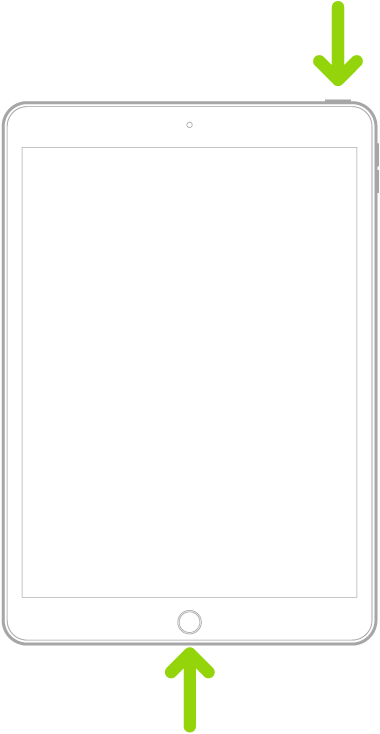
Force restart iPad (models with the Home button)
Press and hold the top button and the Home button at the same time. When the Apple logo appears, release both buttons.
For recommended DNS servers (configured at your home router and/or your iPad), you might choose one of the following Recursive DNS Providers (IPv4 and IPv6 addresses included below):
Quad9
9.9.9.9
149.112.112.112
2620:fe::fe
2620:fe::9
OpenDNS
208.67.222.222
208.67.220.220
2620:0:ccc::2
2620:0:ccd::2
Cloudflare
1.1.1.1
1.0.0.1
2606:4700:4700::1111
2606:4700:4700::1001