(re)Enable iCalendar ability to execute AppleScript

Hi there fellow early adopters of ML (i'm talking to those who wait the final release and never installed ML DP).


I were using tons of AppleScript with Calendar ability to run script. Is there any way to recover this ability in Mountain Lion ?


Thanks,

MacBook Pro, OS X Mountain Lion

Posted on Jul 26, 2012 2:36 AM

Reply
37 replies

Jul 30, 2012 7:31 PM in response to Pondini

Let me know if this rewrite works.


If you have AppleScripts designed to execute from Calendar, you may find that they no longer work in Mountain Lion. Fortunately, there is a work-around that will restore the Calendar's ability to run your scripts by using Automator.


I use an AppleScript to provide an alarm clock function. Here's how I used Automator to allow execution of the script:


In Automator, create a Calendar Alarm
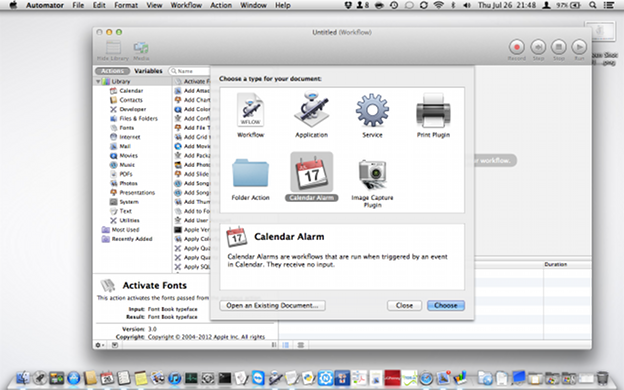

User uploaded file

Select Utilities from the library pane


Select & drag Run AppleScript into the workflow area


Copy/paste the AppleScript into the Run AppleScript box
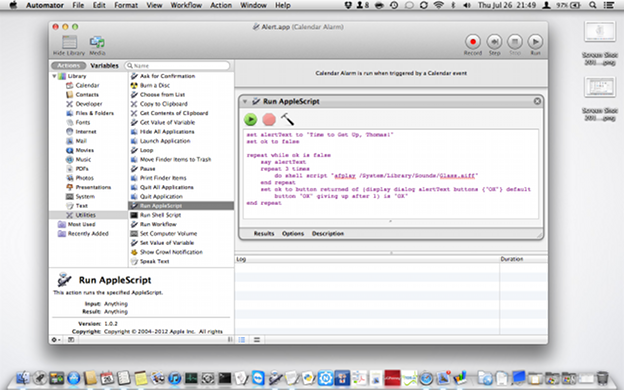
User uploaded file


Save the newly created Calendar Alarm


Open Calendar.app, create a new event


Select the Automator calendar as your reference calendar
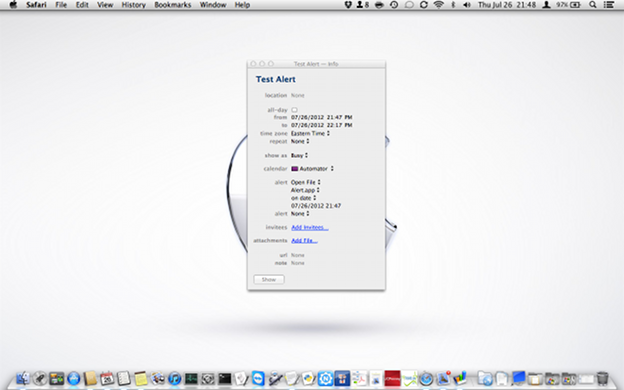
User uploaded file

Select Open File for the alert, and select the file you created in Automator. By default, iCal is the file that comes up when you select Open File. Change that to the name of the Automator app you created. Select Other if the file name isn't shown.


Jul 30, 2012 7:47 PM in response to LinuxGeek3447

Yup. Looking good. A few suggestions:


Screenshots shrink when posted, so get difficult to read. And if a user enlarges them, they tend to get fuzzy. So you might want to trim them down with Preview or the like to just the window (or important part of the window), so what the user needs to see is clearer and more prominent.


Especially for the second one, while folks don't really need to able to read the Applescript, it would be much clearer.


Adding things like a red circle around the Calendar Alarm in the first sample really draws attention to it.


And you might want to mention in the last paragraph that all those things should or may be there already (at least they were for me!).


Great!

Jul 31, 2012 10:10 AM in response to Pondini

Looks good. I can see what you were referring to about the screenshots being fuzzy. I had to reduce them from their original size (1280x800) to fit properly into the document I used as the template for my post. I can try to produce clearer screenshots. If I get those done, I will forward them to you. Otherwise, I wouldn't change a thing. Thanks for adding your tweaks in. The past few days have been busy for me.

Aug 11, 2012 1:58 PM in response to Jorsta

Jorsta,


If your posting is to me, what you suggest is exactly what I was doing, and what I describe was the result. The apps I had created in Automator were grayed out/unselectable as targets for a reminder of the "open file" type in the Automator-name calendar in Calendar.app. After quitting Calendar.app and relaunching it, I could, with success, select one of the three apps I had created to be such a target.


Thanks, though.

Aug 11, 2012 4:53 PM in response to Jorsta

Jorsta wrote:

. . .

I just wonder why you have to use Automator at all – when it's applescripts you wan't to execute. Just open your script in the AppleScript Editor, and save as/export it choosing "application" as file format.

That didn't work in the beta versions of Mountain Lion -- you couldn't select an applescript app for the Open File option.


Now it does (which makes no sense, since they responded to bug reports saying they removed the AppleScript option for "security reasons").


Very odd.

Aug 11, 2012 5:29 PM in response to Pondini

How odd indeed. The reason I looked for this thread, steered here by another forum, was that the "open file" alert in ML was doing that and only that. I would find my unexecuted AppleScriptMy.scpt open. ("Gosh, thanks.")


I can't recall if I tried pointing open file at an AppleScripteMy.app.


It seems now this whole thread hinges on the detail: "If the AppleScript you ran as a 'run script' alert under iCal/Lion won't run under Calendar/Mountain Lion, save it in the .app format from AppleScript editor and then point the 'open script' alert at that."


It is easy to change the .scpt into a .app for an extant script. For me, at least, it was a bit of a struggle to get these Automator Calendar Alerts to work. They do work, but they have little or no elegance.


How dense of me and perhaps others to miss the detail that Apple did not 'refuse' to let an alert run an AppleScript, but did impose a new format requirement on such scripts.


I hope others find this part of this thread before duplicating some or any the efforts exerted by all those who contributed here.

Aug 12, 2012 2:41 AM in response to autnagrag

It wouldn't make any sense for Apple to, for "security reasons", stop Applescript apps from being executed by Calendar events – and at the same time allow the same thing for Automator apps (or other apps).


But to exclude compiled scriptfiles does make a sense: The new Gatekeeper choice to only allow downloaded apps from Mac App Store or certified developers would block a harmful app but miss a harmful scriptfile.

Aug 14, 2012 1:22 AM in response to LinuxGeek3447

Thanks LinuxGeek3447!


When I saved the Calendar Alarm in Automator, it was automatically added to my Calendar at the current time.


If anyone else is wondering how to edit their Calendar Alarms, these Automator apps are stored in ~/Library/Workflows/Applications/Calendar. I tried moving the .app file to another folder, and Calendar was no longer able to select it in the event details popup. Seems like it's gotta stay there.

This thread has been closed by the system or the community team. You may vote for any posts you find helpful, or search the Community for additional answers.

(re)Enable iCalendar ability to execute AppleScript

Welcome to Apple Support Community
A forum where Apple customers help each other with their products. Get started with your Apple Account.

