I was going crazy, trying to connect to wifi. I backed up the phone, restored it and I still couldn't connect. I was a Sprint customer and had trouble with them for so long, I switched. But when I was trying to wipe the Sprint phone when I got the new AT&T phone... I discovered a trick! You have to put the phone into recovery mode and restore and then add your backup... Here are the instructions. Now the wifi works!
If your iPhone, iPad, or iPod touch is already showing the "Connect to iTunes" screen, please go to step 5.
- Connect your USB cable to your computer but not to the iPhone, iPad, or iPod touch until step 3.
- Turn off the device: Press and hold the Sleep/Wake button for a few seconds until the red slider appears, then slide the slider. Wait for the device to turn off.
If you cannot turn off the device using the slider, press and hold the Sleep/Wake and Home buttons at the same time. When the device turns off, release the Sleep/Wake and Home buttons.
- While pressing and holding the Home button down, connect the USB cable to the iPhone, iPad, or iPod touch. The device should turn on.
- Continue holding the Home button until you see the Connect to iTunes screen. When this screen appears, you can release the Home button:
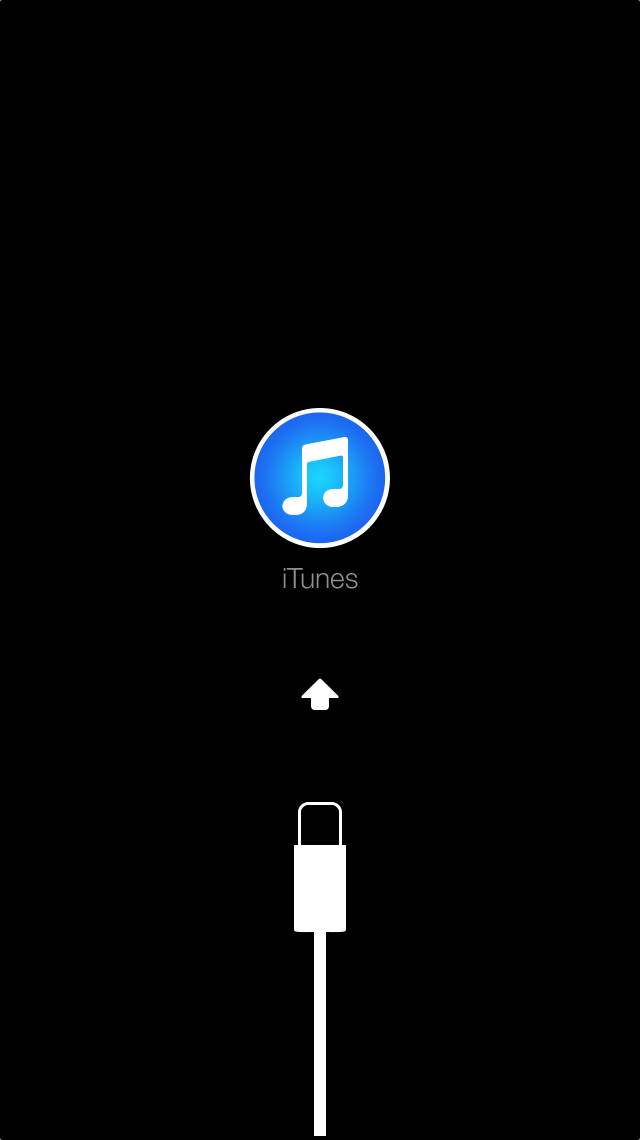
Note: If the image of a battery appears, let the device charge for at least ten minutes to ensure that the battery has some charge, and then start with step 2 again. If you don't see the Connect to iTunes screen, try these steps 1 through 4 again.
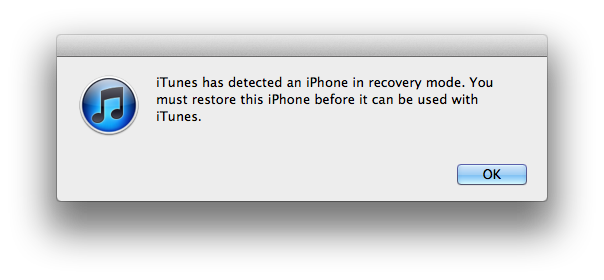
- iTunes should automatically open and display the following message: