Keep a word containing a slash on the same line?

I'm writing about Google I/O, and Pages keeps breaking it up into two lines, right after the slash. "Never Hyphenate" doesn't appear because, well, there's no hyphen, so... any way to keep I/O on the same line?

OS X Mountain Lion (10.8.2)

Posted on Jun 6, 2013 9:51 PM

Reply
11 replies

Jun 8, 2013 6:02 AM in response to ffiti

I think the sensible thing to do is apply Barry's suggestion just before you finish the document, i.e. after you are done "changing the text around."


However, if you replace "I/O" with "I/O" (which is "I" followed by a Narrow No-break Space followed by the solidus followed by a Narrow No-break Space followed by "O") it does appear that it will keep the expression together.

Jun 8, 2013 9:36 AM in response to Jeff Shenk

@ Jeff,


"if you replace "I/O" with "I/O" (which is "I" followed by a Narrow No-break Space followed by the solidus followed by a Narrow No-break Space followed by "O") it does appear that it will keep the expression together."


Good suggestion, Jeff. Can a Narrow No-break Space be entered from the keyboard, or is it draggeg in from the Character Viewer? If the latter, how is it located?


Regards,


Barry

Jun 8, 2013 9:53 AM in response to Barry

Barry,


I used the term "space" in the search field of the Character Viewer to get a list of possible candidates, and entered it from there. (I double click the image of the character in the main Character Info box, which inserts it at the cursor in Pages.) If it can be entered from the keyboard, I don't know how.


I sort of thought (or at least hoped) that copying and pasting from my post into a Find and Replace window might avoid going back to the Character Viewer.


Jeff

Jun 9, 2013 1:40 AM in response to ffiti

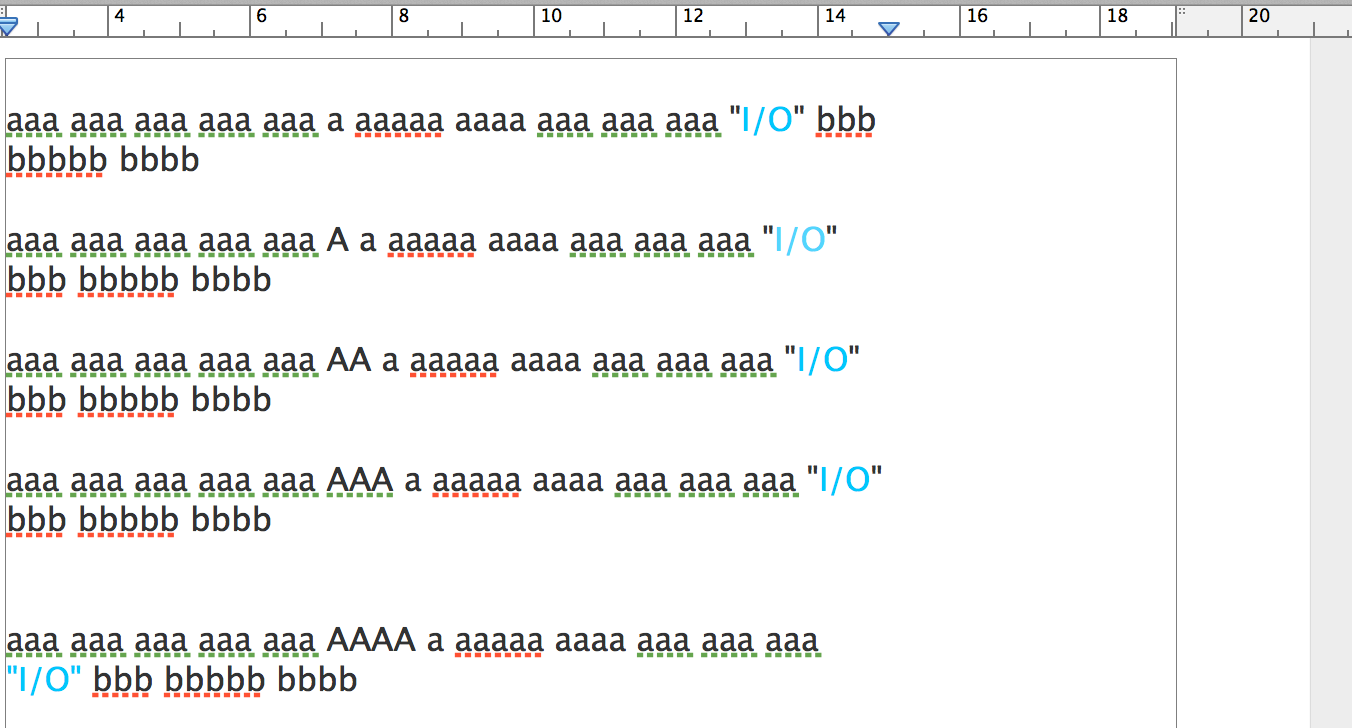
Actualy, Jeff's suggestion is pretty simple and straightforward. Here's how it looks in practice.
User uploaded file

I've coloured the I/O sets to make them trackable. They have a narrow no-break space before and after the slash (solidus), which prevents the 'word' from breaking at either of these positions.


The narrow no-break space was dragged from the Character Viewer window to the document, and dropped between the I and / characters in sentence 1. The drag was repeated,and the character dropped between the / and the O in the same sentence.


The whole sentence was copied, then pasted back into the document four times. Then an increasing number of A characters were typed into the copies. Note that the I/O group of characters, now 'glued together with the narrow no break spaces, moves as a whole word when the text before it expands. The 'word' drops as a single entity.

User uploaded file


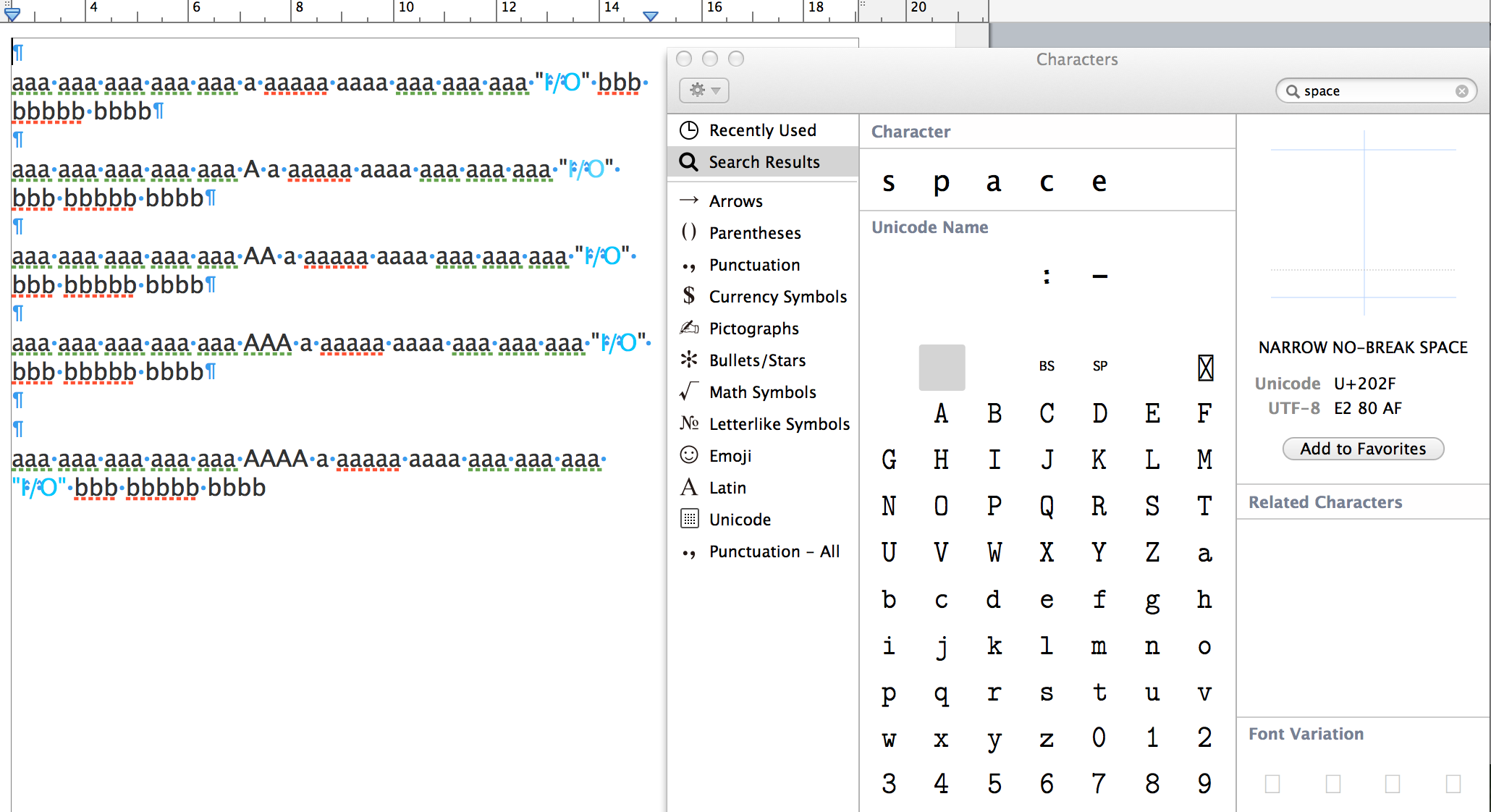
To the right, you can see the Character Viewer. The grey square marks the place where the narrow no break space is found. To insert this character in the document, select the character with the mouse, then drag it to the document and drop it where you want it. I have Show Invisibles turned on in this example, so if you examine each "O/I" closely, you should be able to see the token indicating the presence of this character.

User uploaded file

Once in the document, the character (or the full string) can be copied an pasted as needed..


Regards,

Barry

Jun 9, 2013 12:42 PM in response to ffiti

If the small spaces are an issue, you can adjust the character spacing to left and right of the solidus to make it less obtrusive. Here's a acreen shot of your original question, pasted twice into a Pages document. Both copies have been set to12 point Helvetica Neue.


One copy is otherwise unchanged.


One copy has had NARROW NO-BREAK SPACEs inserted before and after the solidus in both instances of "I/O", then had the character spacing set to -7% for the solidus and the NNBS characters on either side of it. Click for enlarged image.

User uploaded file

Once set up, the five character set can be copied and pasted at will.


Regards,

Barry

Jun 9, 2013 3:21 PM in response to ffiti

Hello


U+2060 WORD JOINER (WJ) (zero width non-breaking space) would be your friend. Putting U+2060 after / will prevent word break after / in I/O.


Drawbacks of this method would be difficulties in search and input:

• String with embeded WJ can only be searched by the same string with embeded WJ.


• WJ cannot be input via keyboard. You'd need to use chararter viewer (search by code 2060). Or the following AppleScript script which puts WJ in the clipboard might help.


set the clipboard to (character id 8288) -- U+2060 WORD JOINER


Under OSX 10.6 or later, you may save this AppleScirpt script as Service via Automator.app and assign keyboard shortcut via System Preferences > Keyboard so that you can call it easily. (E.g., when keyboard shortcut is set to control option =, WJ is input by control option = followed by command v)


Regards,

H

This thread has been closed by the system or the community team. You may vote for any posts you find helpful, or search the Community for additional answers.

Keep a word containing a slash on the same line?

Welcome to Apple Support Community
A forum where Apple customers help each other with their products. Get started with your Apple Account.