Hi dtryon,
Here’s a reboot, using Wayne’s two formulas to get to an interim table, listing only:
- the pool member’s names,
- the row that name is on in the table 2013 Pool Standings,
- the name’s current points total from column T,
- and the name’s current dollar total from column S (Week 17)
- plus an index column containing a distinct value, constructed from the points and the row number for each row.
The formulas assume there have been no changes to the positions of names, point totals or W/L totals on your data table from those shown in your screen shots.
Second table (replaces the "Ranking" table in your January 16 screen shot)
The names are entered in column A of a second table, named Aux (short for Auxiliary). The spelling must exactly match that used for each name of the main table (2013 Pool Standings)
R ow 1 is a Header row, containing the following labels:
A1: Name, B1: Row, C1: Points, D1: W/L, E1: Index
B2 contains Wayne’s first formula, with one minor revision: The +1 after MATCH() is omitted.
B2: =IFERROR(MATCH(A2, 2013 Pool Standings::$A,0), "")
Syntax of MATCH:
MATCH(search-for,search-where,match-type)
MATCH gets the value from A2 (“Larry Beamer”), then searches for that value in column A of 2013 Pool Standings, requiring an exact match (specified by the zero)
The search-where list, 2013 Pool Standings::$A, is all of column A, including row 1. Larry’s name is in position 2 of that list, so the formula returns a 2.
If there is no match for search-value, MATCH returns an error. This is caught by IFERROR, and IFERROR returns a null string in place of the error returned by MATCH. (null string: A text string of length zero)
Enter the formula as shown above into Aux::B2, then fill down to B21.
C2 and D2 contain Wayne’s second formula, again with one minor revision:
Each player’s point total is displayed in column T, one row below the row containing his name. But that total, and the W/L total are also displayed in column S, points two rows below the name row and W/L total nine rows below the name row. For consistency in the formulas for retrieving these two values, I’ve chosen to collect both from the same column.
C2: =INDIRECT("'2013 Pool Standings'::S"&B2+2)
D2: =INDIRECT("'2013 Pool Standings'::S"&B2+9)
Syntax for INDIRECT:
INDIRECT(addr-string, addr-style)
The second argument, addr-style, is optional. If set to TRUE or omitted, the address style is A1 (column letter and row number). Set to FALSE, the address style is R1C1, a style that is not supported in Numbers, but is included for ‘compatibility with other appliations.’
INDIRECT constructs a text string from text and values contained in cell(s), and returns the contents of the cell at the address represented by that string.
Both formulas in row 2 reference cell B2, which contains the value 2, the position of Larry B’s name returne by the MATCH formula in B2.
The formula in C2 adds 2 to this value, then concatenates the text string “‘2013 Pool Standings’::S” and the addition result 4 to make the full address:
2013 Pool Standings::S4, pointing to one of the cells containing Larry’s point total.
The formula in D2 uses the same text string and value from B2, but adds 9 to the number in B2 for the full address:
2013 Pool Standings::S11, the cell containing Larry’s current W/L total.
Fill both formulas down their respective columns.
E2 contains a simple formula that adds a tiny amount, dependent on position in the column, to the point value in column C to ensure that each value in the index column is unique within that set. Without this adjustment, only the first-found name associated with repeated scores would be listed.
E2: =C+ROW()/10000
The Aux table will look like the example on the left below. Note that this is a constructed table. I have copied the points and W/L amounts from your January 16 post beginning “Is this what you had in mind…”, and added amounts to the rows not shown in your “Ranking” screen shot. I substituted the easily constucted “Name 1”… names rather than retype your column, and omitted the row numbers in column B as the formulas below (on my Ranking table) do not need them.
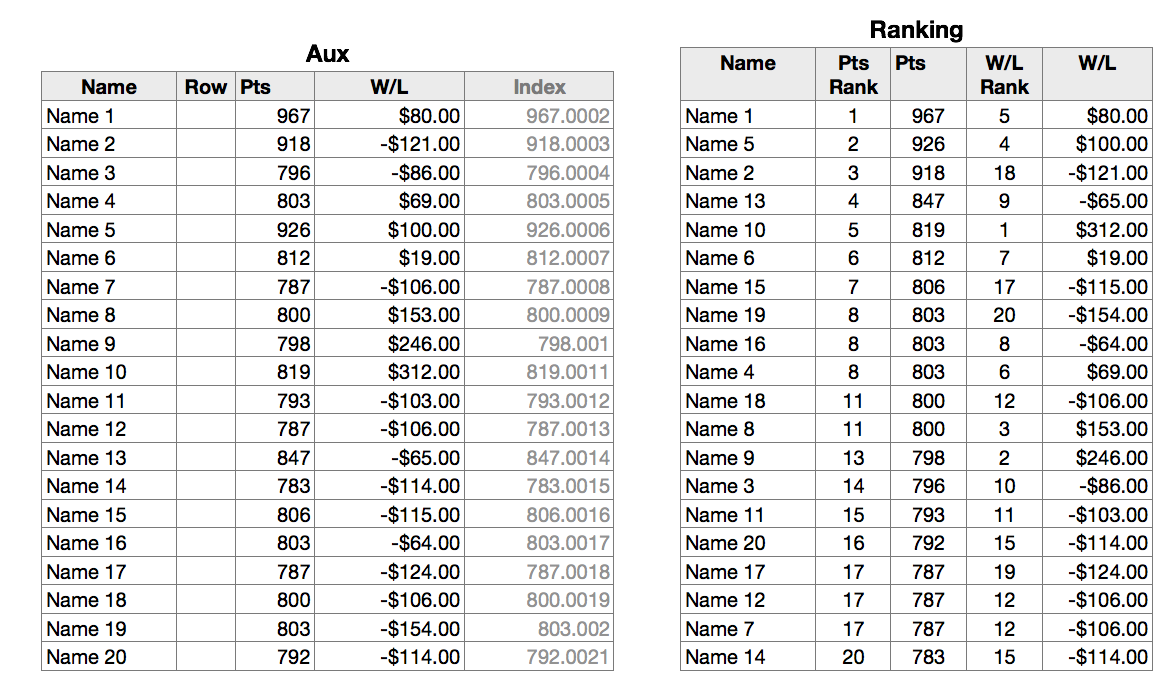
Final table: Ranking
This table, shown to the right above, lists the names, points and W/L amounts in rank order by points, and reports the RANK by points and the RANK by W/L for each name. Note that players with the same total points are assigned the same rank, and the next lower total points is assigned the next available rank.
Example: scores of 10, 10, 9, 8, 8, 8, 3 would be ranked 1, 1, 3, 4, 4, 4, 7.
The table has five columns, Name, Pts Rank, Points, $ Rank, W/L
Labels are placed in Row 1, a Header row.
A2, C2 and E2 contain these similar formulas:
A2: =INDIRECT("Aux::A"&MATCH(LARGE(Aux :: $E,ROW()-1),Aux :: E,0))
C2: =INDIRECT("Aux::C"&MATCH(LARGE(Aux :: $E,ROW()-1),Aux :: E,0))
E2: =INDIRECT("Aux::D"&MATCH(LARGE(Aux :: $E,ROW()-1),Aux :: E,0))
LARGE picks out the index numbers in order, starting with the largest. MATCH returns the position in the list in column E of Aux, and this number is used for the row number of the cell reference constructed in INDIRECT. The three formulas differ only in the column part of that cell reference.
B2 and D2 contain these similar formulas:
B2: =RANK(C,C,)
D2: =RANK(E,E,)
Fill down to the end of their respective columns.
The formula (in B2) returns the rank of the value in C(2) in the list of values in column C. The omitted third argument defaults to “Largest” (967) “is low” ( 1 ).
The ranks in column B are in order because the index column that determines the order in which the Ranking table is loaded is constructed from the Points column on the table AUX.
The ranks in column D are of the money values in column E. These do not appear in order because the money values are ordered by who they belong to, not by their relative value.
Regards,
Barry
PS: Do not sort any of the tables. All sorting is done automatically as data is copied from Aux to Ranking.

