Hi George,
Numbers 3.1 (but similar in Numbers 2).
If you don't see this, there is something very wrong!
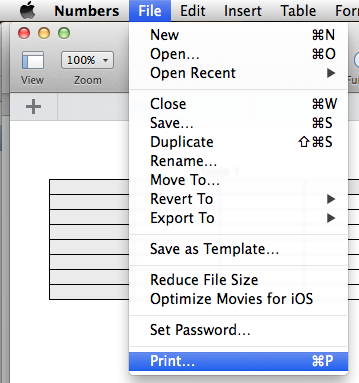
If there is no menubar, perhaps the keyboard shortcut command p will bring up a print dialogue.
I hold 2 fingers down on my trackpad, and "print" is not an option.
That doesn't work for me. Never has.
System Preferences > Trackpad > Scroll and Zoom shows Double-tap with two fingers for Smart Zoom, nothing at all to do with Print.
Please reply with a screen shot of a small part of your screen (large shots are often difficult to read).
To take a screen shot,
1. hold down the shift and command keys, then type 4. The cursor will change to crosshairs. Release the shift and command keys.
2. Drag over that part of your screen then release the mouse/trackpad. A screen shot will appear on your desktop.
3. In a reply to a message, click on the camera icon in the Toolbar above your reply and
4. Choose File > Choose > Insert Image.
If this does not work, Close the Insert Box (red cross on the top right) and go back to Step 3. Camera icon sometimes needs a wake-up call, but works the second time.
Remove any personal details before taking the screen shot.
Regards,
Ian.


