Here are a few additional information about this topic:
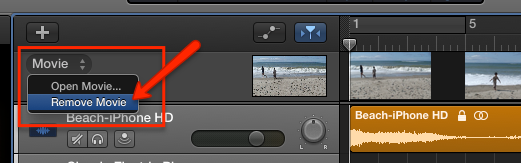
You can remove a Movie from a Project
- Make the Movie Track visible with shift+option+O
- Move your mouse over the word "Movie" in the Track Header. This changes it to a clickable menu button
- Click on the button and select "Remove Movie"
- This will remove the movie but leaves its Audio Track in your Project
About Unlocking the Audio Track
You can copy (option+drag) the Region onto another Audio Track, and that Region is then unlocked.
There is another workaround if you want to stay on the same Audio Track.
- Place the Playhead somewhere between the left and right border of that Region
- Select the Region and split it at that Playhead Position with the command cmd+T
- This splits the Region in to two Regions (the right one is selected). Both are still locked
- Now use the Cut command (cmd+X) and the Paste command (cmd+V). This will remove the second Region and places it right back. The difference is that the second Region now unlocked (due to the cut-paste procedure)
- Now drag the left border of the second Region (the unlocked one) all the way to the left, the beginning of your Project (you actually dragging it over the first Region).
- Voila, now you have the entire Region, unlocked. Now you can move it to where you you want.
Hope that helps
Edgar Rothermich
http://DingDingMusic.com/Manuals/
'I may receive some form of compensation, financial or otherwise, from my recommendation or link.'