Extracting audio from Movie file and moving it

In the previous generation of Garageband I was able to bring in a movie clip and then delete the video part and use the audio for small projects. I am trying Garageband 11 and there doesn't seem to be a way to delete the video part. And when I try to move the whole video down the track to add something in front of it, it won't 'slide" Now right after the name of the video there looks like there is a little lock icon. Is there a way to unlock this file to extract the audio?

iMac, OS X Mavericks (10.9.4)

Posted on Aug 25, 2014 9:47 AM

Reply
8 replies

Aug 25, 2014 10:06 AM in response to wallywyo

Are you really using GarageBand '11, version 6.0.5 or is that a typo? I am only seeing the lock on the movie audio track in the newest version, GarageBand 10.0.

In GarageBand 10.0 you can simply copy the audio from the movie audio track to new basic audio track. This copy will be unlocked and you can edit it. Then delete the original audio track and hide the Movie track.


The lock in GarageBand 10. Is that, what you are seeing?

User uploaded file

Aug 25, 2014 10:30 AM in response to wallywyo

so there is no way to delete the video track like you could in Garageband 6.0.5?

No, that is one of the big changes. The Movie Track is just for reference. It cannot be changed at all. You can view it and listen to it, and create a new sound track in GarageBand. When you are finished, you save the new soundtrack by using the command "File > Movie > Export Audio to Movie".


This will replace the audio track in your originally imported video file.

Aug 25, 2014 1:02 PM in response to wallywyo

Here are a few additional information about this topic:


You can remove a Movie from a Project

  • Make the Movie Track visible with shift+option+O
  • Move your mouse over the word "Movie" in the Track Header. This changes it to a clickable menu button
  • Click on the button and select "Remove Movie"
  • This will remove the movie but leaves its Audio Track in your Project
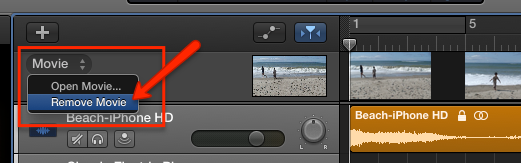
User uploaded file


About Unlocking the Audio Track

You can copy (option+drag) the Region onto another Audio Track, and that Region is then unlocked.

There is another workaround if you want to stay on the same Audio Track.


  • Place the Playhead somewhere between the left and right border of that Region
  • Select the Region and split it at that Playhead Position with the command cmd+T
  • This splits the Region in to two Regions (the right one is selected). Both are still locked
  • Now use the Cut command (cmd+X) and the Paste command (cmd+V). This will remove the second Region and places it right back. The difference is that the second Region now unlocked (due to the cut-paste procedure)
  • Now drag the left border of the second Region (the unlocked one) all the way to the left, the beginning of your Project (you actually dragging it over the first Region).
  • Voila, now you have the entire Region, unlocked. Now you can move it to where you you want.


Hope that helps


Edgar Rothermich

http://DingDingMusic.com/Manuals/

'I may receive some form of compensation, financial or otherwise, from my recommendation or link.'


This thread has been closed by the system or the community team. You may vote for any posts you find helpful, or search the Community for additional answers.

Extracting audio from Movie file and moving it

Welcome to Apple Support Community
A forum where Apple customers help each other with their products. Get started with your Apple Account.