Hello there, appleconfuse.
The following Knowledge Base article provides some great information in regards to using a Retina Display:
Frequently asked questions about using a Retina display - Apple Support
How do I adjust the resolution of my Retina display?
- MacBook Pro (Retina, 13-inch, Late 2012 and later) displays have a 2560-by-1600 native resolution at 227 pixels per inch with support for millions of colors.
- MacBook Pro (Retina, Mid 2012) and MacBook Pro (Retina, 15-inch, Early 2013 and later) displays have a 2880-by-1800 native resolution at 220 pixels per inch with support for millions of colors.
- iMac (Retina 5K, 27-inch, Late 2014) displays have a 5120-by-2880 native resolution with support for millions of colors.
If you need to adjust the display resolution, choose System Preferences from the Apple () menu. The Retina display offers scaled resolutions that allow you to have text and objects appear larger on screen, or to make them appear smaller which provides more space on screen. Note: Scaled resolutions do not offer the same visual quality as the Retina setting. Scaled resolutions may also impact graphics performance depending on which applications you are using.
MacBook Pro with Retina display (13-inch) scaled resolution choices
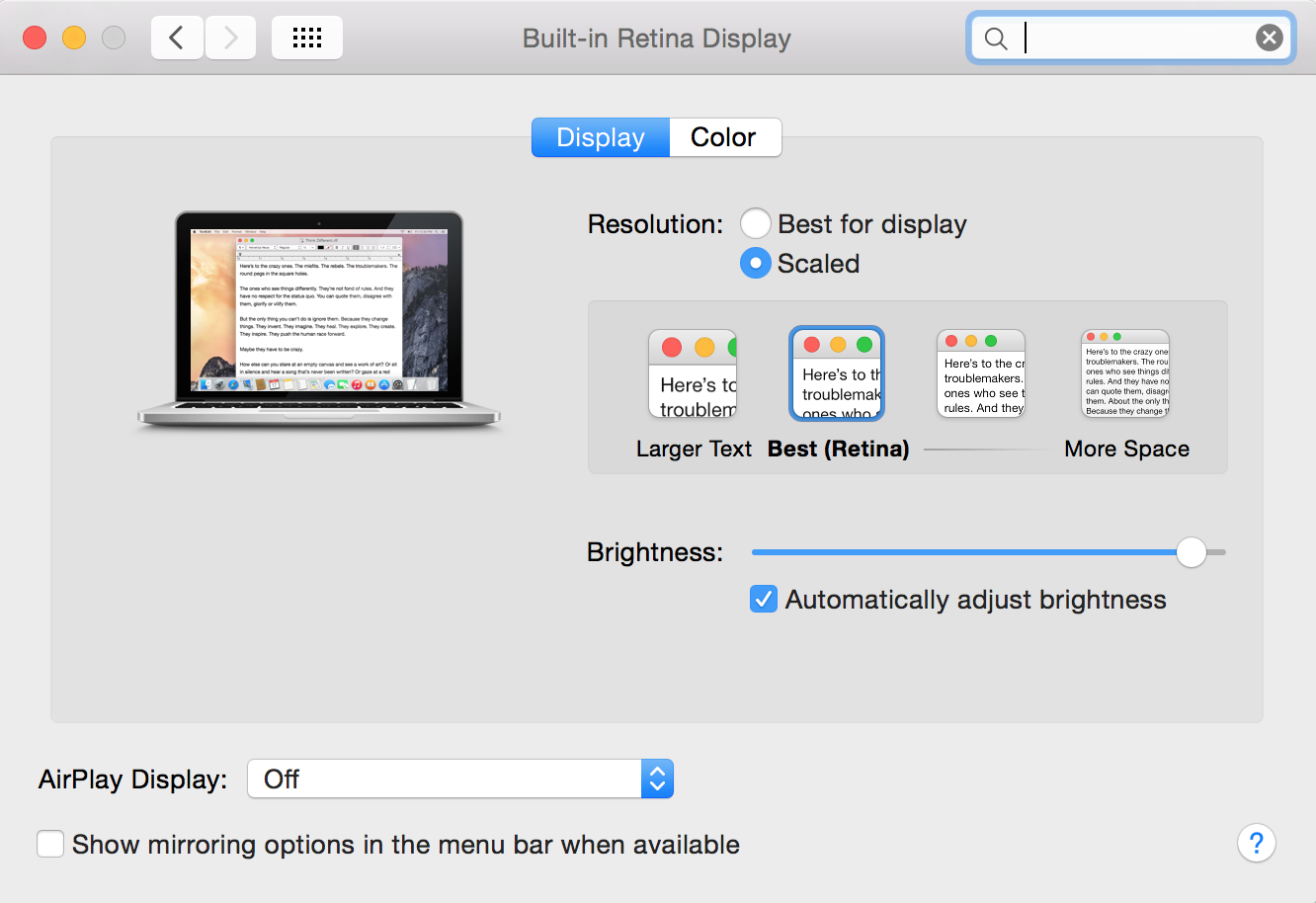
MacBook Pro with Retina display (15-inch) scaled resolution choices

iMac (Retina 5k, 27-inch, Late 2014) scaled resolution choices
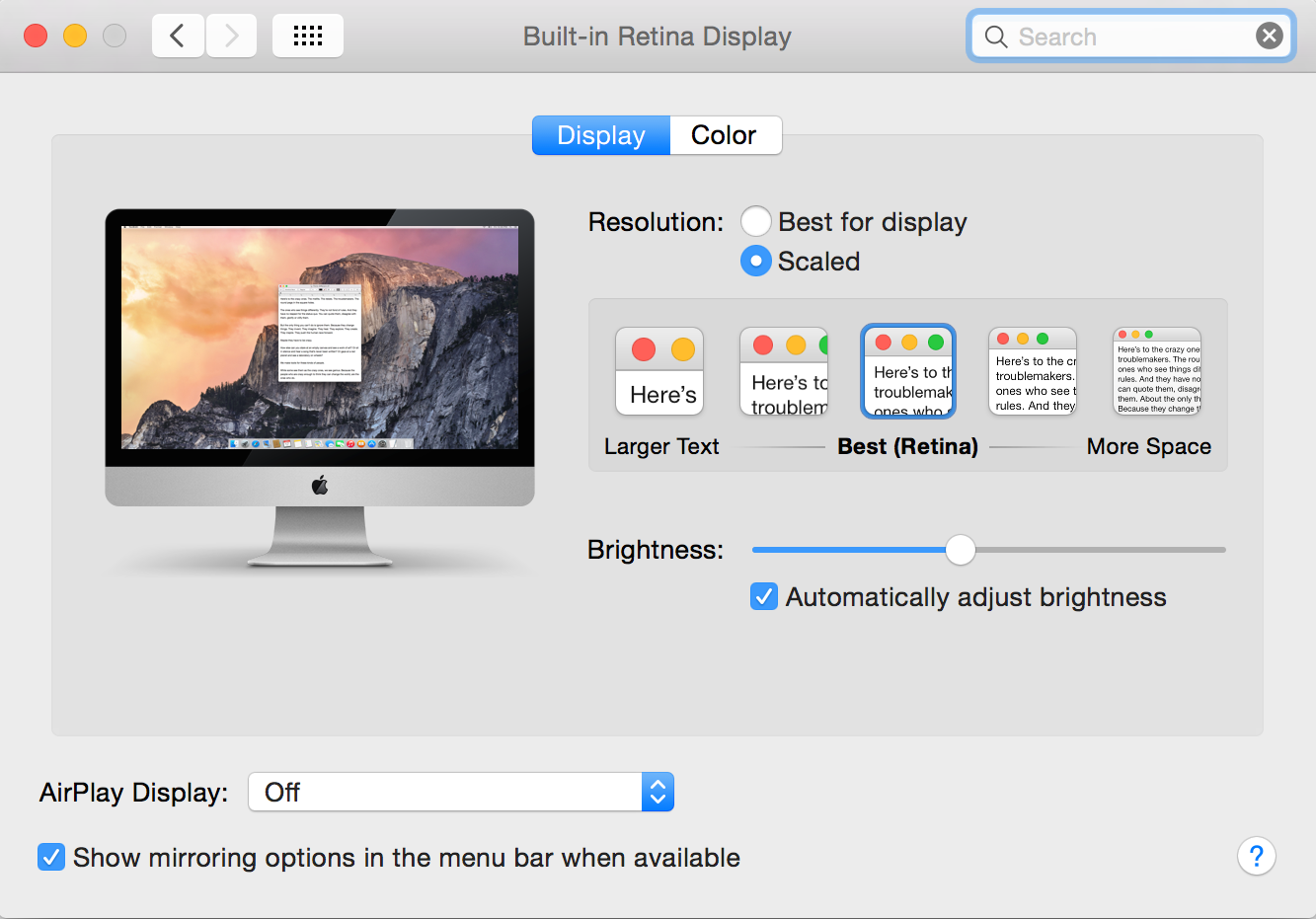
Retina displays only use scaled resolutions rather than specific resolution settings like external displays. If you need to use a different resolution than those available on the built-in display, consider attaching an external display via HDMI or Thunderbolt.
Thanks for reaching out to Apple Support Communities.
Cheers,
Pedro.


